

Partner requirements — overview
Section titled “Partner requirements — overview”As a SMART Migration partner, you resell the license and run customer projects yourself, under your own brand. We provide partner training up front, and quiet behind-the-scenes support for your first two customer projects. After that you deliver independently — appoint an internal main contact to triage questions before they reach us.
This is an ongoing baseline, not a one-off setup — required for every project, not just your first. The test Nextcloud server is optional — only relevant if it applies to how you’ll use SMART Migration.
Only want to check first whether SMART Migration is useful for you? The proof of concept (POC) needs less: one sandbox, no training set-up.
Contents
Section titled “Contents”- Costs
- Partner sandbox
- Microsoft 365 test tenant and App registration
- Test file share
- Test Nextcloud server (optional)
- Microsoft Power BI Desktop
- Training
- Pre-training checklist
Included in your partnership — no cost:
- Your SMART Migration partner license — install on as many machines as you like; it works with your own domains, listed when it is issued (Where a licence can run).
- VMware Workstation Pro — free for personal and commercial use (Broadcom, since Nov 2024), no license key needed.
- MetaVox — free, no license required, if you install it for Nextcloud metadata migrations.
Your cost
Section titled “Your cost”- A physical (or hosted) machine to run VMware Workstation on — sized so it can comfortably allocate 16 GB RAM to each sandbox VM you run on it.
- A Windows 11 Pro or Windows Server 2022+ license for that host machine, plus a separate Windows license for each VM you create in Workstation — VMware being free doesn’t cover the guest OS.
- Your Microsoft 365 tenant licensing.
Check with your account manager for current M365 tenant licensing costs.
Partner sandbox
Section titled “Partner sandbox”(Step-by-step sandbox setup guide)
Your sandbox is where you rehearse installs and configs until they’re second nature — keep it running long-term, not just for onboarding. It is the machine that runs the SMART Migration server: it reads the OneDrive accounts, the SharePoint sites and libraries, the libraries in Teams and the file shares of your test set-up, and writes to your test Nextcloud server (if you deliver Nextcloud migrations), so the files pass through it.
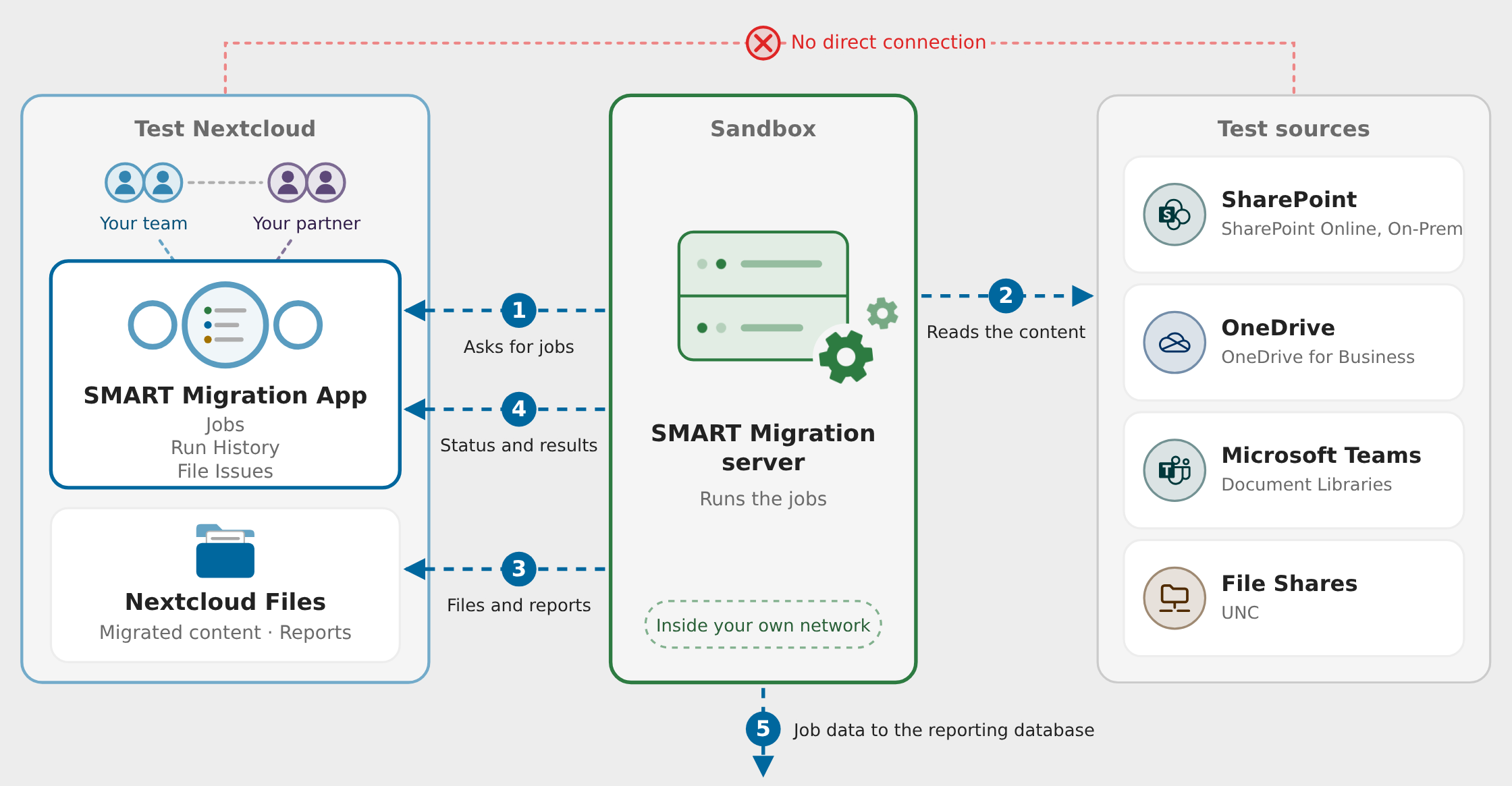
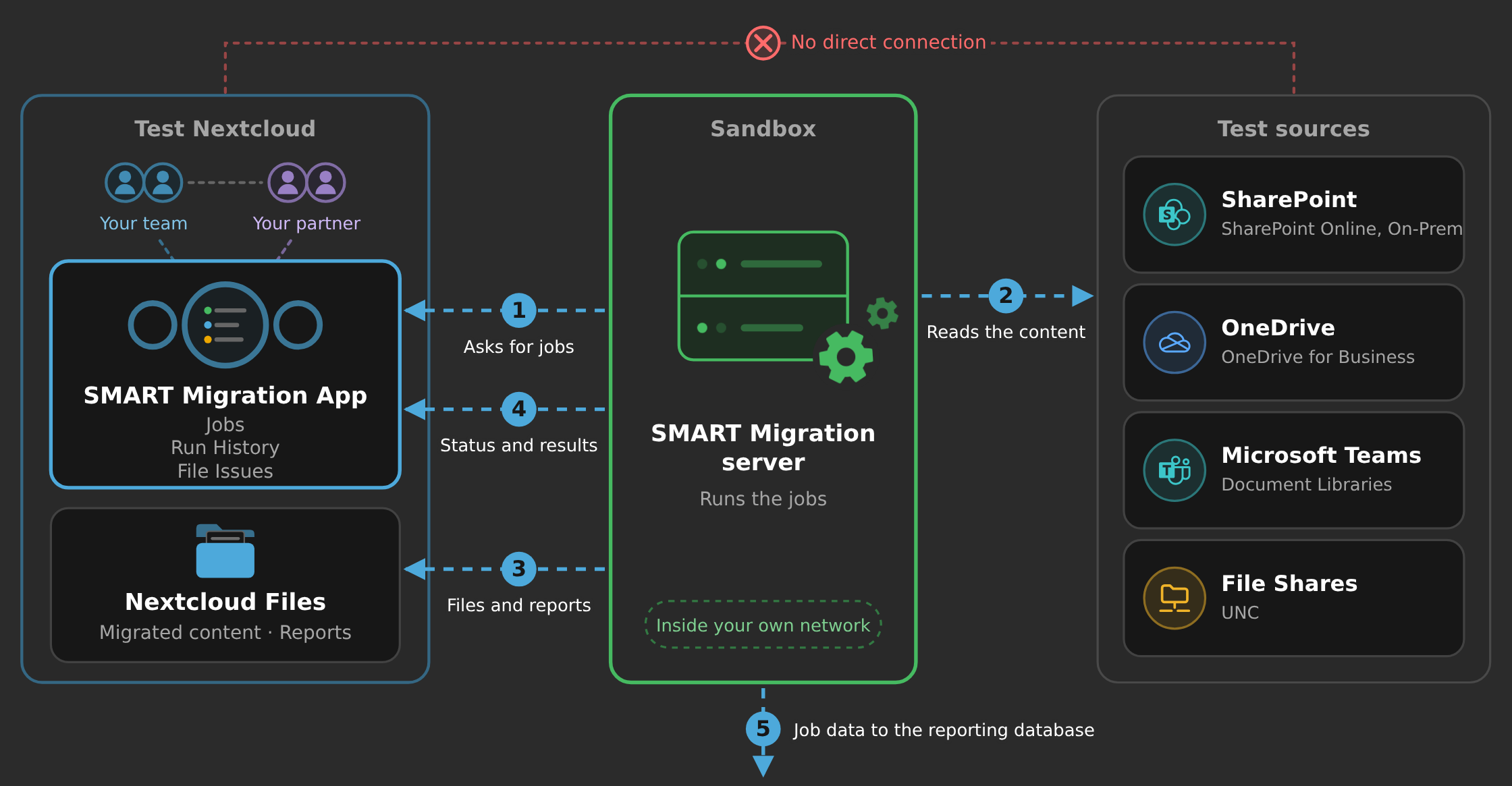
Diagram: in the partner POC, the three boxes are your own test set-up. The sandbox, a Windows VM or machine, runs the SMART Migration server. It asks the test Nextcloud server (with the SMART Migration app and the migrated files) for jobs, reads the content from the test sources (the Microsoft 365 test tenant and a test file share) and writes the files and reports to the test Nextcloud server, and sends the job data to the reporting database. Nextcloud and the sources have no direct connection.
The three boxes of the architecture are your own test set-up:
- Middle box — Sandbox: the Windows VM or machine running the SMART Migration server.
- Left box — Test Nextcloud (Nextcloud destinations): your test Nextcloud server, with the SMART Migration app and the migrated files.
- Right box — Test sources: your Microsoft 365 test tenant (OneDrive accounts, SharePoint sites and libraries, libraries in Teams) and a test file share.
The server asks the Nextcloud app for jobs, reads the content from the test tenant and writes the files to the test Nextcloud server. Nextcloud and the sources never connect directly.
For simplicity, the BI (reporting) database is installed automatically on the sandbox during setup, so there is nothing separate to install or host in your sandbox. The server writes the job data into it (step 5 in the picture), and Power BI reads it from there.
In production, the PostgreSQL database for BI is better installed elsewhere — as a hosted service or on another machine — so that users can reach it from Power BI without having access to the SMART Migration server's VM.
Read more about the architecture: How SMART Migration and the app work together · The architecture of the Nextcloud app · The reporting database · How SMART Migration installs: the repository and the BI database
The sandbox technical requirements
- Two or more machines, each independently rollable to a clean, patched state. Two machines let one stay free for live projects while the other trains/tests.
- 64-bit Windows 11 Pro or Windows Server 2022+ per machine (no macOS); Server 2022+ is required for Nextcloud destinations.
- Dual-core CPU, 16 GB RAM, 1920×1080 display.
- 30 GB free in the Windows Public folder, 50 GB free in Temp — more if you test with the large files below.
- Performance index (Account tab) ≥ 1.0.
VMs work great here. VMware Workstation Pro (free, no license key) runs on a 64-bit Windows 11 or Server 2022+ host — physical or virtual (a VM host needs nested virtualization enabled by its own platform). Give each sandbox VM a full 16 GB RAM on top of host overhead, and its own Windows 11 Pro/Server 2022+ license. Snapshots handle roll-back; no need for a paid VPS or Azure VM.
Minimum specs suffice for the sandbox — the recommended spec is for live customer workloads. Performance index is the most reliable real-world measure since CPU/clock speed is virtualised — just confirm ≥1.0 per machine. Size the host so each VM can hit 16 GB RAM and the disk figures above, even with two running at once. See System requirements.
Partner license
Unrestricted — install on as many machines as you like, physical or virtual, with no machine count to keep track of. It's whitelisted to your own domains, so it runs right across your sandbox while staying tied to you — and cannot connect to a customer's SharePoint Online; customer projects run on a commercial licence.
Microsoft 365 test tenant and App registration
Section titled “Microsoft 365 test tenant and App registration”What the tenant needs
Use a dedicated M365 tenant, separate from production and customer tenants, populated with realistic content:
- SharePoint and Teams: sites and Teams with version history and metadata (custom columns, content types) — not just plain files. At least one SharePoint library and one library in a Teams team.
- OneDrive: at least two OneDrive accounts. The email address of one OneDrive user must match one of the two users on the test Nextcloud server, so SMART Migration can map the OneDrive to the Nextcloud user (Test Nextcloud server).
- Small and large files: from under 10 KB to over 1 GB, in each OneDrive, library and file share.
- With and without version history: both the small and the large files exist with and without version history.
- Version history on the large files: give special weight to files over 1 GB with many versions.
A few files with 100+ versions can be generated by SMART Migration itself.
App registration
SMART Migration authenticates via an Entra ID App registration (certificate + API permissions + admin consent), not an interactive login. You’ll need one per customer tenant, so practise in your sandbox first using the App registration guide.
In your sandbox tenant, the app registration needs the full permissions of the guide, with admin consent. Do not use Sites.Selected, and do not reduce the permissions in any other way, so it can reach all the content of the test tenant. Reduced permissions are something for a production set-up (Limit access to selected sites).
Your partner licence works only with your own SharePoint Online and OneDrive domains and server names, listed when it is issued — it cannot connect to a customer's tenant. A customer project runs on a commercial licence: installed on one server, which can be your own, and not tied to a tenant or a customer, so it can migrate within one tenant or between tenants, with an app registration in each (Where a licence can run · More than one tenant). The customer's files then pass through your server, so agree that with the customer's IT.
Test file share
Section titled “Test file share”What the file share needs
A file share for testing file-share sources. The sandbox reads file shares as the Windows account the SMART Migration server runs under, with that account's own permissions. That Windows account must have access to a file share holding some files — small and large. Use the UNC path of the share (\\server\share) as the source.
Test Nextcloud server (optional)
Section titled “Test Nextcloud server (optional)”Only needed if you’ll deliver Nextcloud migrations — skip this entirely if you’re SharePoint-only.
What the test Nextcloud server needs (Nextcloud destinations)
Requires full admin access (for Team Folders, users/groups, and content transfer) and Nextcloud v34.x or newer. It must have:
- Two users. One has the same email address as a user in the test Microsoft 365 tenant's OneDrive, so SMART Migration can map that OneDrive to the Nextcloud user. The other has a different email address, so you also see what happens without a match.
- Two administrators. These can be the same two users. You use the two of them to work in a multi-user set-up, as two people at once (Working together).
- A group named "Migration users" with the two users as members.
MetaVox 3.1 (optional)
Install MetaVox version 3.1 (MetaVox in the Nextcloud App Store) on the test Nextcloud server. It is optional, but essential for migrating metadata and SharePoint views: Nextcloud has no structured metadata of its own, and without MetaVox the files migrate without their SharePoint columns and views. MetaVox is free, no license needed.
Read more: Metadata, MetaVox and SharePoint views
Microsoft Power BI Desktop
Section titled “Microsoft Power BI Desktop”Power BI Desktop
What it is for: Power BI Desktop opens SMART BI.pbix, the report with the data of the discovery of the files, for assessment, and of the migration: charts, tables and filters.
- Discovery and assessment, before the migration: the files found in the source — volumes, age, file types, version history and metadata — to assess and scope the migration.
- During the migration: progress, job status, throughput, errors and the status of every file.
- After the migration: what was migrated, from where to where, with metadata and version information, and what was left behind.
Use it in your sandbox to check the result — for example, that the large files kept their version history.
Cost: free
Microsoft Power BI Desktop is free. It is a Windows program from Microsoft and needs no licence and no subscription. Download Power BI Desktop from Microsoft.
Where it gets its data: from the PostgreSQL database on the sandbox, through the ODBC data source SMARTBI. Both are installed and configured during setup, so you only install Power BI Desktop, on the sandbox. Nothing you click in the report changes the data or the migration. In production the database is better placed elsewhere (see Partner sandbox).
Read more: Business intelligence with Power BI · Power BI for first-time users · Refresh, upload and share SMART BI.pbix
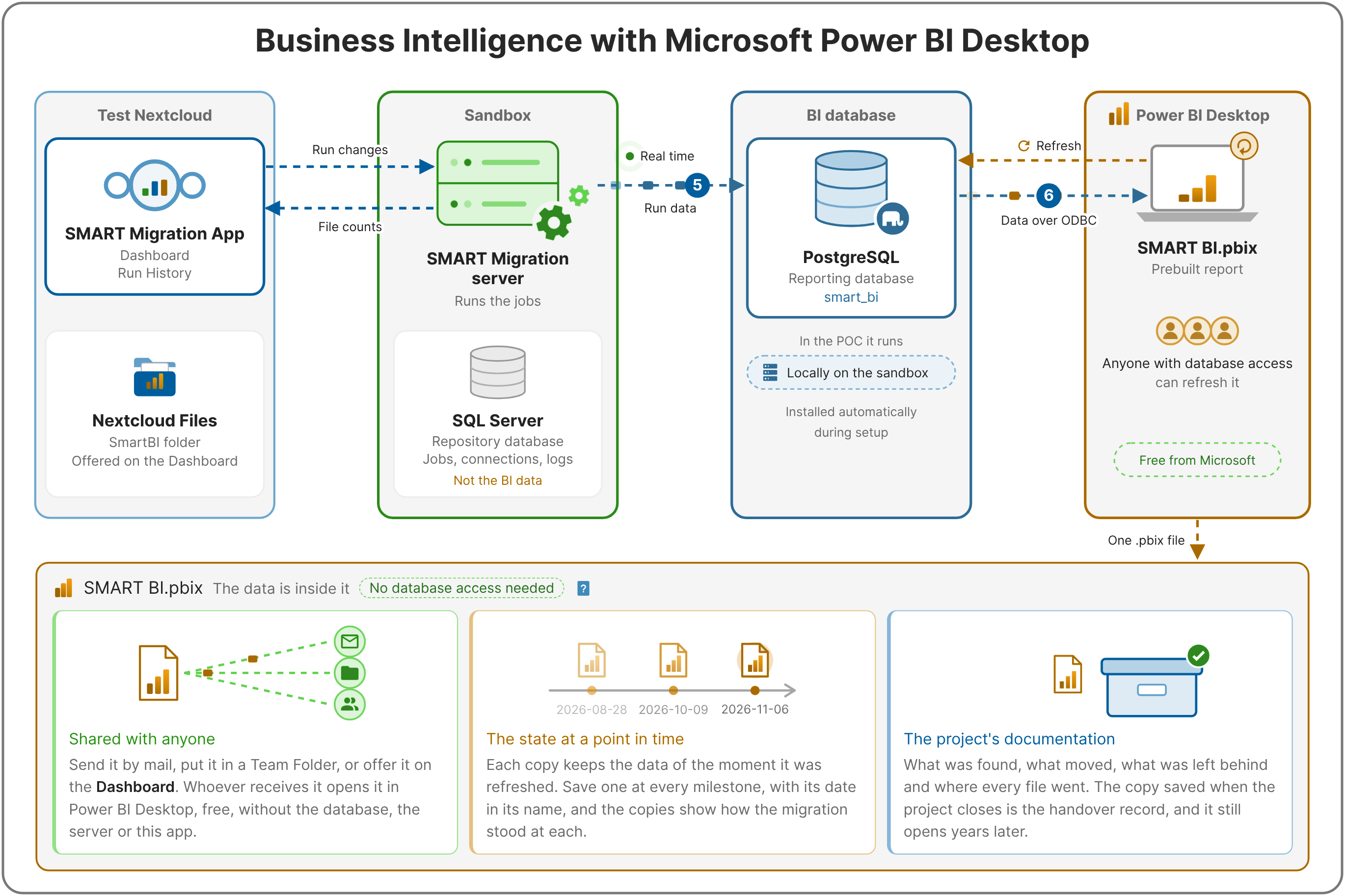
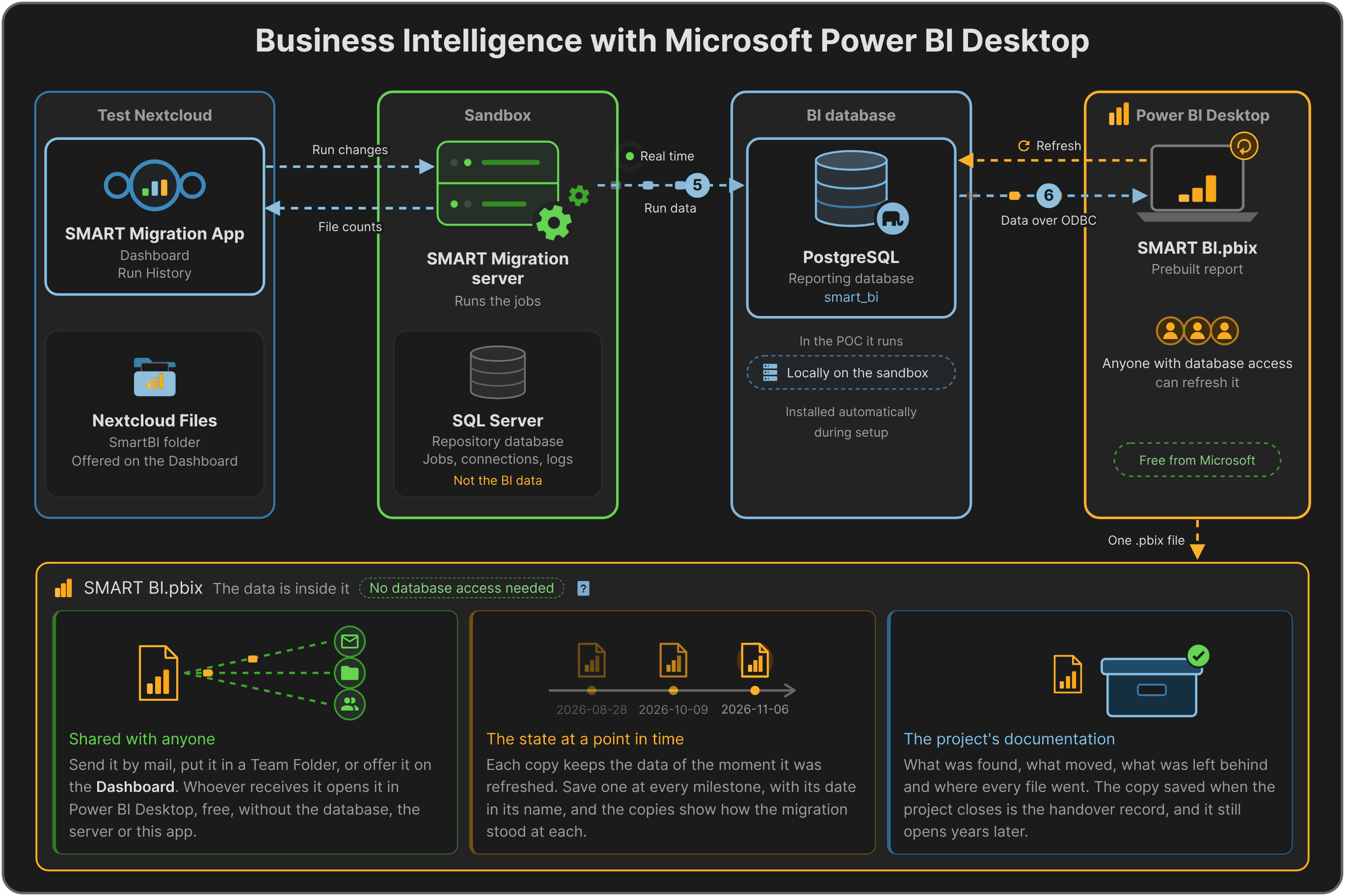
Diagram: Business Intelligence with Microsoft Power BI Desktop in the partner POC. The SMART Migration server in the sandbox pushes the data of every run, in real time, into the BI database: PostgreSQL, which in the POC runs locally on the sandbox and is installed automatically during setup. Power BI Desktop refreshes SMART BI.pbix from that database over ODBC. The saved file carries its data: it is shared with anyone, keeps the state of its refresh date and documents the project.
In your sandbox, the PostgreSQL BI database runs locally on the sandbox, installed automatically during setup. The SMART Migration server writes the run data into it in real time (step 5), and Power BI Desktop reads it over ODBC (step 6) to refresh SMART BI.pbix.
Training
Section titled “Training”Three ~2-hour sessions over Microsoft Teams, with the consultant able to remote-control your machine to demonstrate and troubleshoot live — join Teams from the sandbox machine (or host) itself. You don’t need an existing Teams deployment for this; joining a meeting as a guest is enough.
Come with a working understanding of both M365/SharePoint and Nextcloud, and all access (App registration, tenant, Nextcloud admin) already configured — so sessions focus on SMART Migration, not permissions.
Pre-training checklist
Section titled “Pre-training checklist”Before the training
- Two+ rollable machines (Windows 11 Pro / Server 2022+).
- Each meeting minimum specs, performance index ≥1.0.
- VMware Workstation Pro (free) or equivalent, with snapshots.
- Windows 11 Pro / Server 2022+ license for host and each VM.
- Dedicated M365 tenant, separate from production.
- For BI: tenant populated with versioned/metadata content and a file share; demo files under 10 KB to over 1 GB, including 100+-version files.
- At least two OneDrive users, each with small and large (>1 GB) files, with and without version history; at least one SharePoint library and one library in a Teams team, with small and large files.
- A file share with small and large files, readable by the Windows account the SMART Migration server runs under.
- Optional — if you’ll be migrating to Nextcloud: test server (v34.x+) with full admin access, two users (one with the same email address as a OneDrive user, one with a different one), two administrators (may be the same two users) and a group "Migration users" holding the two users; optionally MetaVox 3.1, for metadata and SharePoint views.
- M365 App registration in your sandbox tenant, with full permissions.
- Microsoft Power BI Desktop (free download), on the sandbox.
- Microsoft Teams available for training calls (guest join is fine — no license needed), with your sandbox machine reachable for remote control.
- SMART Migration (downloaded) and installed, partner license key applied.
Register your SharePoint domain (e.g. MyDomain.sharepoint.com) with MigrateDMS before using your partner license — contact your account manager.
See also