

Partner POC
Section titled “Partner POC”The goal of the POC is to let you, as a partner, validate that SMART Migration is useful for you and your customers. Over 14 days you migrate a small, realistic set of OneDrive, SharePoint, Teams and file share content to Nextcloud and check the result: the files, their sizes and their version history.
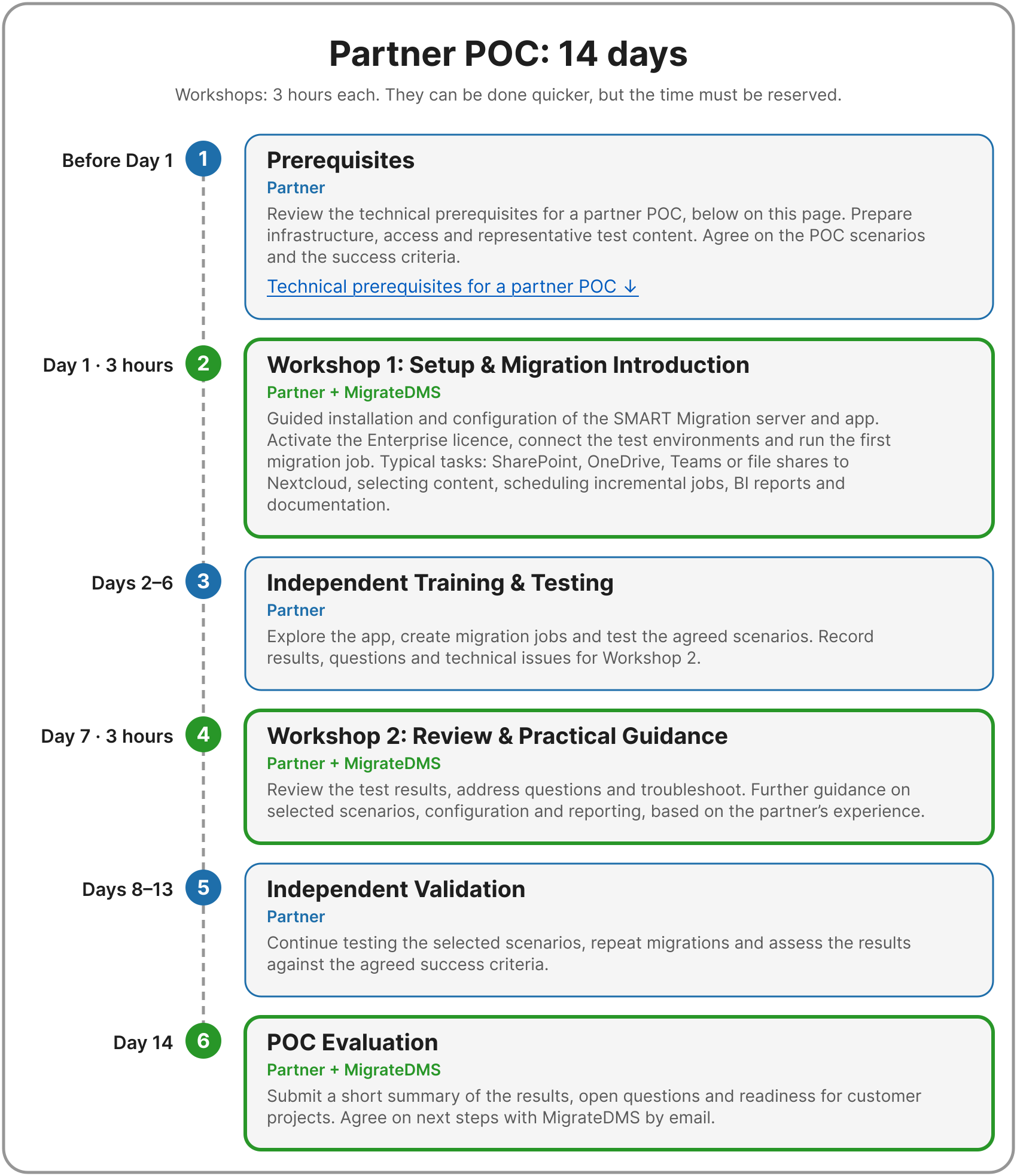
The 14 days of the partner POC. Workshops: 3 hours each. They can be done quicker, but the time must be reserved.
- Prerequisites — before Day 1 (Partner): review the technical prerequisites for a partner POC, the rest of this topic. Prepare infrastructure, access and representative test content. Agree on the POC scenarios and the success criteria.
- Workshop 1: Setup & Migration Introduction — Day 1, 3 hours (Partner + MigrateDMS): guided installation and configuration of the SMART Migration server and app. Activate the Enterprise licence, connect the test environments and run the first migration job. Typical migration tasks: SharePoint, OneDrive, Teams or file shares to Nextcloud, selecting content, scheduling incremental jobs, BI reports and documentation. Prioritise the scenarios relevant to the partner.
- Independent Training & Testing — Days 2–6 (Partner): explore the app, create migration jobs and test the agreed scenarios. Record results, questions and technical issues for Workshop 2.
- Workshop 2: Review & Practical Guidance — Day 7, 3 hours (Partner + MigrateDMS): review the test results, address questions and troubleshoot. Further guidance on selected scenarios, configuration and reporting, based on the partner's experience.
- Independent Validation — Days 8–13 (Partner): continue testing the selected scenarios, repeat migrations and assess the results against the agreed success criteria.
- POC Evaluation — Day 14 (Partner + MigrateDMS): submit a short summary of the results, open questions and readiness for customer projects. Agree on next steps with MigrateDMS by email.
Contents
Section titled “Contents”- Included in the programme
- Technical prerequisites for a partner POC — the rest of this topic
Included in the programme
Section titled “Included in the programme”Free
The POC is free — there is no fee to MigrateDMS.
What the programme includes
- Enterprise licence: a 14-day SMART Migration Enterprise licence, starting on the agreed POC start date.
- Guided workshops: two workshops of up to 3 hours each — 6 hours of guided support in total. They can be done quicker, but the time must be reserved.
- MigrateDMS support: support for installation, configuration and technical questions relating to the agreed POC scenarios.
- Partner commitment: prepare the environment and allocate time for independent training and testing between the workshops.
- Expected outcome: a working test environment, documented test results and an understanding of how SMART Migration can support customer projects.
- Technical prerequisites: Technical prerequisites for a partner POC — the rest of this topic.
Technical prerequisites for a partner POC
Section titled “Technical prerequisites for a partner POC”The rest of this topic: Technical prerequisites for a partner POC
Everything below is what you prepare in step 1, before Day 1: the sandbox, the Microsoft 365 test tenant with its App registration, the test file share, the test Nextcloud server, Power BI Desktop and the checklist. Have it ready before Workshop 1.
This is lighter than the full Technical prerequisites for partners: one sandbox is enough, and you don't need the training set-up.
Sandbox
Section titled “Sandbox”The sandbox is the machine that runs the SMART Migration server: it reads the OneDrive accounts, the SharePoint libraries and the libraries in Teams in your test tenant, and the file shares you point it to, and writes to your test Nextcloud server, so the files pass through it. One sandbox is enough for a POC — two are only a suggestion, so one can stay free while the other is used. (Step-by-step sandbox setup guide)
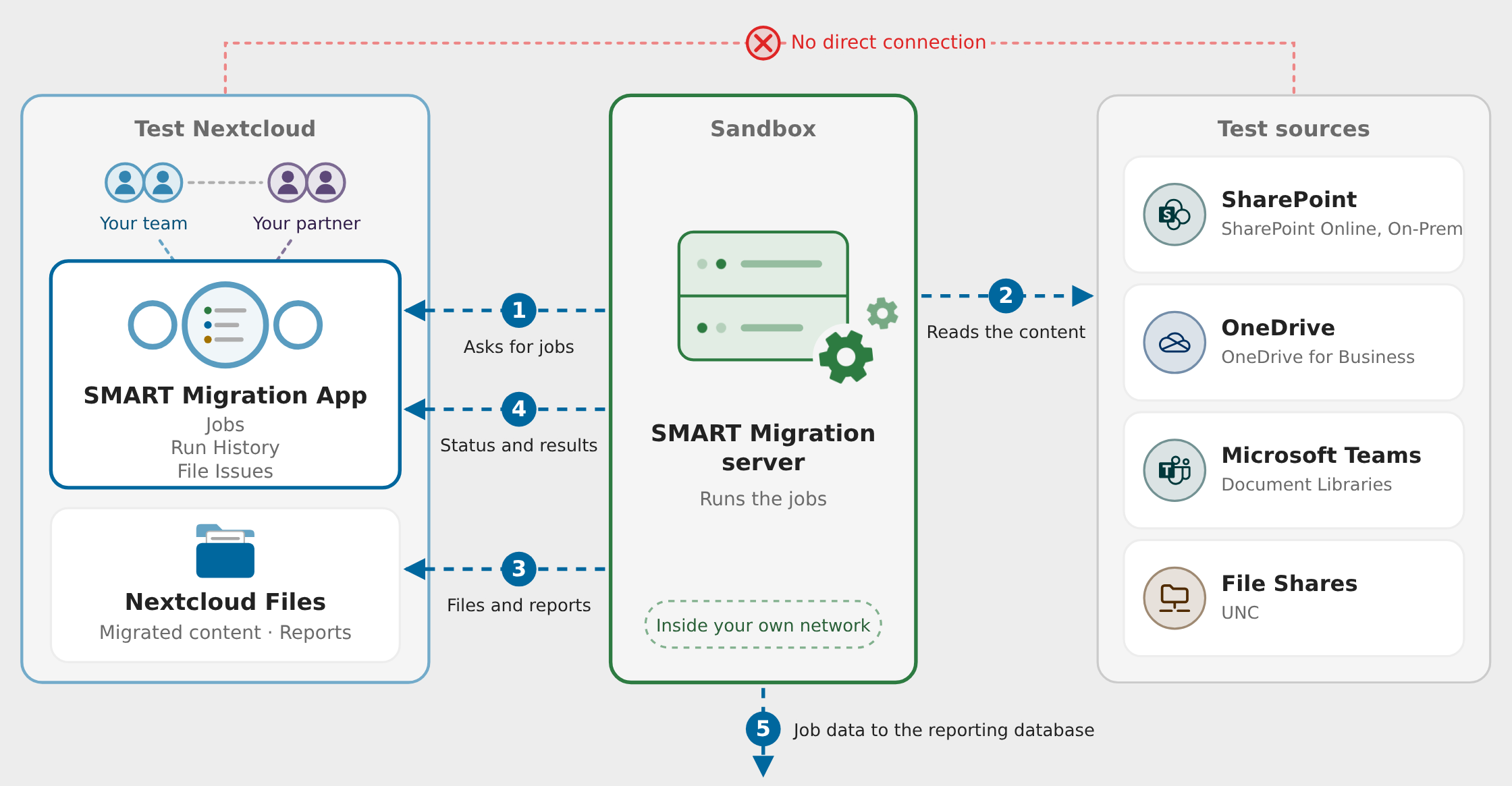
Diagram: in the partner POC, the three boxes are your own test set-up. The sandbox, a Windows VM or machine, runs the SMART Migration server. It asks the test Nextcloud server (with the SMART Migration app and the migrated files) for jobs, reads the content from the test sources (the Microsoft 365 test tenant and a test file share) and writes the files and reports to the test Nextcloud server, and sends the job data to the reporting database. Nextcloud and the sources have no direct connection.
In the POC, the three boxes of the architecture are your own test set-up:
- Middle box — Sandbox: the Windows VM or machine running the SMART Migration server.
- Left box — Test Nextcloud: your test Nextcloud server, with the SMART Migration app and the migrated files.
- Right box — Test sources: your Microsoft 365 test tenant (OneDrive accounts, SharePoint libraries, libraries in Teams) and a test file share.
The server asks the Nextcloud app for jobs, reads the content from the test tenant and writes the files to the test Nextcloud server. Nextcloud and the sources never connect directly.
For simplicity, the BI (reporting) database is installed automatically on the sandbox during setup, so there is nothing separate to install or host for the POC. The server writes the job data into it (step 5 in the picture), and Power BI reads it from there.
In production, the PostgreSQL database for BI is better installed elsewhere — as a hosted service or on another machine — so that users can reach it from Power BI without having access to the SMART Migration server's VM.
Read more about the architecture: How SMART Migration and the app work together · The architecture of the Nextcloud app · The reporting database · How SMART Migration installs: the repository and the BI database
The sandbox technical requirements
- 64-bit Windows 11 Pro or Windows Server 2022+ (no macOS), physical or a VM. VMware Workstation Pro (free) with a snapshot lets you roll back to a clean state.
- Dual-core CPU, 16 GB RAM, 1920×1080 display.
- 30 GB free in the Windows Public folder, 50 GB free in Temp — more if you test with the large files below.
- Performance index (Account tab) ≥ 1.0.
See System requirements.
Microsoft 365 test tenant and App registration
Section titled “Microsoft 365 test tenant and App registration”What the tenant needs
Use a dedicated M365 tenant, separate from production and customer tenants. It needs at least two OneDrive accounts:
- Matching user: the email address of one OneDrive user must match one of the two users on the test Nextcloud server, so SMART Migration can map the OneDrive to the Nextcloud user (Test Nextcloud server).
- Small and large files: each OneDrive holds small files and large files (over 1 GB).
- With and without version history: both the small and the large files exist with and without version history.
- Version history on the large files: give special weight to files over 1 GB with many versions — this is where a migration is hardest and where the POC tells you the most.
The tenant also needs at least one SharePoint library and one library in a Teams team, holding small and large files as well, so the POC shows every kind of source.
A few files with 100+ versions can be generated by SMART Migration itself.
App registration
SMART Migration authenticates via an Entra ID App registration (certificate + API permissions + admin consent), not an interactive login. Create one in your test tenant with the App registration guide.
For the POC, the app registration needs the full permissions of the guide, with admin consent. Do not use Sites.Selected, and do not reduce the permissions in any other way — the POC must be able to reach all the content of the test tenant. Reduced permissions are something for a production set-up (Limit access to selected sites).
The POC runs on a 14-day SMART Migration Enterprise licence, activated in Workshop 1.
Test file share
Section titled “Test file share”What the file share needs
The sandbox reads file shares as the Windows account the SMART Migration server runs under, with that account's own permissions. That Windows account must have access to a file share holding some files — small and large — so the POC covers file shares too. Use the UNC path of the share (\\server\share) as the source.
Test Nextcloud server
Section titled “Test Nextcloud server”What the test Nextcloud server needs
The destination of the POC. Requires full admin access (for users and content transfer) and Nextcloud v34.x or newer. It must have:
- Two users. One has the same email address as a user in the test Microsoft 365 tenant's OneDrive, so SMART Migration can map that OneDrive to the Nextcloud user. The other has a different email address, so the POC also shows what happens without a match.
- Two administrators. These can be the same two users. You use the two of them to work in a multi-user set-up, as two people at once (Working together).
- A group named "Migration users" with the two users as members.
MetaVox 3.1 (optional)
Install MetaVox version 3.1 (MetaVox in the Nextcloud App Store) on the test Nextcloud server. It is optional, but essential for migrating metadata and SharePoint views: Nextcloud has no structured metadata of its own, and without MetaVox the files migrate without their SharePoint columns and views. MetaVox is free, no license needed.
Read more: Metadata, MetaVox and SharePoint views
Microsoft Power BI Desktop
Section titled “Microsoft Power BI Desktop”Power BI Desktop
What it is for: Power BI Desktop opens SMART BI.pbix, the report with the data of the discovery of the files, for assessment, and of the migration: charts, tables and filters.
- Discovery and assessment, before the migration: the files found in the source — volumes, age, file types, version history and metadata — to assess and scope the migration.
- During the migration: progress, job status, throughput, errors and the status of every file.
- After the migration: what was migrated, from where to where, with metadata and version information, and what was left behind.
In the POC, use it to check the result — for example, that the large files kept their version history.
Cost: free
Microsoft Power BI Desktop is free. It is a Windows program from Microsoft and needs no licence and no subscription. Download Power BI Desktop from Microsoft.
Where it gets its data: from the PostgreSQL database on the sandbox, through the ODBC data source SMARTBI. Both are installed and configured during setup, so you only install Power BI Desktop, on the sandbox. Nothing you click in the report changes the data or the migration. In production the database is better placed elsewhere (see Sandbox).
Read more: Business intelligence with Power BI · Power BI for first-time users · Refresh, upload and share SMART BI.pbix
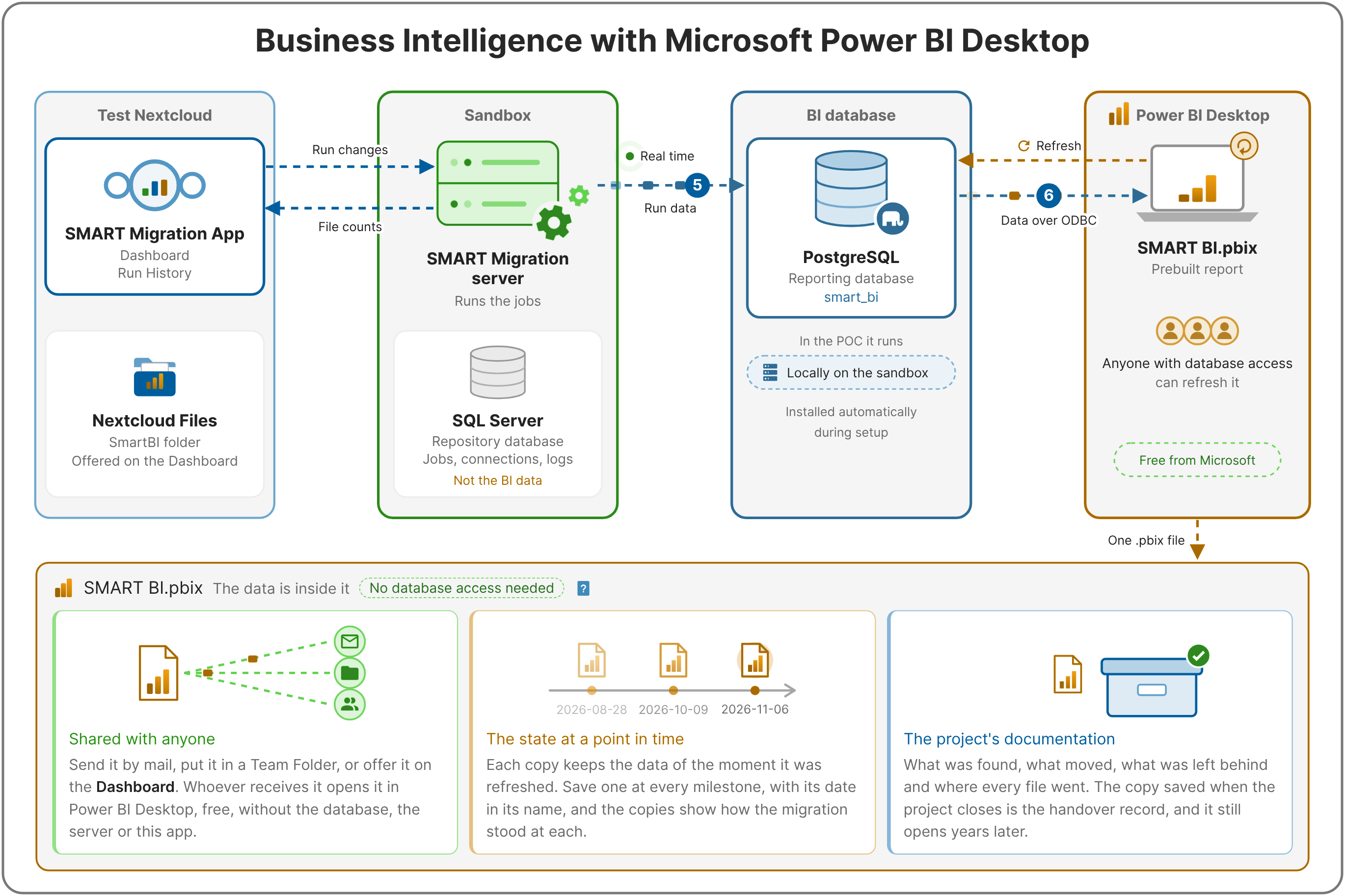
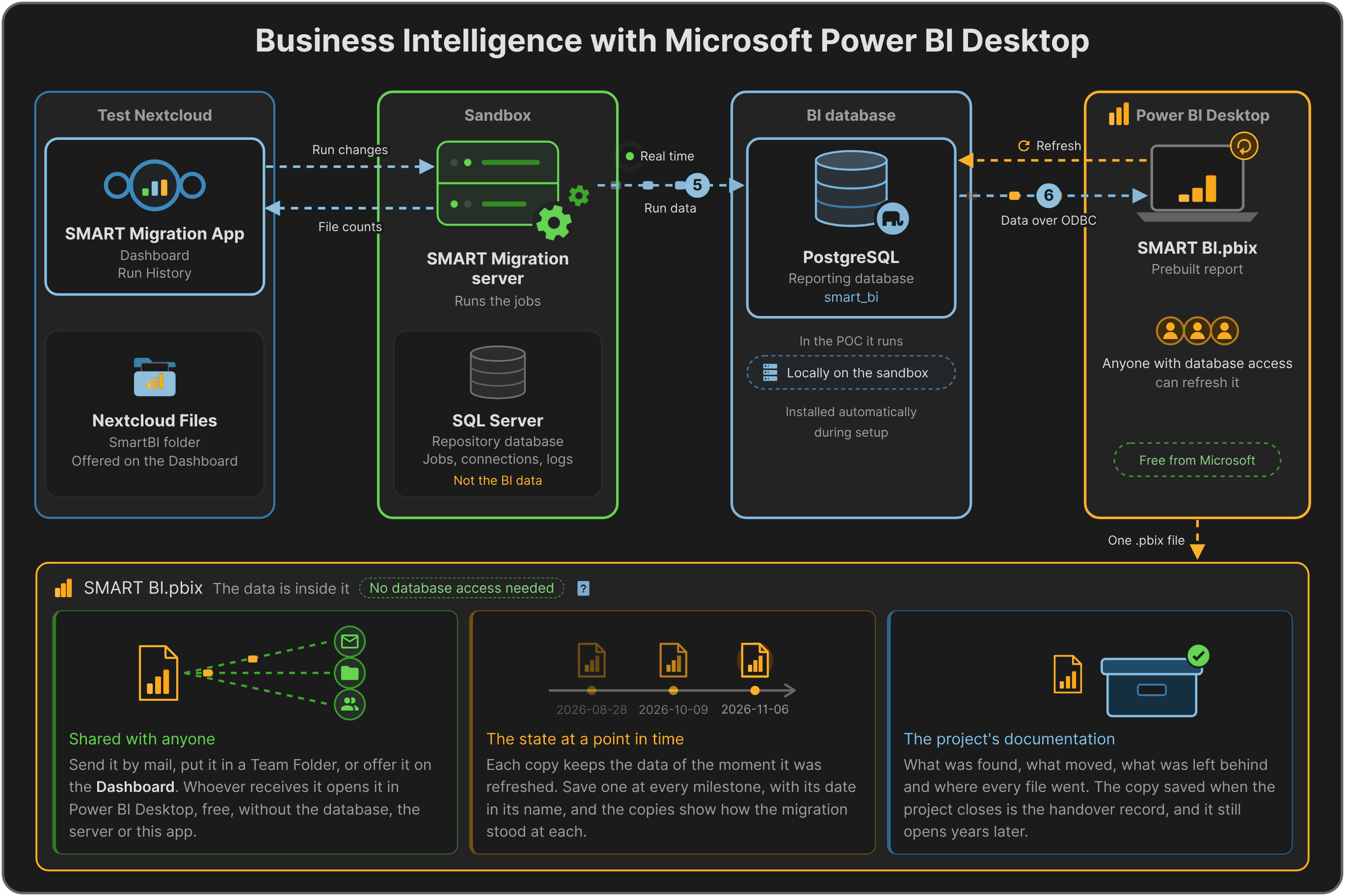
Diagram: Business Intelligence with Microsoft Power BI Desktop in the partner POC. The SMART Migration server in the sandbox pushes the data of every run, in real time, into the BI database: PostgreSQL, which in the POC runs locally on the sandbox and is installed automatically during setup. Power BI Desktop refreshes SMART BI.pbix from that database over ODBC. The saved file carries its data: it is shared with anyone, keeps the state of its refresh date and documents the project.
In the POC, the PostgreSQL BI database runs locally on the sandbox, installed automatically during setup. The SMART Migration server writes the run data into it in real time (step 5), and Power BI Desktop reads it over ODBC (step 6) to refresh SMART BI.pbix.
Checklist
Section titled “Checklist”Before you start
- One sandbox (Windows 11 Pro / Server 2022+), minimum specs, performance index ≥1.0.
- A dedicated M365 test tenant, separate from production.
- At least two OneDrive users, each with small and large (>1 GB) files, with and without version history.
- At least one SharePoint library and one library in a Teams team, with small and large files.
- A file share with small and large files, readable by the Windows account the SMART Migration server runs under.
- A test Nextcloud server (v34.x+) with full admin access, two users (one with the same email address as a OneDrive user, one with a different one), two administrators (may be the same two users) and a group "Migration users" holding the two users; optionally MetaVox 3.1, for metadata and SharePoint views.
- An M365 App registration in the test tenant.
- Microsoft Power BI Desktop (free download), on the sandbox.
- Nothing to install beforehand: SMART Migration and its app are installed and configured with MigrateDMS in Workshop 1, with the Enterprise licence.
See also