

Digital operational resilience
Keep the documents your business cannot do without available in Nextcloud — current, under your own control, and documented file by file. This article explains how the SMART Migration app for Nextcloud supports digital operational resilience, including DORA.
Key point
A resilience copy is only as good as what you can show about it. If you cannot see what was copied, and when, a script is not enough for a DORA setup.
| Independent copy Critical documents kept in Nextcloud, outside Microsoft 365, on infrastructure you control. | Full visibility Power BI reporting on every file and every run. | Managed in Nextcloud Jobs, schedules, status and history in one place. |
|---|
Contents
Section titled “Contents”- The problem: one provider, one point of failure
- DORA in brief
- Power BI: know exactly what you have
- Why a script is not enough
- Managed from inside Nextcloud
- How it works
- A resilience setup, end to end
- Two ways to deploy
- Choosing what to protect
- Getting to the copy when you need it
- After the emergency: the work goes back
- Your part of the job
The problem: one provider, one point of failure
Section titled “The problem: one provider, one point of failure”If the documents behind a critical business function exist only in Microsoft 365, that function stops when Microsoft 365 does. An outage, a lost tenant or a geopolitical decision outside your control is enough.
The answer is an independent copy with a different provider, on infrastructure you control — and a way to know what is in it. SMART Migration provides both: recurring jobs keep the copy in Nextcloud, and every run is recorded.
DORA in brief
Section titled “DORA in brief”Digital Operational Resilience Act — Regulation (EU) 2022/2554 In force since January 2025 for banks, insurers, investment firms and the ICT providers they rely on. It asks them to:
- keep critical functions running through ICT disruption
- manage concentration risk in third-party ICT providers
- be able to demonstrate how they do both
That last point is where reporting comes in: a resilience copy has to be demonstrable.
One control, not a compliance stamp SMART Migration certifies nothing. It supports one control among many — deciding the scope, testing the copy and presenting the evidence stay with you and your auditor.
Power BI: know exactly what you have
Section titled “Power BI: know exactly what you have”Every protected file, what was copied, when, and where it lives in Nextcloud.
Every file a job processes is recorded: where it came from, when it was copied, and where it now lives in Nextcloud. The data goes into a reporting database, and the supplied Power BI reports turn it into a complete overview of the protected content.
Slice and dice the protected set Filter and drill down by source, folder, file type, size, age or run — down to the individual file, including any that did not make it.
This is what makes the copy usable when it matters:
| Before an incident Confirm the protected set is complete and current. | During an incident Find the documents you need, and know how fresh they are. | After an incident Show the auditor what was available, and when. |
|---|
The report is a file — and that is its strength
Section titled “The report is a file — and that is its strength”The Power BI report is a single .pbix file, opened in Power BI Desktop, which Microsoft provides free of charge. A refresh pulls the current data from the reporting database and stores it inside the file, so the file carries its own data from then on.
| Opens anywhere No database, credentials or SMART Migration needed to read it — also during an outage, or years later. | Shareable Email it, store it in Nextcloud Files, or hand it to the auditor. |
|---|---|
| Point-in-time evidence Each saved copy keeps the data it had when refreshed. Save one at regular intervals for a history of the protected set. | Yours to adapt The templates are not locked — add pages, change visuals, apply your own colours. |
The reporting database is ordinary PostgreSQL (the default) or Microsoft SQL Server, so other BI tools — Tableau, Qlik, Looker or Excel — can read it directly. The templates are a head start, not a requirement.
Why a script is not enough
Section titled “Why a script is not enough”With a file share as the source, a PowerShell script in Task Scheduler may look like a simpler option — whether it is written by a developer or generated by AI.
Mission critical
This is not a small system running unnoticed in the basement. When Microsoft 365 is unavailable, this copy is what the business runs on. A failure at that moment is expensive — and it must be treated as the critical system it is.
A script is simple by design. It is written for a single purpose, tested a bit here and there, and then left to run. At best, it writes a simple CSV file or an entry in the event log. That may be enough for a background task nobody depends on — but not for the system that replaces Microsoft 365 the day it is really needed.
Things also go wrong in every system, all the time: credentials expire, storage fills up, paths change, the network drops. A script rarely notices. A SMART Migration job has notifications built in, so problems are reported when they happen — not discovered the day someone needs the copy.
| Scheduled script | SMART Migration | |
|---|---|---|
| Built for | One narrow task | Recurring, monitored jobs for critical content |
| Testing | A bit here and there | A tested product, used in production |
| What was copied, and when | At best a simple CSV file or event log entry | Every file recorded in a reporting database, with Power BI on top |
| What is available in an emergency | Unclear | Power BI overview, down to the file |
| When something goes wrong | Often unnoticed | Built-in notifications on access, storage and other errors |
| Evidence for an auditor | The script itself | Run History, reports and point-in-time Power BI files |
| Knowledge and upkeep | Depends on whoever wrote it; yours to test and maintain | A documented product |
| Path to SharePoint, metadata and versions | Start over | Change the job source |
Managed from inside Nextcloud
Section titled “Managed from inside Nextcloud”Jobs can be built in the SMART Migration IDE, but for a standing resilience copy the app for Nextcloud is the better home: the people responsible for the copy work where the copy lives.
From the app you define a job for each protected content set, give it a schedule, and follow its status, its Run History and its reports, which are stored in Nextcloud Files.
Built-in notifications Every job notifies you when something goes wrong — access errors, storage limits and other failures — as it happens. The Dashboard shows whether the server is running; if jobs sit on Ready, look there first.
How it works
Section titled “How it works”The app holds the plan and the record. It never contacts Microsoft 365 and never starts anything by itself. The work is done by the SMART Migration server, a Windows machine or VM inside your own network.
| 1 | The server asks the app for work It picks up jobs that are set to Ready. |
|---|---|
| 2 | It reads the source A file share or SharePoint — always from inside your network. |
| 3 | It writes to Nextcloud Files and the run report land in Nextcloud Files. |
| 4 | It reports back Status and Run History are updated in the app, and notifications go out if anything failed. |
| 5 | It records the run for Power BI In the reporting database — PostgreSQL by default, or Microsoft SQL Server. |
Because all source access happens from your own machine, no outside party holds credentials to your environment.
A resilience setup, end to end
Section titled “A resilience setup, end to end”A resilience setup runs as two separate processes, never at the same time: every night the copy is kept, and once, after an emergency in which the copy was worked in, the work goes back to the source.
Every night: keep the copy
Section titled “Every night: keep the copy”SharePoint Online is only read. The recurring jobs bring what changed into the Team Folders, and every file they copy goes on record for Power BI.
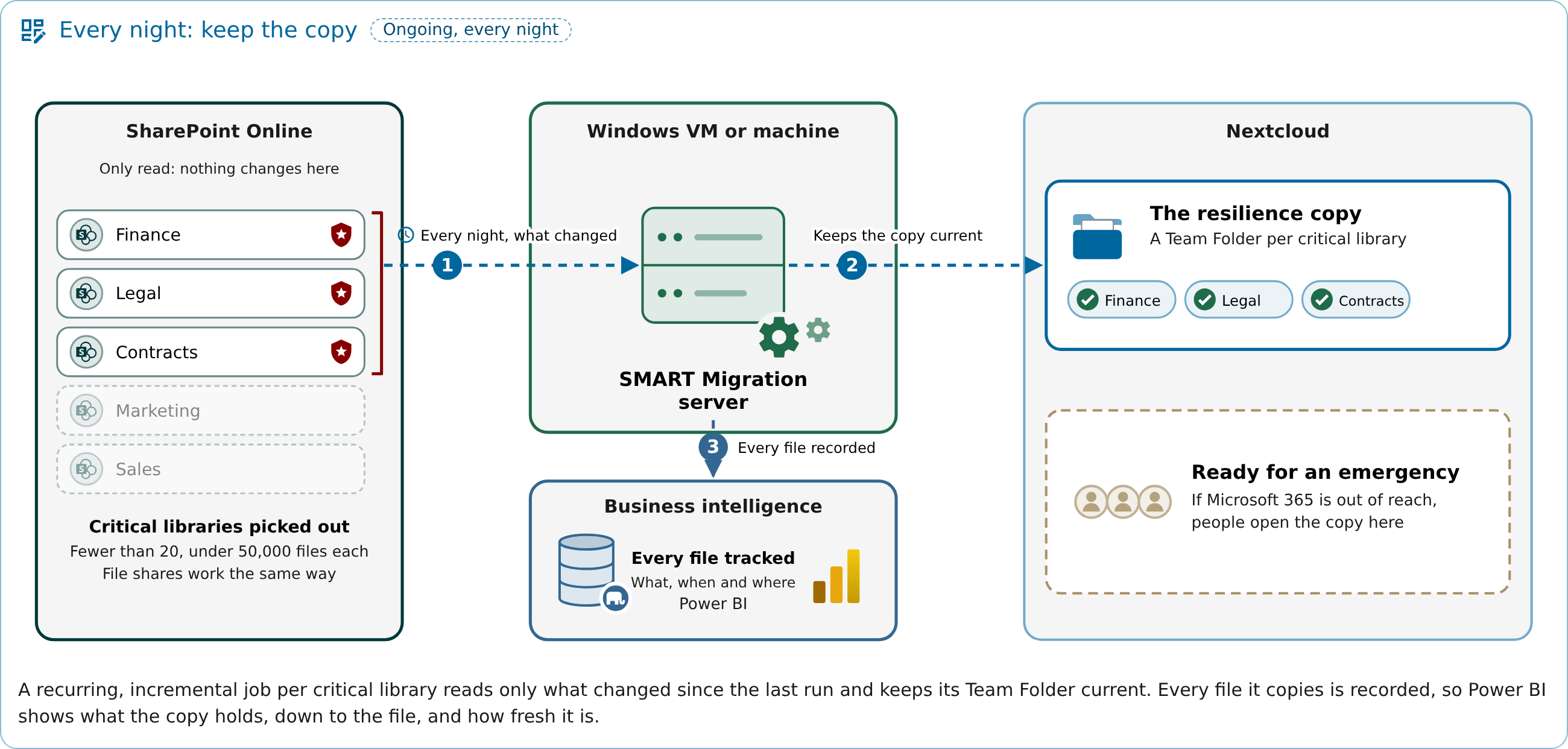
Diagram: the critical SharePoint Online libraries (Finance, Legal, Contracts; fewer than 20, under 50,000 files each) are picked out. Every night the SMART Migration server reads what changed in them and keeps a copy of each in a Nextcloud Team Folder, and records every file it copies in the BI database for Power BI. SharePoint Online is only read. The copy is ready for an emergency: if Microsoft 365 is out of reach, people open the copy in Nextcloud.
After the emergency: bring the work back
Section titled “After the emergency: bring the work back”Once, when the source is back: Restore is ticked on the recurring job itself, its next run takes only the files changed and created in Nextcloud back to SharePoint Online, and once Restore is unticked again the job goes on keeping the copy.
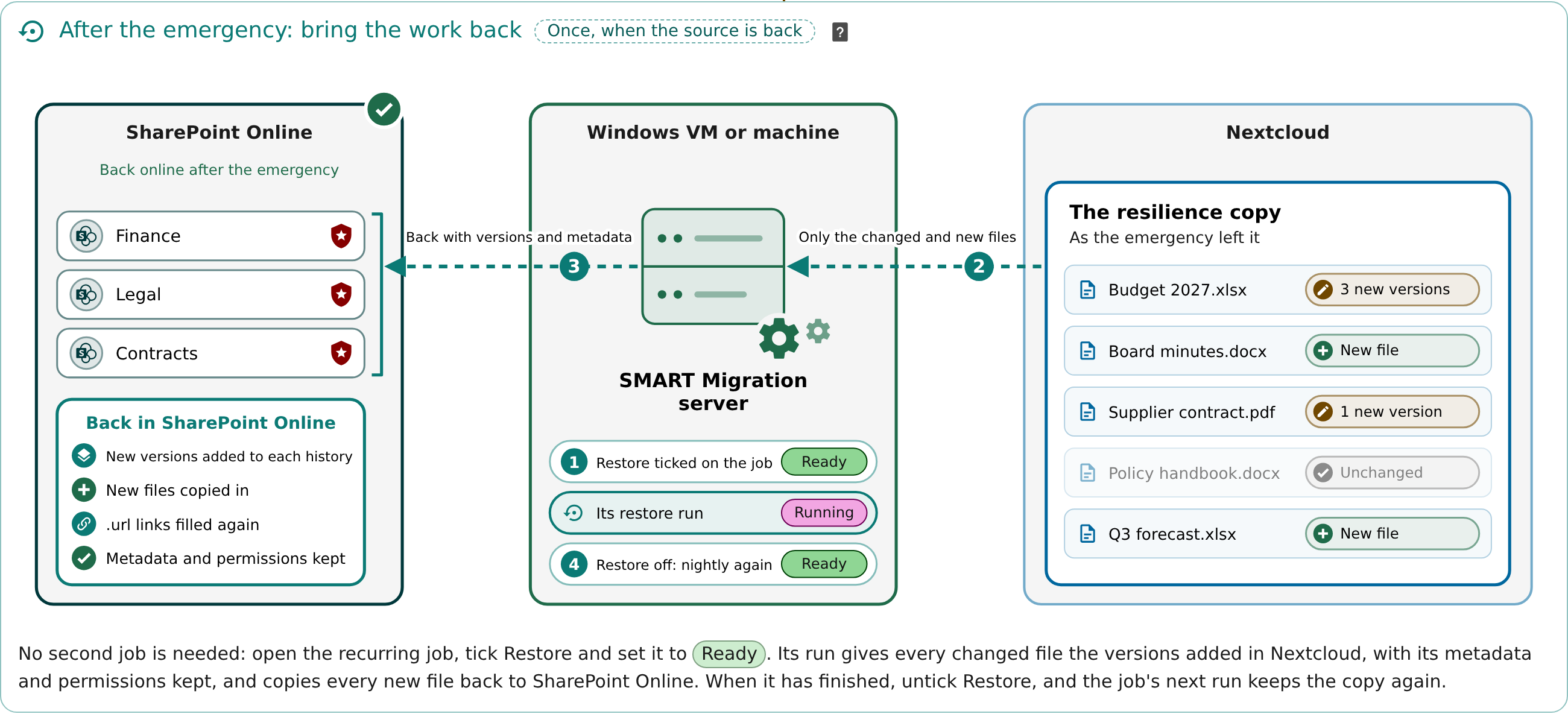
Diagram: after the emergency, with SharePoint Online back, Restore is ticked on the recurring job. Its run reads only the files changed and created in Nextcloud during the emergency, and writes them back to SharePoint Online: new versions are added to each file's version history, new files are copied in, .url links are filled again, and metadata and permissions are kept. Then Restore is unticked, and the job keeps the copy again.
The three phases in full:
| Phase | What happens |
|---|---|
| 1–3 · Every day: keep the copy | The critical SharePoint Online libraries are picked out — fewer than 20, of under 50,000 files each. A recurring, incremental job per library reads only what changed since the last run and keeps its Team Folder in Nextcloud current. Every file it copies is recorded in the BI database, so Power BI shows what the copy holds, down to the file, and how fresh it is. |
| 4 · In an emergency: work goes on in Nextcloud | When Microsoft 365 is out of reach, people open the copy in Nextcloud and carry on: they change documents and create new ones. A saved Power BI file shows what was available, and from when. |
| 5–6 · Afterwards: the work goes back | Restore is ticked on the recurring job and it is set to Ready: its run gives every changed file the versions added in Nextcloud, with its metadata and permissions kept, and copies every new file back to SharePoint Online. Then Restore is unticked, and the job's next run keeps the copy again. |
File shares work the same way, except that a restored file on a file share is overwritten — see After the emergency: the work goes back.
Two ways to deploy
Section titled “Two ways to deploy”| 1 · Start with a file share The simplest way in, and the right one when security policy does not allow a service account to read production SharePoint. Documents are placed on a file share the customer manages, and SMART Migration keeps Nextcloud in step with it. No Microsoft 365 app registration is needed, and the server can sit in a locked-down network segment with no internet access. | 2 · Grow into SharePoint When the organisation is ready, the same jobs read directly from SharePoint, OneDrive or Teams. The file share step disappears, and the copy gains metadata, version history, timestamps and user attribution. This requires an Entra ID app registration with a certificate. |
|---|
Moving from option 1 to option 2 is a change of job source, not a new project — schedules, history and reporting carry on.
How to create and configure the app registration
Choosing what to protect
Section titled “Choosing what to protect”Microsoft 365 throttles heavy or frequent reads, so a whole tenant cannot be kept continuously in sync. Protect what your critical functions need, and migrate the rest once or leave it where it is.
Rule of thumb for the recurring scope
- Fewer than 20 libraries
- Under 50,000 files in each
- Daily for active document sets, weekly for reference material
A Discovery job shows whether a candidate library fits before you commit to it. File share sources are not throttled, but the same discipline pays off.
Getting to the copy when you need it
Section titled “Getting to the copy when you need it”The copy lives in ordinary Nextcloud folders, typically Team Folders, and users reach it like any other Nextcloud content.
SharePoint permissions are not replicated. Access is granted in Nextcloud, using groups from your own identity provider such as LDAP or Keycloak.
Before you need it Decide who needs which content set during an outage, set up the groups in Nextcloud, and test that they can open what they need. Keep a refreshed Power BI file where those people can reach it.
After the emergency: the work goes back
Section titled “After the emergency: the work goes back”An emergency copy is worked in. While Microsoft 365 or the file server is unavailable, people open the copy in Nextcloud, change documents and create new ones — and when the source is back, that work must not be stranded in Nextcloud.
Every change and every new file synced back
A Migration job with Restore on copies the work back to the source in one run: each changed file gets the versions added in Nextcloud on top of its own version history in SharePoint Online, its metadata and permissions kept; each new file is copied to the source; and on a file share each changed file is overwritten. The recovery is complete, and Run History records it.
File shares
A file share keeps no versions: a restored file is overwritten, and any permissions set on the file itself are lost — it takes those of its folder.
Read more: Restore: files back from Nextcloud to SharePoint Online or a file share — its section After a DORA emergency: bring the work back
Your part of the job
Section titled “Your part of the job”SMART Migration keeps the copy current and documents every run. Deciding what counts as critical, choosing a schedule you can accept as a recovery point, testing that the copy is usable and that the work done in it can be restored, managing access and presenting the evidence remain with you.
An independent copy in Nextcloud, managed where it lives and documented in Power BI — a resilience control you can rely on and demonstrate.