

Give .url links their files back
After an Enhanced Migration replaced the SharePoint files with .url links to Nextcloud, any library can get its files back: each link is filled again with its file, its original version history, the versions added in Nextcloud and its own metadata and permissions.
Reverse a migration
Files migrated to Nextcloud go back to SharePoint Online or the file share they came from, with everything that was added in Nextcloud since. A .url link left in place of a file becomes the file again.
Back after a DORA emergency
While Microsoft 365 or the file server was unavailable, people worked on the resilience copy in Nextcloud. When the source is back, one run brings every changed and new file back to it.
Nothing done in Nextcloud is left behind
New versions are added to the original file's version history, and files created in Nextcloud are copied to the source, so the source is complete again.
Three reasons to restore
Section titled “Three reasons to restore”Restore is one switch with three uses. They differ in why the files go back, not in what a restore run does.
Give .url links their files back
Section titled “Give .url links their files back”An Enhanced Migration replaces each migrated SharePoint file with a .url link to its new home in Nextcloud. It frees the SharePoint storage the organization pays for and leads every user to Nextcloud from the places they already know. That choice is not one-way. Whenever a library, a team or a project needs its files in SharePoint Online again — a team that must share with partners in Microsoft 365, a project handed back, a decision taken differently — a restore run fills each link with its file once more:
- the original content and the original version history, as they were before the link replaced them;
- every version added in Nextcloud since, on top;
- the item's own metadata and permissions, which the link kept all along.
Users find the real file in the place the link was, under the same name and with the same history. The link was a placeholder, never a loss.
Replace with links without fear
Because every link can be filled again, the storage savings of an Enhanced Migration carry no lock-in: a library can go to Nextcloud as links today and come back as files later. See Why replace SharePoint files with .url links
Reverse a migration
Section titled “Reverse a migration”A migration to Nextcloud can be undone, job by job, with everything done in Nextcloud since the migration. See Reversing a migration.
Bring the work back after a DORA emergency
Section titled “Bring the work back after a DORA emergency”While Microsoft 365 or the file server is out of reach, people work on the resilience copy in Nextcloud; when the source is back, one restore run puts their work there. See After a DORA emergency: bring the work back.
What Restore does
Section titled “What Restore does”Restore is a switch on a Migration job, on the Action step of the job dialog, under Mode, shown with Advanced Settings on. With it on, the job's runs read the job's Nextcloud folder — its Nextcloud Team Folder or its Destination User's files — and write back to its source: the SharePoint Online library in Source URL, or the file share in Source UNC. Every other setting of the job stays as it is, so the job that migrated a library can restore it.
| What is in Nextcloud | What a restore run does at the source |
|---|---|
| A file migrated with Replace SharePoint Online source Document Library item with a .url link to Nextcloud | The .url link is filled again with the file: its original content and version history, the versions added in Nextcloud on top, and its metadata and permissions as they were. |
| A file migrated without the .url link, and changed in Nextcloud | The original file in SharePoint keeps its version history, metadata and permissions, and the versions added in Nextcloud are added to it. |
| A file created in the Nextcloud folder | The file is copied to the source, into the folder it sits in. |
| A file share's file changed in Nextcloud | The file on the file share is overwritten with the latest version from Nextcloud. |
.url links are filled again
Section titled “.url links are filled again”An Enhanced Migration replaces each migrated SharePoint file with an empty .url file — MyDocument.docx.url in place of MyDocument.docx — that opens the file in Nextcloud, while the item keeps its version history and metadata in SharePoint. A restore run copies the file back from Nextcloud and fills the item with it again: the binary content of the original versions, every version added in Nextcloud since, and the item's original metadata and permissions. Users find the real file where the link was.
Files changed in Nextcloud get their new versions
Section titled “Files changed in Nextcloud get their new versions”A file migrated without the .url link is still whole in SharePoint. When it has been changed in Nextcloud since, the restore run adds the versions created in Nextcloud to the file's own version history in SharePoint, and keeps its original metadata and permissions. Nothing of the history on either side is lost.
New files are copied
Section titled “New files are copied”A file created in the job's Nextcloud folder after the migration has no file in the source. The restore run copies it there, into the folder that matches the one it sits in in Nextcloud.
Read more: Cutover: Traditional and Enhanced Migration · Version history
Where Restore is offered
Section titled “Where Restore is offered”The switch shows only where a restore can run. It needs all of these:
Modeis Migration, or Test Migration to see first what a restore would change — not Discovery.Source TypeisSharePoint Librarywith a SharePoint Online address (https://<tenant>.sharepoint.com/…), orFileShare.Destination TypeisTeam FolderorUser: the files come back from Nextcloud.- The job is a job of its own, not an Import job.
SharePoint on-premises (SharePoint Server), OneDrive, File List CSV and Dynamic BI data query sources cannot be restored to.
Switching Advanced Settings off hides Restore and its explanation, but a ticked Restore still acts: the list under the toggle names it among the hidden settings.
A hidden switch stays set, but never acts
Switching the mode or the source hides Restore without clearing it, like every hidden setting in the job dialog. SMART Migration is told to restore only while the job is a Migration or Test Migration job of a kind that can be restored: a job switched to Discovery, or to a source that cannot be restored to, never restores.
Try it first as a Test Migration
Section titled “Try it first as a Test Migration”A Test Migration with Restore on writes nothing to the source. It reads the job's Nextcloud folder and compares it with the source, and reports file by file what a restore run would do: which files would get new versions, which .url links would be filled again, which new files would be copied, and on a file share which files would be overwritten. The files it checked are Test Restore in the BI data, and the Dashboard's Test migrated card shows them apart under Test restored. Read the run in Run History and its files on the File Issues tab, then switch the job's Mode to Migration and set it to Ready to restore for real.
Know what will change before it changes
A restore writes into the source that people may already be working in again. The test shows how many files will change and which ones — before a single file in SharePoint Online or on the file share is touched.
Switch it on
Section titled “Switch it on”No new job is needed: the job that migrated the files restores them. It already has the source and the Nextcloud folder, and its restore runs join its own Run History.
Open the job that migrated the files
On the Jobs tab, open the job — Edit in its row menu, or a double-click on its row.
Tick Restore on the Action step
Switch on Advanced Settings, go to the Action step, check that
Modeis Migration — or Test Migration to see first what would change — and tick Restore — beside it, the mode's icon with its arrow turned back in red, as the job's row will show it. The dialog shows what a restore run does for this source, and for a file share what it costs.Check the requirements
For SharePoint Online, the App Registration used by the SMART Migration Server must have write permissions to the source library. For a file share, the account the SMART Migration Server runs as must be able to write to it.
Save, and set it to Ready
Save the job and set it to Ready. SMART Migration claims it like any other job, and the run appears in Run History.
Untick Restore when the job should copy into Nextcloud again
While Restore is on, every run of the job restores. For a recurring job, untick it once the restore run has finished, and the job's next run copies into Nextcloud again.
While Restore is on, the job's mode icon — beside its title on the Jobs tab, in its Mode column, on its card and on the Dashboard — turns its arrow round, pointing back to the source, in red. Its card and the job dialog's title also carry a red Restore pill beside the mode, and the card opens with a red band saying that its runs copy the files back. A job that restores never looks like one that migrates.
To list them, set the Jobs tab's Mode filter to Migration + Restore (or Test Migration + Restore): only the jobs whose runs copy files back. Migration lists only the Migration jobs that migrate, so the two never mix; pick both to see every Migration job. A choice is offered only while some job has it.
Restore changes the status as a change of mode does
Section titled “Restore changes the status as a change of mode does”Finished and the result belong to the runs of one mode, with Restore or without: a finished migration is not a finished restore. Switch Restore on or off on a Finished job, leaving its status as it is, and the job is saved Hold. Switched back, a job still on Hold is Finished again when its latest run of that kind finished. A status you pick in the same save is kept as picked. See Job status
While Restore is on, Replace SharePoint Online source Document Library item with a .url link to Nextcloud on the Source step is not used: a restore run fills the .url links again rather than making new ones.
Stop editing before the last run
A restore run copies what is in Nextcloud when it reads the file. When the source is to become the working copy again, ask users to stop editing in Nextcloud before the final restore run — as at any cutover — so no change is left behind.
File shares: overwritten, and their own permissions lost
Section titled “File shares: overwritten, and their own permissions lost”A file share keeps no version history, so a restore run overwrites each file that was changed in Nextcloud with its latest version there, and copies the new files.
A file's own permissions are lost
An overwritten file takes the permissions of its folder on the file share: any permissions set on the file itself are lost. Find the files with permissions of their own before the run, and set them again afterwards. Permissions set on the folders stay as they are.
Read more: File shares to Nextcloud
After a DORA emergency: bring the work back
Section titled “After a DORA emergency: bring the work back”A DORA setup keeps an independent copy of critical libraries in Nextcloud, refreshed by recurring, incremental jobs. During an emergency — Microsoft 365 or the file server unavailable — people open that copy in Nextcloud and carry on working: they change documents and create new ones. Without a way back, that work would stay in Nextcloud when the source returns, and the two would drift apart. Restore is that way back.
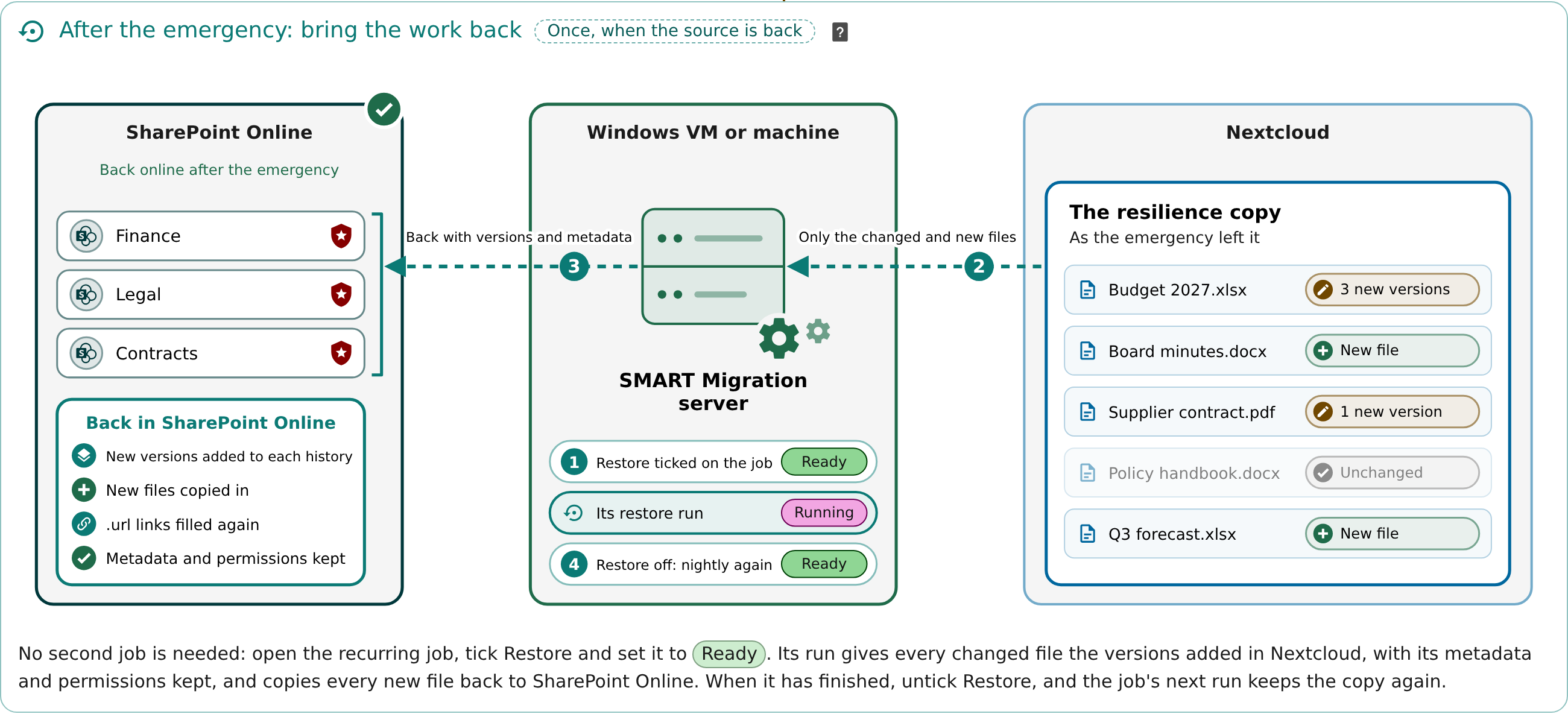
Diagram: after the emergency, with SharePoint Online back, Restore is ticked on the recurring job. Its run reads only the files changed and created in Nextcloud during the emergency, and writes them back to SharePoint Online: new versions are added to each file's version history, new files are copied in, .url links are filled again, and metadata and permissions are kept. Then Restore is unticked, and the job keeps the copy again.
Agree when the emergency ends
Decide the moment people go back to the source, and ask them to stop editing the copy in Nextcloud then.
Tick Restore on the DORA job
Open the recurring job that keeps the copy, switch on Advanced Settings, tick Restore on the Action step, save it and set it to Ready. Its next run restores instead of copying: each changed file gets its new versions in SharePoint Online, or is overwritten on the file share, and each file created during the emergency is copied to the source.
Check the run
Read the run in Run History, and any files it could not restore on the File Issues tab.
Untick Restore
Open the job again and untick Restore. The source is the working copy again, and the job's next nightly run brings the copy in Nextcloud in line with it.
Test it before you need it
A resilience plan should show that the way back works too. Restore a test library now and then — with a few files changed and created in Nextcloud — and keep the run in Run History as evidence of the test.
Read more: Digital Resilience Operation (DORA) · Incremental runs: only the files changed since the last run
Reversing a migration
Section titled “Reversing a migration”A migration to Nextcloud is undone job by job: a restore run per job copies the files of its Nextcloud folder back to its library or file share.
| In Nextcloud | In SharePoint Online after the run | On the file share after the run |
|---|---|---|
| A file changed since the migration | The versions added in Nextcloud are added to the original file's version history; metadata and permissions are kept | The file is overwritten with its latest content from Nextcloud |
| A file whose source item is a .url link | The link is filled again with the file, its original versions and the versions added in Nextcloud | — |
| A file created in Nextcloud | Copied into the matching folder of the library | Copied into the matching folder of the share |
| A file unchanged since the migration | Left as it is | Left as it is |
Restore runs in Run History
Section titled “Restore runs in Run History”A restore run is listed in Run History as a Migration run of its job, with its mode icon's arrow turned back in red, as on the job's row. Its card opens with a red band saying it copied the files back, and its card and its details' title carry the red Restore pill. Set the Run History tab's Mode filter to Migration + Restore (or Test Migration + Restore) to list only the runs that restored; Migration lists only the runs that migrated. The Dashboard's Runs in Run History box counts both under its Migration switch, and sets both choices when it opens the tab. Its Configuration details — the job exactly as it was when the run claimed it — say "restore": "True".
The files it copied back are Restore in the BI data. The Dashboard's Migrated figure counts them with the migrated files, each once, as SMART Migration reports them; its card shows them apart under Restored, and opens the jobs that restore and the runs that restored.
See also