

Version 7.61 GA (build 34137 ) – March 27 , 2026 (Download here)
Section titled “Version 7.61 GA (build 34137 ) – March 27 , 2026 (Download here)”| SharePoint | Fixed | Numeric values having >6 decimals were returned in scientific format that would make any numeric calculation fail and also fail in SQL commands |
|---|---|---|
| SharePoint | Fixed | Managed Metadata: When a Term does not exist in the destination Term Store and the Allow any user name or Managed Metadata tag - Only M365 is selected then the Term is allowed to pass through. The issue was that the Term was lower case converted before applied to the destination. |
| System | Fixed | The Application Icon failed to show one some computers. |
Version 7.60 GA (build 34134 ) – March 23 , 2026 (Download here)
Section titled “Version 7.60 GA (build 34134 ) – March 23 , 2026 (Download here)”FileManagement
| FileManagement | New | Support for Nextcloud v32 and newer. |
|---|---|---|
| FileManagement | Enhancement | [File Type] and [File Owner (AD)] is now supported in source filters |
| FileManagement | Enhancement | [bytesizeallversions] and [versioncount] is now calculated i Test mode and when using Proxy. This is essential to do BI analysis prior to migration |
| FileManagement | Enhancement | New columns for Document Library [File Size All Versions] and [Version Count] |
| FileManagement | Documentation | Using wildcards in Filters |
| FileManagement | Enhancement | Offload & Migration Support for managed metadata tags that does not resolve against the current TermStore. This enables you to migrate Document Library files having old or foreign terms assigned that do not exist in the destination TermStore |
| FileManagement | Enhancement | MS Migration API Updated to the latest .NET 8 version and re-implemented using the new Microsoft recommendations to eliminate the use of Azure Queues. |
| FileManagement | Enhancement | File_VersionCount added to the view report_migrated_files. This column shows how many versions were processed for the file. |
| FileManagement | Enhancement | File_SizeAllVersions added to the view report_migrated_files. This column shows the size of the entire file item including all version herstory. |
| FileManagement | Job Log | The status messages now includes the total number of version processed and the total volume processed. This gives a much better indication of speed and the actual volume transferred |
| FileManagement | Enhancement | The option to only update metadata now supports incremental so only files that has an older timestamp are processed. NoFilesOnlyUpdateMetadataByNewer Corresponding override value added. |
| FileManagement | Enhancement | 5 new tables and centralized Database Server connection for BI. This enables you to update the same database tables from multiple SMART Migration servers. You enable the BI table updates from the options tab in the section Business intelligence - smart_bi_file - smart_bi_filetype - smart_bi_metadata_issue - smart_bi_session - smart_bi_step |
| FileManagement | Enhancement | AWS S3 & Azure Blob Storage: Support for Group-By.This allows you to retrieve anonymous blobs and enrich them with any metadata — not just file names and folder structures, but also Managed Metadata and other custom properties — sourced from external systems such as SQL Server, JSON, or CSV files, before directing everything into SharePoint. This approach can even accommodate version history if required. |
| FileManagement | Enhancement | [file_accessed] and [file_checkedoutto] added to the view Report_MigratedFiles |
| FileManagement | Enhancement | Proxy: “MOVE” now supports deletion of proxy items when the file the proxy points to is moved. Also empty proxy folders are deleted. Use [<Override-CopyMove>] = Move DeleteProxy |
| FileManagement | Enhancement | Amazon S3 Connection: The AWS S3 Bucket Name can now be 100 characters long. (Extended from 40) |
| FileManagement | Fixed | 2 jobs validating the same user at the exact same time make the job fail |
| FileManagement | Fixed | A job creating folders and no files will fail when one of the folders to create was created manually or by another job in the time-lap between preparing and executing the fodder creation |
| FileManagement | Fixed | When a File Management name exceeded 40 characters a fatal database error happened. |
| FileManagement | Fixed | Job tab: When clicking the button Cancel Pending Files a confirmation is now shown with a detail explanation. Previously it just did it without notice. |
| FileManagement | Fixed | SharePoint: new SharePoint columns did not show in dropdownlist for destination assignment until the Step was reopened |
| FileManagement | Fixed | SharePoint: Sometimes files could remain “Pending” even the files were successfully migrated and never change status to Created etc. |
| FileManagement | Fixed | SharePoint Filter: Server-Side filter tab did not always show. |
| FileManagement | Fixed | File Connection: Copy to new connection did not work for AWS S3 and Azure BLOB. |
| FileManagement | Fixed | File Connection: Control to set upload file size limit was invisible. |
| FileManagement | Fixed | SharePoint: On very rare occasions, a bug in the Microsoft backend API causes the document content to override the specified content-type. Because the API does not return this information, it is impossible to detect when it occurs. SMART Migration has reissued the content‑type assignment to work around this backend issue. |
| DataETL | ||
| DataETL | Enhancement | SharePoint destination. Support for automatic and dynamic column mapping (AutoMapAllColumns). This enables you to copy content between 2 custom lists having one or more identical column names. |
| DataETL | Enhancement | FileShare inventory: Skip! keyword support in filter |
| DataETL | Enhancement | Database: Skip! keyword support for the IN SQL where clause keyword when using a Variable. |
| DataETL | Enhancement | SQL Server Source/Destination support for column names like From, To, Select that are SQL Server reserved words. |
| DataETL | Enhancement | SharePoint (Options Tab): A new option lets you limit how many items are returned from SharePoint. This is useful when a SharePoint list supplies parameters for multiple parallel jobs, reducing load during retrieval. To avoid multiple jobs using the same parameters, use the DataETL CRUD option “Update Items. If unverified then exit Group Step.” |
| DataETL | Enhancement | SharePoint On-Prem: Support for [FileSizeAllVersions] and [VersionCount]. |
| Mapping List | Enhancement | New Save button. |
| DataETL | Enhancement | SharePoint: New columns for Document Library [File Size All versions] and [version Count] The values are ONLY retrieved when “Include version history” in NOT selected |
| DataETL | Enhancement | SharePoint: Sub Sites Hierarchy (VirtualSubSites) now supports Group enabled site collections (like Teams) |
| DataETL | Enhancement | SharePoint: Support for Dynamic URL in the virtual lists: - Sub Sites Hierarchy (VirtualSubSites) - Tenant groups (VirtualGroupList) - Tenant Users (VirtualUerList) |
| DataETL | Fixed | FileShare Discovery: IN filter did not work for more than 1 value |
| Data ETL | Fixed | SQL Server Bulk mode: A warning was issued when bulk mode cannot initialize and a fallback to conventional SQL is used. This is now changed to a message. |
| DataETL | Fixed | SQL Server: Bulk mode did not engage when the target table was created externally with certain parameters that forces SQL Server to encapsulate database object names in [ ] for example [dbo].[mytable] |
| DataETL | Fixed | SharePoint Online: [FileSize] was incorrect for versions when retrieving version history for files in a document library. |
| Installation | ||
| Installation | Enhancement | The default database server for the repository database is now SQL Server Express 2025. |
| Installation | Enhancement | It is now optional to install “SQL Server Express”. So, if you plan to use a remote SQL Server you no longer need to install the Express version first. |
| Installation | Enhancement | If SQL Server Express 2022 is already installed then the installation of SQL Server Express 2025 is skipped |
| Installation | Enhancement | The “Show changelog” is now un-checked. |
| Installation | Enhancement | The SQL Server 2025 services are now pre configured to start immediately. The Service configuration takes effect after reboot. (Previously “Delayed” – that was sometime annoying after a reboot to wait several minutes for it to start ) |
| SQL Server | ||
| SQL Server | Enhancement | User/Password authentication: Password max length is now 250 characters. |
| SQL Server | Enhancement | Transaction retry to accommodate known Azure SQL transient fault – the database is briefly unavailable during load balancing, failover, or maintenance. |
| SQL Server | Enhancement | Repository SQL Server Express: Support for the new limit of 50GB database size in the free SQL Server Express 2025. |
| SQL Server | Enhancement | Repository: SQL Server Express: in the beginning of each job session the used/available space is reported. |
| SQL Server | Fixed | User/Password authentication: Password can now contain ' (single apostrophe). |
| SQL Server | Fixed | SQL Server deadlocks |
| SharePoint | ||
| SharePoint | New | 3 New columns for Sensitivity labels (Read Only). More info |
| SharePoint | Enhancement | Documentation revised Create M365 App Registration |
| SharePoint | Enhancement | Migration workload management to ensure the Azure Migration queues do get overloaded |
| SharePoint | Enhancement | New setting on the account tab Lower the max URL length (for testing) Setting this to true will effectively change the conditions for when SharePoint’s “too long path or filename” detection is triggered, generating warnings much earlier than SharePoint’s default limits. Use this setting only for testing or understanding what happens when a file is migrated to SharePoint and has a path or filename that exceeds SharePoint’s restrictions. The test values are set to: - 30 characters for maximum path length. - 20 characters for maximum filename length. |
| SharePoint | Feature removal | The below SharePoint Online (M365) legacy authentication methods has been removed as they are no longer officially supported by Microsoft: Note that WebLogin is supported only for list items, and it is strongly recommended not to use it unless you specifically need legacy remote trigger support for list items. File uploads are not supported by WebLogin, and rate limit management is unavailable, so large data sets may be throttled. Removed: - App ID/Secret (non AppReg) - User name/Password |
| SharePoint | Fixed | In rare cases the ‘CT:’ identifier for content-type was stripped from the library display value in the FileMangement and DataETL library dropdown. Happened when the site was provisioned from a DANISH template. |
| SharePoint | Fixed | When any metadata — including the filename — was processed using a transformation, and the beginning of the value before the first space could be interpreted as a date, that portion was automatically formatted using the local date format. This resulted in corrupted data. For example, a filename could be unintentionally converted into a date format, which in turn caused validation errors because the file effectively received a new name. |
| SharePoint | Fixed | Error when calculating the version size when it exceeded 2 GB. |
| SharePoint | Fixed | Boolean column having empty string as value was updated with ‘False’. Now any value the Boolean column may have is transferred unmodified |
| Functions | ||
| Function | Enhancement | New function: CallStep( 'Step name or ID' ) Returns Ok, Warning, Error or a system error if the step is not found. |
| Function | Enhancement | New function: SPConvertToDirectFolderURL( 'Browser URL' ) Returns the direct url without encoding and aspx references. |
| Function | Enhancement | New function: ReplaceFirst Replaces the first occurrences of a string with another string. (Non case sensitive) |
| Function | Enhancement | New function for the Match filter function: WildCardToMatch( ‘. wildcard spec’ ) |
| Function | Enhancement | New function for SQL: WildCardToSQLLike( '*.* wildcard spec' ) |
| Function | Enhancement | New function for SQL: DateTimeToNumber( 'DateTime' or 'Date' ) |
| Function | Enhancement | New function for SQL: GetSQLSelect() Returns the latest SQL SELECT statement executed in DataETL or For-Each |
| Function | Enhancement | New function FolderExist('my folder') to test if a folder exists or not |
| Miscellaneous | ||
| System | Enhancement | Remove .Net 6.0 dependency |
| Step UI | Enhancement | Save All toolbar button in top right corner is now much faster |
| Account | Enhancement | New button on the Account/Repository tab: Truncate BI tables Use this to reset the data in the BI tables and free up storage in the database. |
| Dashboard | Enhancement | New status for how many MS Migration API packages are waiting for Microsoft. |
| Dashboard | Enhancement | Redesigned toolbar for easier session filtering and querying of files associated with the selected session(s), either within the Query ETL module or via a new DataETL or For-Each Step.. |
| Dashboard | Enhancement | New column [End]. Shows when the job stopped. The tooltip calculates the job duration. |
| Dashboard | Enhancement | New column [SessionLog_id]. Shows the id for the job session. Use this value in various reports. |
| Dashboard | Enhancement | New Select files processed in job session to generate query criteria based on the session selected. |
| Job Server | Enhancement | Windows Service: The max length for account and password individually is now 500 characters. |
| Repository | Enhancement | Repository database connection can now authenticate with username/password |
| PowerShell | Fixed | Did not work: Set-FlowVariable -Name "[<SessionLog-CustomInfo>]" -Value $MyVariable Set-FlowVariable -Name "[<SessionLog-Name>]" -Value $MyVariable |
| Mapping List | Fixed | Paste values from clipboard did not trigger save unless a value was subsequently changed |
Version 6.63.12 MR (build 33940) – October 9, 2025 (Download here)
Section titled “Version 6.63.12 MR (build 33940) – October 9, 2025 (Download here)”| File Management | Fixed | SharePoint destination using Group-By could fail to migrate specific combinations of filenames with % as part of the name or path. - Example: 2019.02.10_% détention.xlsx |
|---|---|---|
| File Management | Fixed | SharePoint: Unicode characters in user names could in some cases show up encoded when using Allow any user name (Only M365) |
| Amazon S3 Connection | Enhancement | A specific Bucket can now be configured, eliminating the need to call the SDK to list available buckets. As a result, no permission to list buckets is required. |
| Connection hyperlink | Behavior | When clicked, now works consistent for all connection types and opens the connection browse. |
Version 6.63.9 MR (build 33935) – July 2, 2025 (Download here)
Section titled “Version 6.63.9 MR (build 33935) – July 2, 2025 (Download here)”| Transformation | Fixed | Clicking the documentation help button could crash the program |
|---|---|---|
| FileMangement | Fixed | Moving files would fail and work incorrectly when choosing also to delete the root folder if empty. |
| FileMangement | Fixed | A file in a FileShare having a corrupted date Created or Modified would crash the job |
| Mapping | Fixed | Copying a mapping list could make the name longer than 50 characters thereby generating an error |
| Dashboard | Fixed | Removed Select files processed in job session. It is a 7.0 feature and was accidently visible in v6.63.x |
| DataETL | Fixed | FileShare Inventory failed in some cases when including permissions in the scan. |
| General | Enhancement | At start up “Check for updates” can now be disabled (Do not show again) |
Version 6.63.8 MR (build 33929) – June 17, 2025 (Download here)
Section titled “Version 6.63.8 MR (build 33929) – June 17, 2025 (Download here)”| DataETL | Fixed | Database source: selecting/deselecting a column via the column check-box did not react to single-click. Only double-clicking or clinking the column name worked. |
|---|---|---|
| FileManagement | Fixed | Migrate file to SharePoint. When a file name or a folder name contained and encoded illegal character like My%5CFolder would fail to migrate because %5C translates into \ when decoded. The name containing the encoding will now be migrated untouched. |
| FileManagement | Fixed | Migrate file to SharePoint. Under certain conditions an incremental migration would fail if the path contained illegal characters encoded in the file or folder names like the following My%5CFolder. The error would be an Azure exception stating that the file is already there. |
| Job log | Fixed | On error and the setting for On error was Continue and log a warning then the variable [<SessionLog-Result>] returned Warning instead of Error. |
| Teams | Fixed | When an error happens the job was set to ‘Warning’ instead of ‘Error’. For example when encountering an invalid URL. |
| FileManagement | Enhancement | SharePoint Online: Handling of multiple concurrent jobs that simultaneously upload multiple files to the same destination folder with identical file names. |
| DataETL | Enhancement | SQL insert performance. On SQL Server x15 faster and on AzureSQL x50 faster |
| System | Enhancement | PowerBuilder Runtime upgraded to 2025 build 3683 |
| System | Enhancement | Removed dependency on Aspose (3rd party .Net extension). |
| UI | Change | Module for SharePoint, Azure, AWS S3 has been renamed to “File Storage” and have a new icon. |
Version 6.63.7 MR (build 33927) – May 8, 2025 (Download here)
Section titled “Version 6.63.7 MR (build 33927) – May 8, 2025 (Download here)”| Module | Type | Description |
|---|---|---|
| Teams | Fixed | Validation: - SharePoint To SharePoint did not work when referencing subfolder in the source - When a fatal error happens for example an invalid URL specified in the the job then the job did not get notified and was “hanging” as running. - Job Date, Job result and Job message was not updated. |
| FileManagement | Fixed | If SharePoint source was selected without choosing a library then the Filter button was disabled if switching to FileShare source. |
| Value Mapping | Fixed | When renaming a Mapping list in dialog-window mode (via double click) the new name was not reflected in the main Mapping list UI. |
| SQL Server | Fixed | Added prefix N' for strings in dynamically generated SQL to ensure proper handling of Unicode independent of selected database codepage |
| FileManagement | Fixed | When using % (percent) in folder name or file name the migration could in some cases fail |
| System | Fixed | Enhanced Process monitoring to prevent false “Job session was terminated unexpectedly” |
| Mapping | Fixed | The name of a mapping list could exceed the 50 allowed characters when typing the name. |
| System | Fixed | Call tree system error when clicking a Step. |
| SharePoint | Fixed | Multiple jobs (+10) could trigger a deadlock database error when updating file status. |
| SharePoint | Fixed | Illegal non visual control characters (ascii 0 – 31, 127 – 159) in file name, folder name and metadata is now removed prior to migration. |
| SharePoint | Fixed | HEX encoded Illegal non visual control characters (ascii 0 – 31, 127 – 159) in file name, folder name is now removed prior to migration. |
| DataETL | Fixed | FileShare scanning: When an exception was thrown by the file system due to lack of permissions or file system corruption the error message logged did not include the filename and folder name |
| Teams | Enhancement | Site provisioning: The following 2 keywords have been added to the list of allowed PowerShell commands if and Add-AzADGroupMember |
| Value Mapping | Enhancement | Faster UI in the Mapping list module. |
| System | Enhancement | Faster SMART Migration program start and close. |
| FileManagement | Configuration | Number of download threads reduced from 10 to 3 when downloading form SharePoint to FileShare. This is to reduce overhead. |
Version 6.63.1 MR (build 33915) – March 21, 2025 (Download here)
Section titled “Version 6.63.1 MR (build 33915) – March 21, 2025 (Download here)”| Module | Type | Description |
|---|---|---|
| FileManagement | Fixed | The character 0×04 (decimal 4) within metadata to a file caused the file to fail migration |
| FileManagement | Fixed | SharePoint source filter UI did not show CAML server-side filters. |
| FileManagement | Fixed | A false warning could be issued about a non existing Variable named: - [<Override-PopulateBItables>] |
| Installer | Enhancement | Automated .net installation |
Version 6.63 GA (build 33908) – March 7, 2025 (Download here)
Section titled “Version 6.63 GA (build 33908) – March 7, 2025 (Download here)”| Module | Type | Description |
|---|---|---|
| DataETL | New | Using the special list Sub Sites Hierarchy you can now make your own custom provisioning features. - [SchemaXML] , [Column Display Name] , [Column Name]. New columns added. Please run “Refresh Connection”. - Columns associated with each List/Library is reported along with column names and SchemaXML specific to each column. - SchemaXML is reported on the List/Library level |
| Function | New | XMLEscape('string') to encode a XML string so that all characters can be processed by a XML parser. |
| Function | New | WriteFile('File Name', 'Data') write data to the end of an existing file or create a new file. |
| Function | New | MappingListModified('Mapping List Name') determine if a given mapping list has been modified dynamically during job execution. |
| Account | New | The size of the repository database is now reported on the Repository tab. Also, if running on SQL Server Express, a warning is shown if the used space exceeds 8GB, since the maximum allowed size is 10GB. This serves as an early warning that you are running out of database space and need to purge old logs. |
| Session Log | New | If running on SQL Server Express the database size is monitored and a warning is issued if the used space exceeds 8GB, since the maximum allowed size is 10GB. This serves as an early warning that you are running out of database space and need to purge old logs. |
| Offload | Enhanced | Reporting and error handling in the Restore process of offloaded files is now more consistent and messages are more readable and relevant. |
| SharePoint | Enhanced | TermStore: Enhanced handling of root-level anchor tags. |
| SharePoint | Enhanced | TermStore: Enhanced program logging when Diagnostics mode is enabled. |
| FileManagement | Fixed | The column [File owner (AD)] Is now returning blank if a files owner property points to an AD user that no longer exists in the AD instead of reporting an error. |
| FileManagement | Fixed | When running many jobs concurrently targeting the same folder structure Azure is reporting an invalid error. This case is now detected and ignored. |
| DataETL | Fixed | Excel source could in some cases not be configured. |
| Installer | Fixed | Issue when upgrading older repositories. Could sometimes throw a SQL error. |
| SharePoint | Fixed | TermStore: Unable to read an anchor tag in the third level. |
| SharePoint | Fixed | TermStore: If there are multiple languages and the default language has been changed then the term hierarchy display and was or incorrect. Also, terms could not be resolved at runtime. |
Version 6.62 GA – February 18, 2025 (Download here)
Section titled “Version 6.62 GA – February 18, 2025 (Download here)”| Module | Description |
|---|---|
| UI | The high DPI for crisp and clear UI (Account tab) can now select - <Disabled> (The standard windows option) - DPI unaware, scale using the Windows GDI. Better than <Disabled> - DPI aware, Display crisp and clear UI. The best option but is not supported by all display adapters. This option is the default. |
| Account | When license is expired it is more clearly stated. |
| Installer | The executable files (StepsUI.exe, StepsJob.exe, StepsServer.exe) now have the version number embedded. When viewing the .exe file properties, you can see the version number. |
| FileManagement (Issue fixed) | Unable to perform “metadata update only”. |
| Version 6.60 | GA – February 11, 2025 |
|---|---|
| Debugging | Stop processing and go into “Preview mode” with variable inspection. Right-click on Step in call tree |
| SQL Server | Update support for Azure SQL. Now ODBC 18.4.1 or newer is used to leverage encrypted connection. |
| SQL Server | Text columns are now created with the data type nvarchar |
| SQL Server | Both SQL Server version 2019 and 2022 are now supported. You can download the installation SQL Server .BAK file here if you want to install on a remote server |
| Installer | The latest MS ODBC 18.x is now a requirement and is automatically installed. |
| Installer | .Net 8.0 is now a requirement and is automatically installed. |
| FileManagement | Offload SharePoint online documents to Azure Blob Storage, Amazon S3 Bucket, FileShare |
| FileManagement | Move option in FileManagement now supports confirmation of successful migration before source file is deleted. |
| FileManagement | Delete support in File Management |
| DataETL | Azure Blob Storage & Amazon S3 Bucket as input to DataETL and FileManagement (analysis and data delivery in M&A instead of USB-stick) |
| DataETL | New view DeleteFiles |
| DataETL | The “MigratedFiles” view has 2 extra columns [DetsinationModifiedBy] [DestinationOverwrittenModifiedBy] |
| DataETL | FileShare discovery: support for relative path in folder name split. |
| PowerShell | Dynamic connection support for PowerShell LoadSharePointConnectionForPowerShell(URL) |
| UI | Support for high DPI (Account tab) |
| UI | DataETL & FileManagement “Preview mode” is now locked as top window to make it easier to access |
| UI | UI in SMART Migration when using the Teams template: Standard/Advanced Mode |
| Teams UI |
|
| General | 100+ minor optimizations |
| Version 5.21 | GA – April 22, 2024 |
|---|---|
| SharePoint | The column [Property Bag] is now supported for retrieval. |
| FileManagement | Enhancement to Pending files gives quicker detection of when the files are in fact completed by the associated Azure Migration Job. |
| FileManagement | SharePoint >> FileShare with version history now includes all metadata columns in the associated csv file. |
| Teams | Support for empty folders in fie Discovery |
| Version 5.14 | March 21, 2024 |
|---|---|
| File Management | New options for alternative modified detection |
| PowerShell | SharePoint Online: Support for Connect-PnPOnline using Entra App |
| Date ETL | File Share Discovery: Support for unlimited File Share size. |
| Date ETL | File Share Discovery: performance enhancement when scanning FileShares >10.000 files. The destination is populated in parallel. So while the scanning takes place chunks of 10.000 file names are applied to the destination in parallel. |
| SQL Server | All templates are now using the UTF8 codepage. Latin1_General_100_CI_AS_SC_UTF8 |
| Version 5.10 | March 12, 2024 |
|---|---|
| Teams | SMART Migration for Teams: Multiple Teams channels are now processed automatically (Enterprise+ license required) |
| Teams | SMART Migration for Teams: Enhanced layout in SMART Migration Job |
| Teams | SMART Migration for Teams: Enhanced Color coding in views |
| Teams | SMART Migration for Teams: Enhanced issue tracking with direct link to associated Dashboard item from an issue item. |
| Teams | SMART Migration for Teams: Discovery performance enhancement x5. Now creates up to 80.000 FileProxy items per hour. |
| FileManagement | SharePoint Online: 30-150% performance enhancement |
| FileManagement | SharePoint Online: Folders are now created on demand along with the files. |
| FileManagement | FileShare source: The column [File Type] now has the value <folder> when the item being processed is a folder. |
| Version 5.0 | February 16, 2024 |
|---|---|
| Teams | SMART Migration for Teams initial release |
| SharePoint | ZERO THROTTELING implemented by using the Rate-Limit headers. This effectively eliminates 429 Exceptions |
| UI | Numerous enhancement to the UI including new module to do interactive query and ETL without having to create a dedicated Step |
| Installer | All prerequisites are now installed automatically such as .NET 6.0 etc. |
| Repository | SQL Server is now the repository |
| Repository | New ability to mange SQL Server : create new databases etc. (Account tab) |
| Job Server | Ability to reconnect to SQL Server if it has been temporarily unavailable. |
| FileManagement | Ability to auto-shorten too long path before upload to SharePoint |
| FileManagement | New property [<IgnoreOnlyNewer>] to force a file overwrite. To activate set the property to 1 |
| FileManagement | Ability to update metadata on folders (Options tab) |
| SharePoint | [Approval-status] and [Approval comments] are now migrated as is (if mapped). Previously all files would get the status Approved. |
| Functions |
|
| ETL | Database query sow supports the Skip! keyword |
| Version 4.28 | December 29, 2023 |
|---|---|
| Dashboard | Search for [SessionLog-Id] |
| DataETL | SharePoint Online: Emoji support. Use Windows key and . (dot) to insert emoji |
| SharePoint | Support for: [Folder Child Count] & [Item Child Count] |
| FileManagement | SharePoint: Upload is now returning the GUID for the uploaded file and apply it to the Report_MigratedFiles view. Notice the GUID can be used in SharePoint search for find the file within a site collection. It takes up to 24 hours before the GUID is searchable within SharePoint. |
| FileManagement | Validation including complex data types and handling of identical values accomplished by multiple edits of multi-value values. |
| FileManagement | SharePoint Online: Folder color support |
| Transformation | New function: ExtractMetadataColumn() String data,String column, String Default value |
| SharePoint | Session log: New format for Managed Metadata that show the assigned tag much more clearly and can be used directly in assignments from the New function: ExtractMetadataColumn() |
| Version 4.01 | September 16, 2023 |
|---|---|
| DataETL | SharePoint: Selecting a different list or library is now keeping settings. |
| FileManagement | SharePoint: Selecting a different library is now keeping settings. |
| FileManagement | SharePoint: Upload is now returning the GUID for the uploaded file and apply it to the Report_MigratedFiles view. Notice the GUID can be used in SharePoint search for find the file within a site collection. It takes up to 24 hours before the GUID is searchable within SharePoint. |
| DataETL | You can now validate that files have been successfully migrated. |
| Transformation | New function: ExtractMetadataColumn() String data,String column, String Default value |
| SharePoint | Session log: New format for Managed Metadata that show the assigned tag much more clearly and can be used directly in assignments from the New function: ExtractMetadataColumn() |
| Dashboard | Search for [SessionLog-Id] |
| DataETL | SharePoint Online: Emoji support. Use Windows key and . (dot) to insert emoji |
| Version 3.99 | August 17, 2023 |
|---|---|
| Session Log | SharePoint: New format [Display name<Internal name>] |
| Duplicates detection | New Function FileCheckSum that allows you to calculate the file check sum (or hash key) that you can use for file duplicates detection |
| Repository | Latest Microsoft MS SQL Server support OLEDB 19.3 May 18, 2023 C:\Windows\SysWOW64\msoledbsql19.dll |
| Variables | New Variable SessionLog-Name. Sets the session name visible in the “Job session drop down menu” |
| SharePoint | Automatic time zone detection. The site no longer has to be in the same time zone as the local machine. |
| FileManagement | New metadata assignment: [<Ignore «Only newer» condition>] When True a file that already exist on the destination is overwritten with the matching source file regardless of it having a newer or identical timestamp compared to the source file. Use this option to force remigration of specific files. Valid values: Unassigned/True/False |
| File Management | New option: [x] Transfer files having data validation warning(s) Files are transferred despite any warnings like: Wrong Content Type Wrong username Invalid managed metadata Invalid dates etc. Please note that the files having data validation issues are inconsistent and will not be considered successfully migrated. (Default it is [x]Checked) IMPORTANT: if you [ ]Uncheck this option you get the benefit of never uploading files that have inconsistent metadata. This makes it significantly easier to fix your data issues on the specific files and then run an incremental job. |
| Version 3.94 | July 17, 2023 |
|---|---|
| UI | Reengineered Step-Tab system with close buttons on the Step-Tabs etc. |
| UI | Reengineered dropdown menus and many other minor UI enhancements |
| DataETL | SharePoint: Support for creating folders also in Document Libraries. |
| FileManagement | Override Variables |
| Version 3.80 | May 15, 2023 |
|---|---|
| DataETL | Load into SharePoint now support Create Folder for Custom Lists. To create a folder set the column [Item Type] = 1 (The value 1 is the SharePoint identifier for a folder.) The folder name you can assign to the column [Title] or include it in the folder path that you assign to the columns [Path]. The path columns supports both / (forward slash) and \ (back slash) for hierarchy folder level separation. Features include: - Create folder structures in a Custom List from any other SharePoint Custom List or Library. - Create folders dynamically based on any variable or input data set including FileShare scans. - Support for Content Type for each folder Item. (assign [Content Type ID] with eighter the Content Type Label or GUID. |
| Repository | The SharePoint connections and Database connections now remember the latest used connation and setup when you close and restart the UI. |
| Repository | The SharePont connections Data Tab has 3 new button to refresh the result set. |
| Repository | The Database connections Data Tab has new buttons to refresh the result set, export to excel and Notepad. |
| File Management | Filter now support * (wildcard) for the IN operator and the = operator. |
| OnDeman | The OnDemand configuration wizard now supports AzureAD App authentication. |
| Version 3.78 | May 4, 2023 |
|---|---|
| Job Log | New Export to Excel and Export to Notepad of all or selected rows (Multi select of rows is supported). Also, when positioned on an embedded file like Source.txt the report will be opened in the same way as if you r-click the report row. This combined with the global search across all sessions and jobs and also combined with the filter gives you additional analysis capability. |
| Call tree | New buttons in the variables tab to : Copy , Notepad , Refresh |
| UI | Many minor refinements. |
| Version 3.73 | April 26, 2023 |
|---|---|
| SharePoint | New system requirement: We are now using PnP.Core and the MS Graph and that requires .Net 6.0 to be installed on the computer. |
| SharePoint | Support for download of files > 2GB |
| SharePoint | Redesigned “CAML query” encapsulation to bypass the SharePoint Online 5000 list item threshold limitation. The redesign is done due the the fact that Microsoft is now much more likely to throw the fatal List View Threshold exception when querying indexed columns. |
| Dashboard | New server status check to inform you if the Job server is not running correctly. |
| Windows Event Log | New fatal error event reporting : The Job Azure “pending files” scanner was unable to connect to the database. No migration results from pending files will be retrieved. Notice that the Azure scanner runs within the Job Server. This event fires when the job server is incorrectly configured, typically the Windows Service account |
| Version 3.70 | March 29, 2023 |
|---|---|
| Mapping lists | Redesigned to be flat (no dialog box) |
| Version Control | Redesigned to be flat (no dialog box) |
| Account | Redesigned to be flat (no dialog box) |
| Version 3.65 | March |
| Dashboard | Query across all job session can now run in parallel so you can start a long-running query and continue doing other tasks while it runs. |
| File reporting | Query for migrated files run in parallel so you can start a long-running query and continue doing other tasks while it runs. |
| SharePoint | Connections: New interactive data CRUD tool |
| Database CSV Excel | Connections: New interactive data CRUD tool. - Simple alternative to SQL Server Management Studio - Supports the local firebird database repository |
| System UI | The bottom menu have has been moved to the “Repository Tab” |
| Account | New button to backup the local database repository. |
| Version 3.57 | March |
| Transformations | 5 new expression functions to return NULL in SQL Insert/Update Right-click menu Paste function. Use these functions to force a NULL value into a database column when performing INSERT/UPDATE. Example: If( [mycol] = 0 , NullNumber() , [data] ) - NullString() - NullDate() - NullDateTime() - NullNumber() - NullTime() |
| DataETL | Load into Excel: New option to use an Excel file as template when creating new Workbook reports. Use this feature to make report files that has predefined layout. The layout options includes setting fonts and colors, defining calculations, adding graphics, adding pivot tables, reordering of table columns and much more. This article shows how to reorder table columns Note that you can populate an Excel workbook report with multiple sets of data to different tables and set single values to individual cells. And when populated then copy/move the Workbook report somewhere including to SharePoint. |
| Version 3.54 | March |
| Dashboard | Querying for session matching a criteria now supports || (OR) and && (AND) operators in the query string. |
| Dashboard | Querying can now be canceled so you are not forced to wait for the query to complete. |
| Dashboard | Opening and querying for sessions in the Dashboard is now x3 faster when using local repository (non SQL Server) |
| Dashboard | Sessions: New filter as you type option |
| Dashboard | Window Event Log: New filter as you type option along options for filtering event types such as your own or system events |
| SessionLog | New GLOBAL query option allows you to query the entire repository across all jobs and sessions. This makes it significantly easier to locate log rows not having to know what job it was and to examine logs across entirely different jobs. You can cancel a query so you do not have to wait for it to complete. |
| System | In the account window you can now reset the status for Do not stow again messages so they appear again. |
| Version 3.52 | March |
| SharePoint | Managed Metadata: Browse terms via the Select Value button now show the Termstore anchor tag GUID. This is useful when troubleshooting sites referenced via dynamic URLs where a given MangedMetadata tag cannot be resolved. |
| SharePoint | Managed Metadata: When a Term cannot be resolved the column’s TermStore anchor tag (GUID) is now part of the error message making it easier to troubleshoot. Use the SelectValue on the button on the columns assignment to make sure the anchor tags match. |
| PowerShell | New option to disable the PowerShell command line argument -NoProfile. Disabling this argument will instruct PowerShell.exe to load whatever is configured in your user profile. |
| PowerShell | New option to disable automatic TryCatch code encapsulation. Disabling automatic TryCatch encapsulation is NOT recommended unless you are debugging code and want to eliminate any outside interference. |
| Expressions | New function: IsServerJob() It retunes true if the job is running on the Job Server and false if it is running in the UI. This enables you to use different values for accessing external resources such as FileShares when the Job Server runs as a Windows Service on a different account than the UI. |
| Version 3.51 | February, 2023 |
|---|---|
| Notification | New option When error to run the notification ONLY if an error happens. |
| DataETL | Load into Database – new option: Update records. If nothing is changed then exit Group Step. When the DataETL Step is placed in a Group Step and the database update do not change any data then the flow exits from the Group. This enables you to make sure the current job made the update to the database table, not another parallelly running job. This is useful for designing “Thread Safe” applications where multiple simultaneously running jobs, pick tasks from a database table for example by querying a column [ReadyForProcessing]=1 and then update the column to 0 signaling that “This job has that task”. |
| Job Server | You can now Hold a job while it is running. The job status will change to Running to Hold and continue to run and when finished put it self on Hold. |
| Job Server | New scheduling option Continuously that forces the job to repeat it self after it finishes. Typically the computer overhead is 1-2 seconds for the repeated job start. |
| Job Server | Faster job start. The jobs are now started and fast as possible. This becomes important when you run multiple jobs that take advantage of the new Continuously scheduling option. |
| Job Server | Account window: New configuration of job server job start. [x] Delay each job start by 10 seconds If checked, the machine workload associated with job start will be reduced. Also, flows can be designed to take advantage of a delayed job start in a multitasking setup. HOWEVER it is strongly recommended to use the new DataETL option: Update records. If nothing is changed then exit Group Step to achieve a thread safe setup. |
| For-Each | GroupBy: When having large groups (>10000 rows) the group call is split into blocks of 10000 to sustain performance for data transformation. |
| System | SMART Migration now writes to the Windows Event Log when lost database connection happens, job termination due to server reboot etc. This feature enables you to better track what is going on and feed information to IT Infrastructure Monitoring systems. |
| Notification | You can now enable the notification to write to the Windows Event Log. This feature enables you to better track what is going on and feed information to IT Infrastructure Monitoring systems. |
| Dashboard | New tab “Windows Event Log” where you can view the information written to the Windows Event Log eighter by the system or by the job notifications. |
| UI | The Job Tree now shows “Notification” on the notification tree node |
| UI | FileManagement & DataETL: The assignment now shows more clearly what columns are not been signed. |
| DevOps Version Control | Separate environments for Development, Test and Production. Make changes only in the Development environment and cerate a version you then deploy to the Test environment and then when approved deploy to the Production environment. |
| DataETL ForEach | SQL data source: New button Refresh drop-down menu It does a refresh of the columns names from SQL SELECT statement in the destination mapping drop-down menu. |
| Session log | New step-instance scroll buttons in Job tree. This makes much easier to navigate large session logs. |
| Session log | Step icon at all rows to show what Step class the row relates to |
| UI | Refreshed Step-Icons for easier recognition |
| Step browser | New r-click menu to Cut/Copy. This makes it easier to find Steps across all folders and copy/move to different folder. |
| SharePoint | You can now use Variables in SharePoint Connections URL and authentication columns to dynamically point to relevant sites in a DevOps Version Control setup. |
| Transformations | Rearranged UI for easier understanding of the transformation sequence. |
| UI | Job tab new <All sessions> in the session dropdown. This enables you to examine all logs consolidated. You can specify a date range filter and a message filter. The message filter supports AND and OR. This is an example of a criteria that look for this or that and must at the same time contain important: this||that&&important |
| UI | Job tab the FILTER and FIND now supports AND and OR. You can use || to specify OR and use && to specify AND. This is an example of a criteria that look for abc or xyz and must at the same time contain 123: abc||xyz&&123 |
| Version 3.34 | January 2023 |
|---|---|
| DataETL ForEach | FileShare discovery: - If a filter is defined a visual indication will show it. - The number of files filtered is added as row in the session log - Enhanced error handling and dynamic error threshold to avoid useless results on large scans when the for example permissions are insufficient. - New Source.txt embedded report holding the scan result. |
| UI | Job session log on Local default repository is now x4 faster in session retrieval and incremental refresh SQLServer based repositories do not benefit. They are already optimized. On both local and SQLServer repository, the Session Log does no longer retrieve incremental log information while not visible making the application more responsive especially when running multiple heavy jobs simultaneously. |
| UI | New “Job tree is replacing the previous “Call tree”. The Job tree shows the entire job-structure where a given Step is referenced and lets you easily navigate the structure. Also, you can se the different Variables used for each Step in the Job. It is open by default but you can close it if you like. |
| UI | Job tab status area rearranged. |
| UI | Job tab Redesigned Filter/Find functionality |
| UI | Job tab New icons added to easier log analysis |
| UI | Job tab Indenting to show sublevels by > > > > is replaced by the new Job tree. this makes it the log easier to read. |
| UI | Account window rearranged. |
| UI | New keyboard shortcuts: - Ctrl+O Open Step - Ctrl+D Dashboard - Ctrl+J Scheduled Jobs - Ctrl+L Variables - Ctrl+M Value mapping - Ctrl+S Save current Step - Ctrl+R Run current Step |
| DataETL & ForEach | M365: 2 new virtual lists for retrieving user and group information at the tenant level. Requires Azure AD App authentication in the SharePoint connection. Advanced filtering is supported also with Variables. - Tenant users - Tenant groups |
| SharePoint | User mapping now have a drop down menu listing all users. - M365: The Microsoft Graph is used to retrieve the user names (connection using Client/Secret or Azure AD App). If there are insufficient permissions, the users associated with the connection site are retrieved. - On-Prem: the users associated with the connection site are retrieved. |
| SharePoint | New button to export all Active Directory users in M365 to Excel or Notepad. |
| SharePoint | User mapping now have hyper link to documentation: SharePoint user mapping |
| FileManagement | GroupBy: Enhanced error handling and reporting when files in the GroupBy data set does not exist or has invalid URL/UNC. |
| FileManagement | GroupBy: New embedded report file named MissingFiles.txt in the job log for the source files referenced in the GroupData that could not be located. |
| FileManagement | GroupBy: New progress information feed in the phase where the GroupBy data set is initially being analyzed so you better can follow what’s going on. |
| FileManagement | Copy from SharePoint or FileShare: Removed dependency on .Net 3.5 |
| FileManagement | Copy from SharePoint or FileShare: New option to Create metadata CSV file |
| Transformation | Enhanced tag extraction from XML |
| Version 3.19 | December 2022 |
|---|---|
| Video | New video that explains about For-Each looping |
| DataETL | Read CSV – automatic detection of UTF8 encoding in CSV files without BOM header. Often CSV files are saved as a standard text files without encoding header (No BOM) even the files contains UTF8 encoded characters. This leads to corrupted international character output when processed by database drivers. |
| DataETL | CSV now supports ¤ as separator character |
| DataETL | Load Into Database using SQL: Enhanced keyword coloring |
| Transformations | New function: ReplaceAll( ‘string1’, ‘searchfor’, ‘replacewith’ ) added to the expression Right-click menu Paste function. |
| Version 3.16 | November 29, 2022 |
|---|---|
| YouTube | New button to open the SMART Migration YouTube channel |
| YouTube | Video: Read CSV files – Output to For-Each or SharePoint list/Database table |
| Variables browse | Auto resize window height according to screen resolution |
| Session dashboard | Auto resize window height according to screen resolution |
| FileManagement | The option [x] Delete folders if empty now also works even if the folders referenced are initially empty e.g. there are no files to process. This feature enables you to clean up empty folders in a hierarchy |
| PowerShell | Scripts can now run in both Restricted and Unrestricted environments. To set the policy on the computer start PowerShell in administrator mode and run the following command: Set-ExecutionPolicy -ExecutionPolicy Restricted This is the built-in CMDLETs available to interface your PowerShell scripts |
| Transformation | The Replace action can now process multiple lines having the same “search value” thereby creating a list og values. |
| Data ETL | The Load into Database now has a Delete table toolbar button. Much easier that having to issue a DROP TABLE command |
| version 3.10 | November 2022 |
| Transformation | 3 new powerful transformation actions: - Expression. Allows you to have cascading expressions. - Validation. Allows for validation of individual values and adding of validation message to the Session Log. - Tag extraction. Extract any tag from a JSON or XML string. |
| Mapping List | You can now use the DataETL with Mapping lists including the SharePoint users mappings list. (Select/Insert/Update/Delete) |
| For-Each | A Mapping list can now be the source for a For-Each loop |
| Session Log | For-Each/Group-By is now adding a full report to the Session log for each Group call. This enabled detailed tracking and analysis of complex setups. |
| Variables | New data type Date |
| All Steps | The Call-Tree button now show a dropdown window instead of a dialog box. This makes it quicker to use. |
| Session log | M365/File transfer: New button Cancel pending files that becomes visible when the job has completed but Azure has yet to complete the operation. This will signal to Azure to stop the async transfer rom Blob Storage to SharePoint. The status for files not yet confirmed by Azure is updated to “Canceled” and removed from the consolidated reporting. |
| All Steps | New toolbar button in the upper right corner: Open Steps |
| Repository | New button in the Home section: Browse all Steps . A convenient way to find and open a Step without having to navigate the folders |
| Notification | The Options tab now has help text that explains the way notifications work |
| Transformations | Replace-action has been enhanced with an option to output the matched values within the source string separated by ;# This can be useful for creating single-value or multi-value metadata based on keywords located within for example folder name or file name. (Previously you could only replace the matched values within the source string and return the converted string.) |
| M365 | (Preview feature – disabled by default) Asynchronous Metadata Read API (AMR) has been implemented to eliminate throttling caused by reading large Lists & Libraries for example when doing incremental file migration. AMR is an advanced API that Microsoft is enforcing to replace legacy CSOM for bulk read of list item data and library item metadata. According to Microsoft: If this API is not used then the entire Tenant can be at risk of being throttled, thereby severely impacting all users normal online work. |
| M365 | (Preview feature – disabled by default) New connection property: Use Asynchronous Metadata Read API The default is Autiomatic however you can disable the API. This very powerful and rather complex Asynchronous Metadata Read API (AMR) is being enforced by Microsoft to avoid throttling. On rare occasions when dealing with lists having few items (<2000) it can make sense to disable it. |
| FileManagement | Dynamic URL/UNC when called from GroupBy (ForEach) can now mix multi-value variables, single-value variables and static text. |
| FileManagement | File duplicate auto-renaming when called from GroupBy (ForEach) For example myfile.docx myfile(1).docx myfile(2).docx ... |
| Documentation | Job notification. How to create a Power Automate notification flow |
| Options on all Steps | Notification using Power Automate now has a link to the article How to create a Power Automate notification flow |
| Version 3.00 | October 2022 |
|---|---|
| File Open | New button to “Browse all Steps”. This makes it easy to quickly locate Steps across folders by start typing the name. |
| Dashboard | New column Custom info that shows the latest assigned value as specified on the Options tab of any Step in your flow setup. This makes it easy to track and find specific sessions based on the data in context. |
| Dashboard | The query now searches the columns Custom info and Message |
| Dashboard | Made larger to display more rows. |
| Variables | The Variable’s values are now saved form UI session to UI session. So when you have a variable having a specific value the this value is reloaded the next time SMART Migration launched. On the Variables window you can disable this behavior. |
| Job notification | Windows notification (sliding window above the system-tray) is triggered when a job is completed. This is not the case for scheduled jobs. |
| Session log | The status “Pending” is now automatically changed when the file has been processed. So you no longer need to “Retrieve latest” |
| General | Windows-F8 is a HOT-Key to bring SMART Migration in focus |
| General | Program icon in the Windows System Tray. Click it to bring SMART Migration in focus. |
| Azure | New real-time statistics columns on the Session log and Session dashboard that show how many migration packages that has been created and submitted to Azure and also how many packages that Azure has picked up for processing. |
| Version 2.92 | October , 2022 |
| Microsoft 365 | SharePoint Connection: Azure AD App authentication type added. The new authentication type enables you to more securely manage the permission given to the SharePoint account used by the connection. Also, here is a step-by-step guide for how to create a self signed certificate, add the Azure AD app and configure it all. The new authentication types are named: - Azure AD App (MyCert.pfx) - Azure AD App (Installed cert) |
| Documentation | New article: How to create & configure Azure AD app for authentication. This article is a step-by-step guide for how to create a self signed certificate, add the Azure AD app and configure it all. It is generic and has no content related specifically to SMART Migration |
| Scheduled jobs | You can now Hold alle jobs from the top panel. |
| Job tab | The buttons layout in the UI have been updated for optimal use |
| Job tab | You can now cancel a job running on the Job Server from within the Job tab |
| Job tab | The job schedule is now showing in the top panel and a hyperlink takes you to the schedule. |
| Dashboard | New column Location that show where the job is running (Window/Job Server). |
| Repository | SQL Server repository: Upgraded to use Microsoft ODBC Driver 18 for SQL Server released by Microsoft August 8, 2022 The driver is automatically installed by the SMART Migration installer |
| Version 2.80 | September 2022 |
|---|---|
| DataETL | FileShare discovery: x2-20 scanning performance enhancement depending on number of files. The more files the more significant the permeance enhancement is. |
| DataETL | FileShare discovery: New option to include permissions. (AccessControlList entries also known as the ACL) |
| DataETL | FileShare discovery: New column [AD owner] |
| DataETL | FileShare discovery: New “Data extraction filter” option in toolbar. The filter allows you to do advanced parameterized filtering identically to the “File Selection Filter” in FileManagement. The filter supports Master-Detail filtering when referencing the permissions columns (AccessControlList/ACL). This allows you to find files having specific ACL entries. |
| Installer | Microsoft OLE DB Driver for SQL Server v19 is now automatically installed |
| Database | Support for Microsoft OLE DB Driver for SQL Server v19. Using that driver you will be able to leverage all the latest SQL language features in SQL Server 2022. You can also use it to connect to older versions of SQLServer. |
| FileShare | The FileShare filter window now has help hyperlink to the documentation for the advanced Match string function that enables “light regular expressions” in the filter criterias |
| Version 2.69 | August 2022 |
|---|---|
| General | New Save All button in the top right toolbar to save all open Steps. |
| General | The Call Tree dialog box is enhanced to also show FROM references. (The Steps from where the current Step is being called from) |
| For-Each | New ability to create a transformation on a GroupBy assignment. This simplifies the process of making calculated grouping values by eliminating the need for a separate Variable assignment with associated and transformation. |
| DataETL | Load into Excel: x11 Performance enhancement |
| SessionLog | x14 Performance enhancement when opening reports in Excel |
| SessionLog | x29 Performance enhancement when storing reports in the session log. |
| SessionLog | New r-click menu item “View report” on embedded reports like Source.txt |
| SessionLog Data tab | Data set viewer now shows row info: Current row, Filtered rows, Row count |
| Data tab | When changing the limit the new result is automatically extracted. |
| Performance | 90% performance enhancement for UI and calculation processing in jobs. This enhancement will make the UI more responsive and make all jobs execute faster. Please note that the transfer to and retrieval from SharePoint is not affected in any way as that depends on network bandwidth and the SharePoint backend, but everything else runs faster. |
| DataETL/For-Each | Extract from Custom delimited file has a new option to specify if the file has a header line that specifies the column names or not. |
| For-Each | New option for the GroupBy processing [x] Group all rows into 1 and call Step once Each [<#MyCol>] Variable will contain the column values from all rows separated by ;# Use the GroupBy functionality for high performance File-Cherry-Pickling and for combining values for use with multivalued SharePoint columns. |
| For-Each | Variable assignments: Drag&Drop the sequence of the Variable assignments. This is useful when Variables are cross referencing each other and the calculation order matters. Also useful when using the GroupBy processing where the grouping assignments must be the last assignments. |
| Documentation | New article how to use of the PowerShell Connect-PnPOnline CMDLET |
| Documentation | New article with some simple PowerShell samples |
| PowerShell | Simplified management of PowerShell references to SharePoint connections |
| Job Server | Windows service account: enhanced error handling of missing account permissions. |
| Database | Support for Microsoft SQLServer 2022 and all it’s new features. Please make sure to use v19 of the Microsoft OLEDB Driver |
| Windows | Support for Windows Server 2022 and Windows 11 2022 update. |
| Installer | Facelifted and upgraded installer |
| Version 2.56 | July 2022 |
|---|---|
| Job Server | Simplified UI for automatic job rescheduling when a fatal error happens. [x] On-error reschedule job This option is default checked. |
| Documentation | New article that describes the For-Each GroupBy feature |
| SQL | Support for the SQL keyword WITH in conjunction with SELECT. This enables advanced result stet generation like a path hierarchy derived from a linked list of records. Useful for migration of folder structures from legacy Document Management Systems (DMS) like IBM FileNet. See syntax examples here. This article describes more detail about selecting Parent-child relational rows. |
| File Management | UNC file specification support added for GroupBy arrays |
| FileManagement | When uploading files to SharePoint Online the log rows now initially has the values “Pending create” or “Pending replace”. This makes it clear what actions are pending to be completed by Azure |
| FileManagement | Support for hardcoded destination setup including Rename File and Alternative Path when using GroupBy values from a ForEach Step |
| Data ETL | Load into Database: Using value mappings is now significantly faster. |
| Value mapping | Paste values copied from Excel is now x50 faster and an hour glass is displayed during the import |
| Value mapping | New keywords you can mix with text you type in the replacement value. - <today> Converts to todays date. You can use a format string to force a specific format like: <today:yyyy-mm-dd> - <now> Converts to current time. You can use a format string to force a specific format like: <now:hh:mm:ss> - <tab> Converts to TAB character - <newline> Converts to carriage return + line fed Char(13) + Char(11) - <cr> Converts to carriage return character Char(13) - <lf> Converts to line feed character Char(11) - <space> Converts to space character - <semicolon> Converts to semicolon character - <pipe> Converts to pipe character |
| Version 2.49 | July 2022 |
|---|---|
| UI | Filter as you type in dropdown menus for Variables and columns |
| FileManagement | M365 – Apply users that do not exist to [ModifiedBy] or [CreatedBy]: Performance enhancement of x50 when >100 users do not exist. |
| Documentation | Updated documentation for the consolidated reporting views: - report_migratedfiles - report_validatedsharepointusers - report_datavalidationwarnings |
| Run job | You can now specify Session name and Custom info when manually starting a job. This information is useful when selecting different job sessions and when querying the the consolidated reporting views. |
| Extract data | Tooltip on the result table generated from the “Extract data button” (upper left toolbar). Useful when querying the the consolidated reporting views |
| Session Log | The default retention schedule is set to 3000 so that you will by default store 3000 job sessions in the consolidated reporting views. |
| SharePoint | Enhanced CAML support for query of nested Managed Metadata tags. |
| SharePoint | Enhanced support for creating Document Sets from a For-Each Step using inherited content-types and variables. |
| DataETL | CSV/Excel source: If the MS Access runtime engine is not installed a massage now offers to download from Microsoft and install it. |
| System | Steps are now auto reopened when starting the program |
| Version 2.45 | June 2022 |
|---|---|
Selective FirstTimeMigration ReMigration RertryMigration | Major new feature to selectively: ReMigrate, RetryMigrate, FirstTimeMigrate The selective migration feature is based on the compressive For-Each Step that has access to the new consolidated migration reporting data source that contains reference information and results for all processed files from all SharePoint tenants, farms, sites and fileshares across all jobs and sessions. The selective migration features include: - ReMigration of incorrectly migrated files for example when metadata calculations and user mappings needs to be revised. - RetryMigration files that for some reason failed for example network issues, faulty provisioned sites, bad URLs etc. - FirsTimeMigration of files based on advanced criteria. - Ultra high transfer performance using parallel transfer - Job results are automatically “merged” into the consolidated reporting data source for incremental and successive actions either for reporting or further migration. There are no useless CSV or Excel sheets floating around. - Run a job in test-mode to simulate the transfer and thereafter investigate the results and selectively decide what files to process for real. And in the process make changes for dynamic metadata, URLs, users and mappings etc. - Selection is done using the simple UI in the For-Each Step (source) and you can use raw parameterized SQL if you desire. - Embedding of the selective migration feature in any Step flow (automation) since it is based on a standard For-Each Step - Any data source can be used for the selective migration. Not only the internal consolidated reporting data sources. |
| General | Revised Tabbed UI for easier navigation between open Steps. |
| SharePoint | Managed metadata sub term query support. You can now query for a specific Managed Metadata sub term using the PnP ParentTerm|SubTerm syntax. Also direct term GUID is supported using {my-term-guid}. Sub term criteria and GUID criteria works using the operators: = (Equal) and <> Not Equal The GUID based query is activated only when specifying | (pipe). So if you just specify a term label then all terms matching the label regardless of position in the term hierarchy are considered. |
| SharePoint | Managed metadata sub term path extraction support. When you retrieve values from Managed Metadata columns the full term path is now returned. |
| For-Each | GroupBy in combination with FileManagement now support subfolders. That enables you to GroupBy an entire Library. So you can use a grouped variable (multi value) in the destination Dynamic URL/UNC. To rename a file use the assignment to “rename file” as in all other scenarios. |
| General | New button Computer performance index located in the Account screen that will give you an index value for how fast the computer and database is performing. Performance index value of 1.0 is minimum required for running SMART Migration with acceptable speed. |
| FileManagement | SharePoint Online: New Move folders option allow you to move folders around super fast within the same Document Library or between libraries on the same site. The MoveCopyUtil api is used and it is super fast as no binary transfer is needed. Also, any Check-out status is retained and the file GUID does not change. When working within the same library there are no limitations but moving folders between libraries on the same site is subject to the SharePoint API ListViewThreshold limitation of 5000 items (subfolders + files being moved in 1 operation). |
| Data types | Set data types in DataETL and For-Each now has a new button to reload the original data types from the source table. This is useful when you want to reset what ever changes you have made to the data types or the schema for the table. Useful also when the schema has been changed externally. |
| SharePoint | New Variable support for retrieving items starting at a given folder level (right-click menu in the folder column). This is useful for example when dynamically retrieving all folders at a given level to move them elsewhere. |
| PowerShell | New default script that includes Try Catch and session logging. This makes it easier to get started. 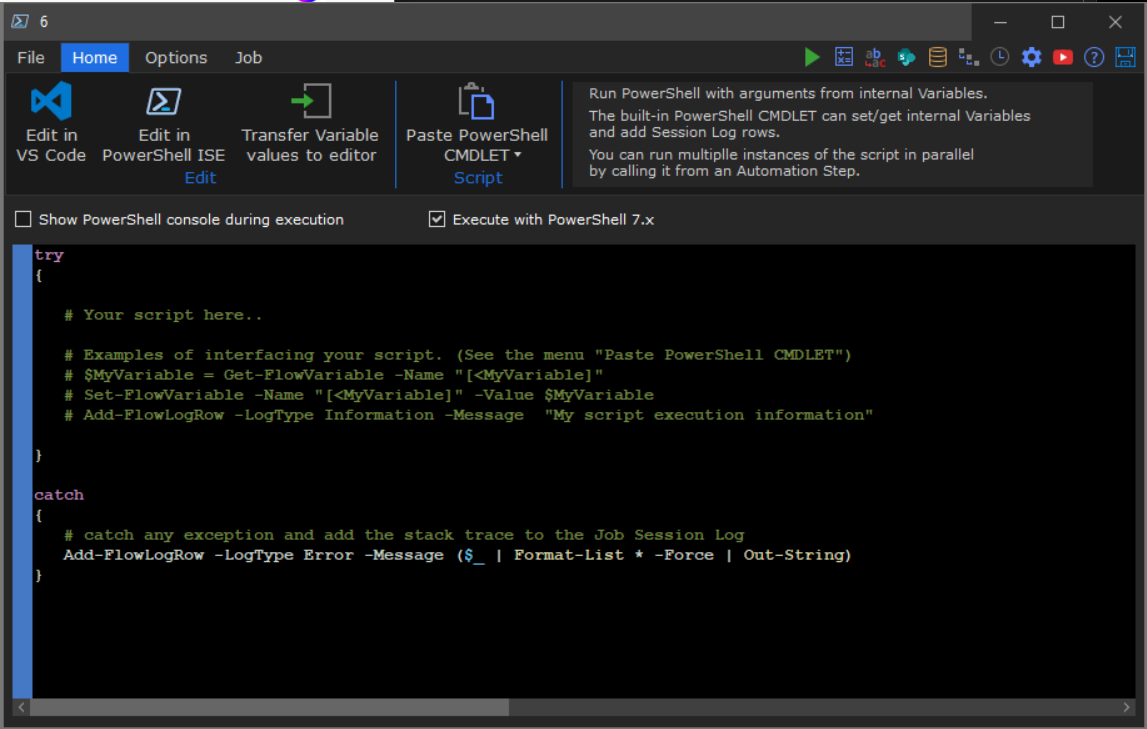 |
| PowerShell | New CMDLET for connection to SharePoint 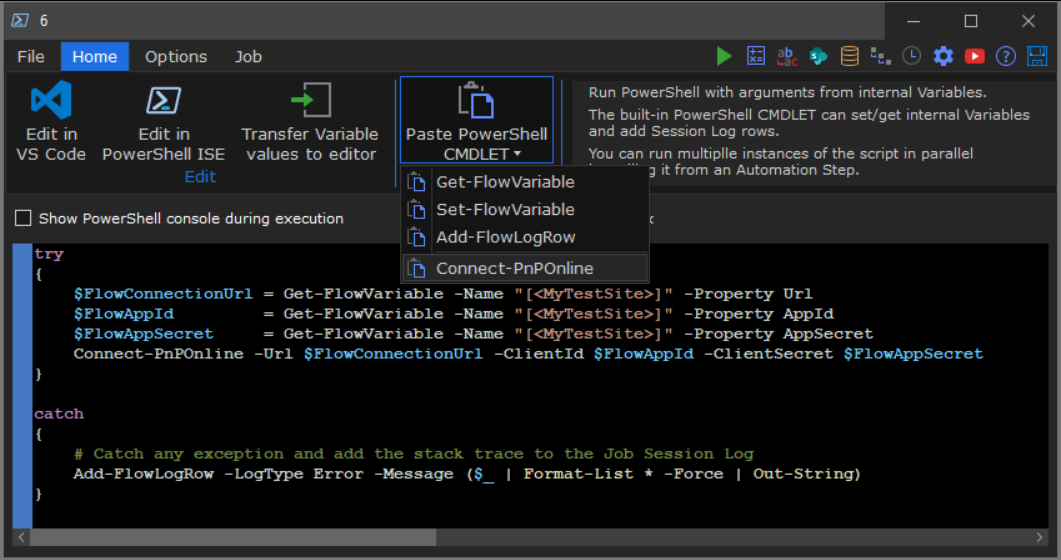 |
| Migrated files report | Performance enhancement x50 |
| Database | View support for the Internal repository |
| Session Log | New column [Custom Info] to display the custom logging information defined either on the Options-Tab or assigned to the system Variable [<SessionLog-CustomInfo>] from a For-Each Step. |
| Session Log | Find and Filter now also considers the new column [Custom Info]. |
| File reporting | Ability to cancel a running report. |
| File reporting | New filter on Custom info |
| File reporting | New filter on Copied or Moved |
| File reporting | New ability to do reporting on files subject to “Test run” |
| File reporting | New database reporting view report_migratedfiles located on the internal repository that enables you to do reporting across all jobs/steps/sessions/individual For-Each iterations. The output can be loaded into Excel, CSV, SP-List or database just like any other data source. Then the reporting can become become part of flow setup. |
| SharePoint user validation reporting | New database reporting view report_validatedsharepointusers located on the internal repository that enables you to do reporting across all jobs/steps/sessions/individual For-Each iterations. The output can be loaded into Excel, CSV, SP-List or database just like any other data source. Then the reporting can become become part of flow setup. |
| Data validation reporting | New database reporting view report_datavalidationwarnings” located on the internal repository that enables you to do reporting across all jobs/steps/sessions/individual For-Each iterations. The output can be loaded into Excel, CSV, SP-List or database just like any other data source. Then the reporting can become become part of flow setup. |
| DataETL/ForEach | SharePoint: Override URL no longer needs | (pipe character) to specify subfolder, you can just use / as you would normally do in a SharePoint URL |
| DataETL | Load into Database: New progress information added to the Session log. This is nice when for example doing 1 million inserts. |
| DataETL/For-Each | Extract data: Added limit result set to nn rows for SQLServer, CSV, Excel (SharePoint was already supported) |
| Preview | Enhanced interactive filter in the preview windows for DataETL, For-Each and FileManagement. The filter now automatically follows the column you sort by and applies the filter. |
| Job | Available memory is now monitored and if the threshold of 2 GB available memory is reached the job will issue a warning |
| Transformation | Replace action has 2 new replacement options: All but first occurrence and All but last occurrence |
| Version 2.23 | April 2022 |
|---|---|
| Session Log | Performance enhancement (x3) when loading large sessions on machines that have background Accessibility software running. Most windows 10 & 11 have that |
| SQL Server | INSERT/UPDATE raw SQL statements can now use the SQLServer specific syntax N'my string value' to support UNICODE character set for columns of type NVARCHAR. Notice tables columns created from the IDE will be of type VARCHAR. So, to support UNICODE you must create/alter your table using embedded SQL or use SQL Server Management Studio. 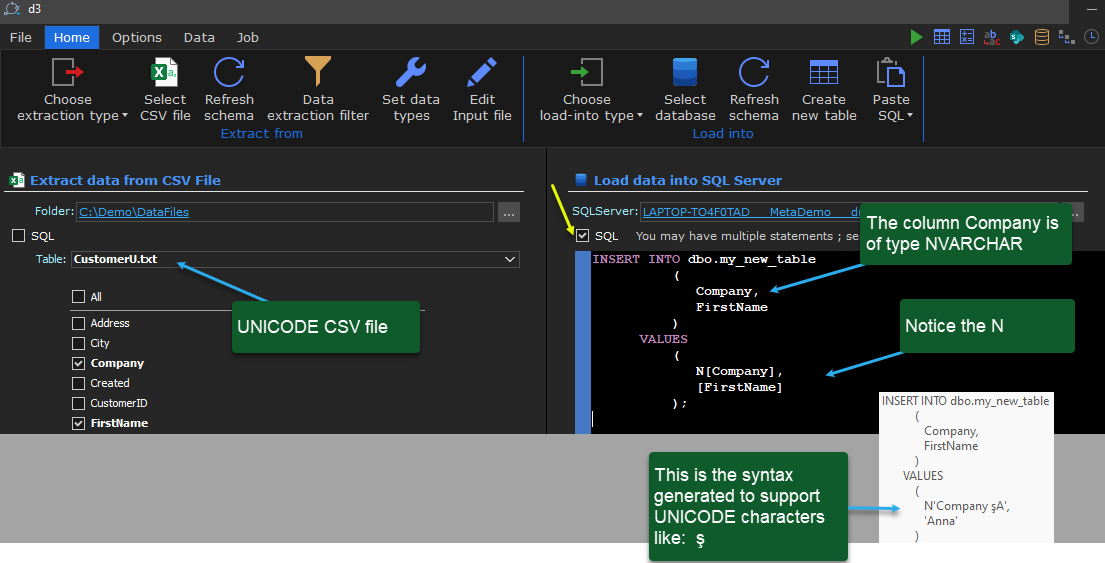 |
| Job | Variable values can now be returned into the IDE from a job. This is very convenient for debugging and testing jobs that generates a dynamic filenames or other values dynamic values that the next Step to test is using. |
| Job | SharePoint as source: new option to specify how many items to retrieve from the source. This is very convenient for debugging/testing |
| PowerShell | Enhanced longing of PS exception trace: 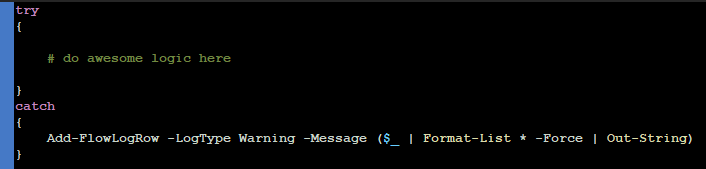 The log generated when an exception is thrown in the above example: 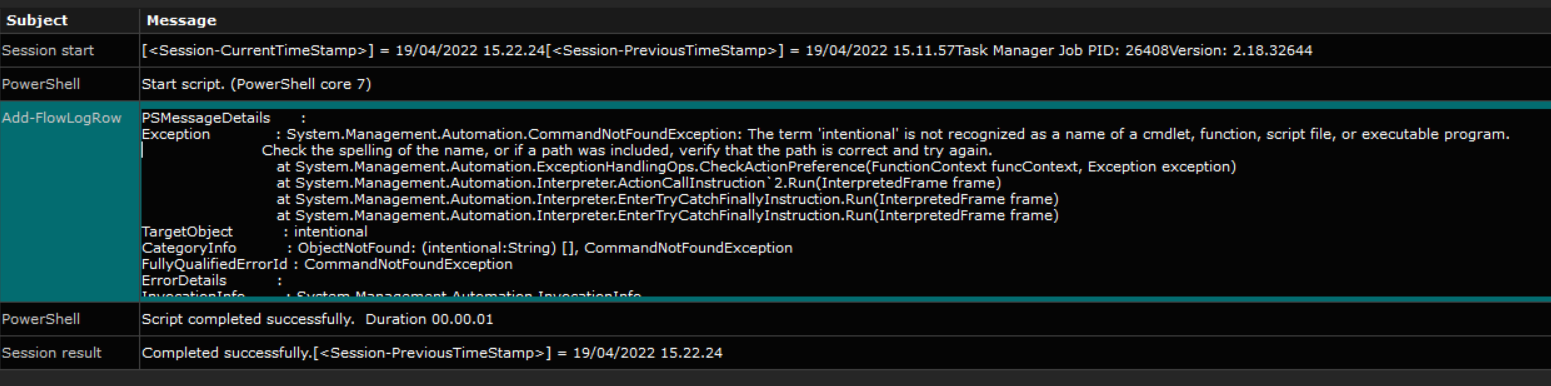 |
| M365 | Azure Migration API – package retry. This feature catches the errors that Azure randomly throws for no reason when transferring data from blob storage to SPO and then performs async retry of the Azure job without having to reupload the binary content and metadata. Wen a retry occurs it is indicated on the AzureJobLog.txt file (Retry) |
| Job notification | You can now run a Step or series of connected Steps to perform job notification. The flow can for example update a database or SP list with notification relevant data. You can invoke your notification Step from any Step in your job also within in a For-Each loop thus enabling individual notification for each iteration in the loop Note that the notification will not be invoked synchronously when there are files pending in Azure (i.e.. files that are uploaded successfully but not yet moved by Azure from temp blob storage to SharePoint). When all files processed within the the Step is accounted for by Azure then the notification is triggered. If an error occurs asynchronously in the Azure migration import API, it is reflected in the notification even though the upload of the file succeeded. The entire Variable context is restored when the notification is triggered asynchronously. The below variables designated for the notification are also populated: - [<NotificationType>] The job result result since the last notification - [<NotificationMessage>] The job message issued since the last notification. The first 10k of log data for warnings and errors is accumulated. If you update a database you need to make sure the column width is large enough or truncate the value. - [<NotificationFileCount>] The number of files processed within the Step the notification is linked to. - [<NotificationContext>] The information provided from the Step setup by you. This is particularly useful when you use your own job tracking setup with for example a SharePoint list that specifies parameter for the job as a whole or for For-Each iterations. |
| SharePoint | Create Folder/DocumentSet has been redesigned to avoid throttling. This may reduce the performance in terms of number of folders/DocumentSets created per minute in order to comply with the Microsoft throttling policy change. |
| FileManagement | [x] Include subfolders is now visible also on the Home tab |
| Session Log | Dynamic colour change for expanded levels |
| SharePoint | Override URL no longer needs | (pipe) to separate Library from folder structure. This makes it significantly easier to use/understand |
| FileManagement | The FileShare attribute Last Accessed can now be referenced in filters and be used for metadata assignment and calculation. |
| Version 2.04 | March |
| Database | Drop down menu now shows database VIEWS |
| SharePoint | Generic DMS version history migration: x17 performance enhancement for major/minor version calculation. |
| Job Server | New error tracking for Windows Service account permission issues. This makes it easier to figure out what is wrong with a given Windows Service account. |
| UX multi monitor | Step windows and multitasking jobs now open on the same monitor as the parent window. Also the resize logic now use the screen resolution for the monitor in context |
| Data ETL/ForEach | “File and Directory scan” now includes the [LastAccessed] attribute for files. This enables a variety of applications for example only migrating the most recent used files or creating PowerBI models that shows what files are actively being used and what files are ROT (Redundant Obsolete and Trivial). |
| Data ETL/ForEach | “File and Directory scan” Performance optimized for retrieving the first level of folders. (no longer runs through the entire hierarchy) |
| Version 2.01 | February 2022 |
|---|---|
| Data ETL | Edit table New button to edit a database table’s column layout |
| Data ETL | List settings New button to open the SharePoint List settings in a browser |
| File Management | Library settings New button to open the SharePoint Library settings in a browser |
| File Management | Migration of legacy DMS document major/minor version history. Supports Alfresco, OpenText, FileNet or any DMS where the metadata for document versions is stored in a database, CSV or Excel. |
| For-Each | Group By: New functionality to perform data grouping. It is essential for transforming multiple rows into 1 value per. column based on one or more GroupBy columns. Use cases include: - Create values for SharePoint choice-columns or multi value Manged Metadata and Lookup columns. - Apply the multi value Variables in SharePoint and Database filters using the IN filter clause. - Document Management System migration where you can use a single result set (that you can create/prepare in various ways) as Source to a FOR-EACH and automate “FileManagement”. Then you GroupBy Site/Folder and the FileManagement step will optimize and “batch” files from various sources into 1 azure session per destination. That will effectively increase performance anywhere from x2 to x50 compared to single file processing and moreover make metadata assignment and calculation much easier and transparent.This feature is extremely useful for distributing content to many sites based on a result set that defines the destination Sites, Source storage location and metadata. |
| SharePoint | Managed metadata tags in a hierarchy can now be referenced in compliance with the PnP framework using the pipe character | |
| SharePoint Online | File Management: The version for a file can now be specified even the file has no version history. use the new [Set version] column in the metadata assignment. |
| Session log | Auto-refresh of log for running job |
| Session log | Enhanced filtering. Also works real-time on running job. Option to chose to view errors only. |
| Session log | x15 faster purge of outdated log sessions. Deleting specific sessions is done instantly. |
| Session Log | New viewer for analysing embedded reports like SourceFiles.txt This is convenient when running on a machine that does not have Excel installed. Instead of opening the report in Notepad or Excel a new tab opens within the Step where the report can be analysed. The content can be sorted, filtered and exported to Notepad or Excel. |
| Session log | New r-click menu option to view File Version History |
| Version 1.95 | January 2022 |
|---|---|
| Language support | Added support for the following languages: - Thai (Thailand) - Vietnamese (Vietnam) |
| SharePoint | Handling of columns level validation rules in SharePoint Lists and Libraries. The defined validation message from the actual SharePoint rule is also returned to the session log along with the data value for your context understanding. |
| SharePoint | Enhanced handling of corrupted SharePoint List column definitions. |
| MS SQL Server | Support for having the repository in a SQL Server database rather than locally in the program-public folder. This is useful for compliance with data protection policies and also gives better performance for large session logs. |
| Transformation | New function IndexValue |
| Variables | The expression test value for [data] is now reloaded when the Variable properties window is opened |
| Session Log | Ctrl-A will now select the message text |
| File Management | Optimized file copy operation between FileShares |
| Session Log | Load/Expand 35% faster |
| Version 1.93 | December 2021 |
|---|---|
| Run Job interactively | Columns are now sized automatically to make it easier to view data |
| Validated users | SharePoint: New report window to view all validated users. Useful to se how users are mapped and how they resolve against the AD |
| Public preview | These are the features not yet ready for GA but included for you to preview |
| Version 1.86 | |
|---|---|
| SharePoint Online | “Refresh Schema” is now x2-x80 faster (The bigger Termstore and number of content-types the faster) |
| SharePoint Online | “Connection” has new option to include hidden lists and libraries |
| Database | New option to create a connection to CSV/Excel Sheet directly from the Database connection window. |
| Functions | New system function RemoveIllegalcharactersFromFileName |
| Data Transformation | Test transformation for SharePoint user columns: When transforming values the user mapping list is now included in the test so the actual mapped result is shown. Also, you can edit the mapping list from within the transformation window |
| SharePoint user validation | User name validation can now be performed in “Data Transformation” and “Edit user mapping” |
| Data Transformation | New “Paste value” button for SharePoint columns of type Managed Metadata, Lookup, Content-Type, Choice |
| Job log | New right-click “Open SharePoint version history” in Notepad or Excel” |
| General | Mouse wheel now scrolls the options tab pane on all Steps |
| Version 1.79 | |
|---|---|
| General | Digitally signed executables and Setup |
| FileManagement | New method for excluding folders based on partial string matching on the columns [Path] and [URL path]. For example *forms*;*system* will exclude/include/include+ BOTH files and folders if the path string contains “forms” or “system”. It is coded to work specifically on the column [URL path] for SharePoint source and [Path] for FileShare source. |
| Version 1.77 | |
|---|---|
| DataETL & FileManagement | New Preview filter. When running a job visually with preview you can now filter the content to process based on the sort column. |
| DataETL & FileManagement | SharePoint user validation: The default user can now specify additional domain(s) that will be used for user validation. The syntax app@sharePoint;mydomain.com will try to use mydomain.com applied to a user name if a given user do not validate. - Example1: user JOHN will first be validated using the name as it is. If that fails then validation is attempted using JOHN@mydomain.com - Example2: user ANN@abc.com be validated using the name as it is. If that fails then validation is attempted using ANN@mydomain.com |
| Transformations | Now the value mapping list name is displayed along side the transformation instance to give better overview. Also the mapping list can be opened directly without having to open the transformation. |
| Transformations | New Final result column to show the result of the expression combined with the transformation actions. |
| Job tab | New visual indication on the Job tab when a running job has completed. Job completed successfully etc. |
| Job tab | New button on the Job tab Goto preview job will take you to the running preview session that might be hidden behind other windows. This makes it easier to find visual a running job on the machine when there are many windows open. |
| Version 1.67 | |
|---|---|
| DataETL & ForEach | SQLServer: Enhanced SQL parsing of tables and columns having all sorts of characters in the names. Added support for the UNION keyword without a FROM clause. |
| Job scheduling | New toolbar button added on the Job ribbon tab: Managed scheduled jobs for easy access to the job scheduler. Also the job scheduler opens immediately after a job has been submitted for easy review and status monitoring. |
| Scheduled jobs | New toolbar button to easily select a Step and schedule it to run without first having to open the Step and go to the Job tab. |
Other changes
| DataETL & ForEach | SQL Source: The editor window is now dynamically resized to give more editor space. |
|---|---|
| Reporting | Performance enhancement: Retrieve file migration report is now x3 faster. |
| Data ETL & FileManagement | Support for SharePoint system Libraries SitePages and SiteAssets |
| Session Log | Load time performance enhancement when having >75000 log rows in one session. |
| Variables & Assignments | Visual redesign of “Edit” window and new column Description added. |
| Variables | New “Referenced” list box where all references to the selected Variable are listed. You can se the Step name, Step type and the location where the variable is being used. |
| Variables | Multi-select is now supported for deleting. (Ctrl-A, Ctrl-Click, Ctrl-Shift-Click) |
| Variables | New check box “Show only unreferenced”. Applies a filter so only Variables that are not being used anywhere are listed. This is very useful for cleaning up by deleting unused variables |
| All Steps | New option to specify a Custom log message (Options tab). Useful for adding context specific information to the Session Log for job tracking and analysis. The information is globally searchable across all sessions and all Steps from the Dashboard. |
| All Steps | New option to specify what to do when an error occurs. valid options are: - Log a warning and continue (the default) - Log a warning and exit current Group Step - Stop the job |
| DataETL & ForEach & FileManagement | New option to specify what to do when no data or files are retrieved from the Source. Valid options are: - Ignore and continue (The default) - Log a warning message - Log a message and exit the current Group Step - Log a warning and exit the current Group Step |
| Group Step | New hyper link to open embedded Step. |
| Group Step | New condition return value keywords: - "ExitGroup" , "ExitGroupWarning" to not call the current Step or any subsequent steps within the Group. - "StopJob" , "StopJobWarning" to stop the job immediately. |
| Data ETL | SharePoint Item Update: New option to react when not all source keys matches a destination Item. You can trigger a warning, exit the current Group Step or stop the job. This is very useful when your business rules dictate that every source key must match a destination Item. Note that the condition is detected before any action is taken so no data is harmed. |
| Data ETL | SharePoint Item Update: New option to react when multiple items are updated based on a single source key. You can trigger a warning, exit the current Group Step or stop the job. This is very useful when your business rules dictate that only 1 item must be updated for each source key. Note that the condition is detected before any action is taken so no data is harmed. |
| Data ETL & FileManagement | New option to react when an error occurs. You can trigger a warning (the default), exit the current Group Step or stop the job. This is very useful when for example a dynamic URL is wrong and it makes no sense to continue processing the current iteration in a For-Each or the entire job. |
| Session Log | New hyper link to open nested Step. The link has tooltip that shows the storage location of the Step |
| Session Log | Message can now be 8k (previously 2k) and is globally searchable across all sessions and all Steps from the Dashboard. |
| PowerShell | Add-FlowLogRow new arguments to -LogTypes: - -LogType StopJob Stop the job - -LogType ExitGroup Exit the Group Step from where the PowerShell Step is called. |
| Calculation | New functions: - RemoveIllegalCharactersFromFileName() - ReadTextFile() - FileExist() - GetFileNamePart() |
| Data ETL | SharePoint: Support for extraction of custom list item version history to database(Insert/Update), Excel, csv, ForEach. You can specify criteria for the extraction: Date of oldest version to include, hard coded or using a variable. When previewing the retrieved SharePoint Item data you have the option to visually also show the version history. (Please note that the version history cannot yet be applied to new SharePoint custom list items. Version history is 100% supported in File Management) |
| File Management | SharePoint version history: You can now specify criteria for the extraction: Date of oldest version to include, hard coded or using a variable. |
| Column mapping | Data-ETL & File Management: New Ribbon bar button to automatically map all columns & reset mappings |
| Documentation | New article SharePoint user mapping. There is a link from Options user mapping to the article within the product. |
| FileManagement | Allow any user name (Only O365) – New validation message to verify that the conditions for this option to function are met |
| FileManagement | The width of Override URL has been extended to 300 characters to allow for long URLs consisting of multiple Variables |
| Data ETL | new link to open CSV folder and Database connection properties |
| Data ETL & FileManagement | New visual indication when a “From” or “To” filter is defined. The indication also serves as a shortcut link to the filter definition |
| File ribbon | Now navigates to the location of the Step in context. |
| SharePoint | Data-ETL & File Management: Emoji support (❤️ Resource for copy/paste Emojis ). Item properties (including folder names) can now contain Emojis. You can even query for items having a specific Emoji. |
| Job Log | New ribbon bar button to open the Dashboard |
| Job Log | Find/Filter: Enhanced visual highlighting and keyboard navigation from the find field. |
| Job Log | New filter option to apply “find criteria” as a filter to limit the rows visible. |
| Job Log | Find and filter criteria is now applied immediately when you type. |
| Job Log | Message column is now permanently expanded but only when clicked. |
| Job Log | New “Open button” to open the Step the current log line belongs to. |
| Data ETL | To SharePoint Document Library: New action Check out will check out files to the account defined in the SharePoint Connection. |
| Data ETL | To SharePoint Document Library: New action Discard check out will remove the checked out status from on files. |
| Data ETL | Preview window: New maximize button to expand the preview Window |
| File Migration | From FileShare: Automatic conversion of file names that are URL encoded. For example My%20file.docx is converted into My file.docx before transfer to SharePoint |
| File Migration | Preview window: New maximize button to expand the preview Window |
| Notification | PowerAutomate and E-Mail: Delayed notification for SharePoint Online. Notification is not sent until all files have been verified by Azure. |
| Notification | PowerAutomate and E-Mail: New field “FileSummary” that shows the number of files Ok, Warning, Error |
| File Migration | Azure/SPO destination. Notification (if enabled) is not triggered until all files for a given step has been processed by Azure. |
| Account | New “Diagnostics” setting to enable logging of the raw data sent to SharePoint and databases. |
| Step | Revised toolbar at top right corner. All commands from TOOLS are now here also. |
| Step | Ctrl+S in all steps does a SAVE |
| Data-ETL | New input type “Variables”. Useful for SQL DDL statements and operation that are entirely based on variables hence no input result set. |
| File Reporting | 3x Faster retrieval of reports. (Revised indexing and SQL WHERE syntax) |
| File Migration | Revised detection of the condition where the computer system is out of memory and many things begin to fail. |
| File Migration | Azure pending files: Optimized visual status for how many files are pending asynchronously in Azure. New article that describes that scenario |
| Migration OnDemand | New article that describes what you can do with the template plus a comparison to MS Mover and MS Migration Manager |
| Data transformation | New UI for data transformations in Variables and column assignments |
| Dashboard | Visual indication of files awaiting Azure Transfer to SharePoint |
| Dashboard | New column Job PID that show the Windows Task Manager PID |
| Expressions | New mechanism to test expressions |