

Your app activation code is the key to the app
You choose your own app activation code and give it to your customers. A customer types it under Activate your partner in the app: your profile opens, and Select makes you their SMART Migration partner — their point of contact for the trial, the licence and the migration. Only partners certified by MigrateDMS are listed in the app and have an app activation code, so a customer can only activate a certified partner, with the code that partner gave them.
Choose a code that is easy to type and unique to you — your company name, for example — write it in your XML file and give it to every customer together with the trial licence key for the SMART Migration server.
Make your profile shine
Your partner profile is your window to potential customers planning a migration to Nextcloud. Customers activate you in the app with the app activation code you give them, see your profile and keep it on the Support tab as their point of contact. Highlight your services and experience across discovery, selection, planning, migration and documentation, making it clear where you add value.
Include relevant links to service descriptions, case studies and supporting articles on your own website. The app's AI Help uses your profile and linked pages to answer customers' questions about your services — so a clear, informative profile helps customers understand why they should choose you.
CUSTOMERS MEET YOU IN THREE PLACES IN THE APP
Your app activation code
You choose it and give it to your customers. A customer chooses Activate your partner and types it: your profile opens, and Select makes you their partner.
Your profile card
Your profile — your live web page or your HTML presentation — with your contact details. Before a customer has a partner, they find you in the partner list on the Support tab and Getting Started and open your profile to read it and find your contact details; once they activate you, your card stays there.
AI Help
Customers ask the app about partners' services. Before they activate a partner, AI Help answers from every certified partner's profile, yours among them; once they activate you, from yours alone, and the pages it links to.
Your profile page is what AI Help reads
The most important thing you send is the address of your profile page: a page on your own website about your SMART Migration and Nextcloud services. It must not be your company's main landing page — a home page about everything you do gives AI Help little to answer from, and leads it away from what customers ask about.
When a customer asks AI Help about your services — before activating a partner, or once they have activated you — AI Help opens your profile page first and then the links on it. Every link on your profile page that stays on your own domains is a page AI Help can open: for each question it opens the ones that match it, and writes its answer only from the material it collected — your profile page, the pages it links to and your HTML file. So the links on your profile page decide what AI Help can tell a customer about you.
What you send
Three files with one shared name — an XML file, an SVG logo and an HTML presentation — and the address of your profile page. The app finds the logo and the presentation by the XML file's name, so the three names must match.
The XML file
Your company details: name, app activation code, countries, services, Nextcloud partner levels and contact details.
The SVG logo
Your logo, square, shown on your profile card and in the help panel, in light and dark mode. Recommended.
The HTML presentation
Your name, what you offer and how to reach you. Always required, also when you have a profile page.
Partner templates
Download the partner templates: template.zip
All three files in one zip — template.xml, template.html and template.svg. Unpack it and follow the steps below.
Strongly recommended: your own profile page
A page about your SMART Migration and Nextcloud services — not your home page. When it can be shown inside the app, customers see your live, always current web page instead of the HTML file, and AI Help reads it first and follows its links.
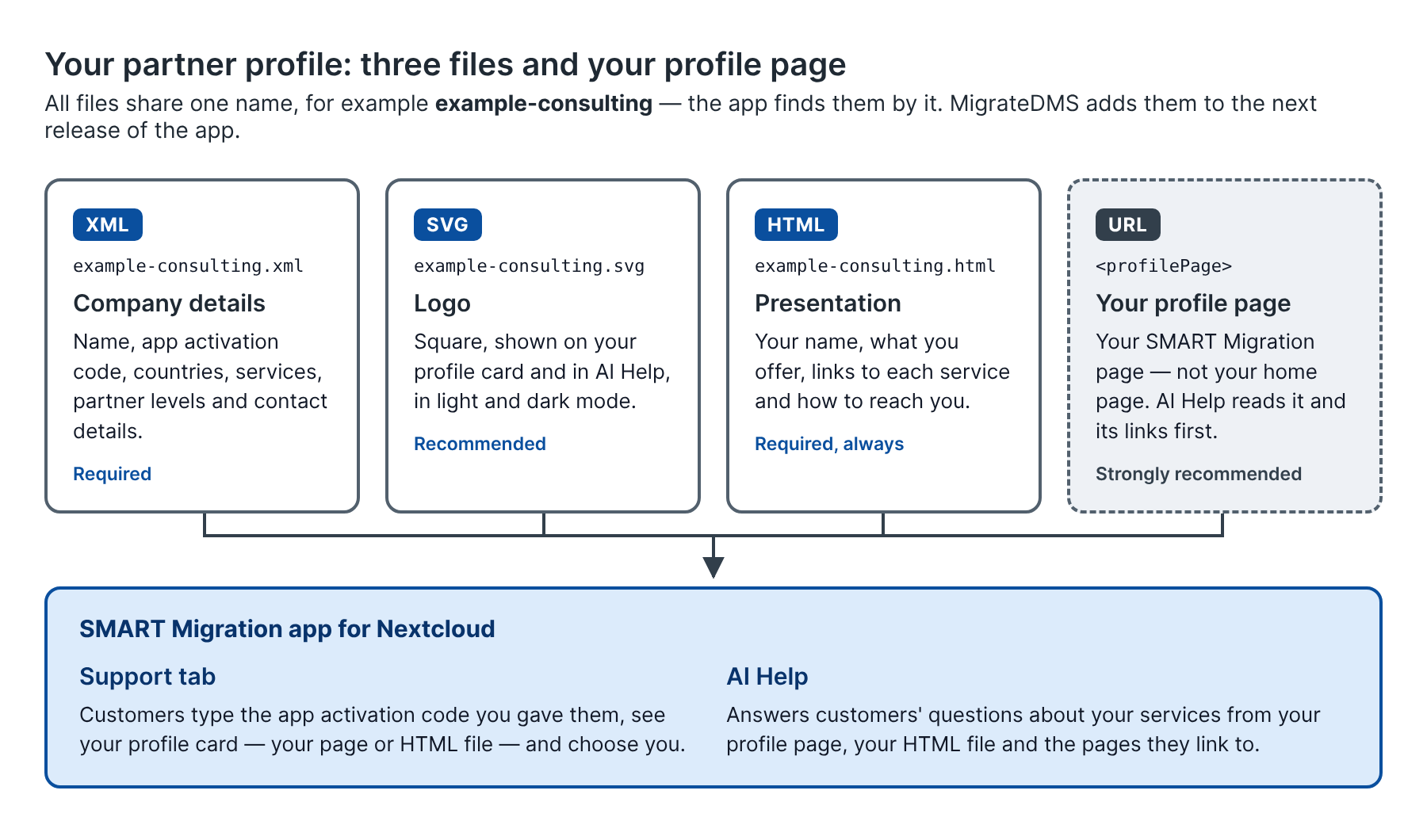
Diagram: your partner profile — three files and your profile page. All files share one name, for example example-consulting — the app finds them by it. MigrateDMS adds them to the next release of the app. XML (example-consulting.xml): company details — name, app activation code, countries, services, partner levels and contact details; required. SVG (example-consulting.svg): logo — square, shown on your profile card and in AI Help, in light and dark mode; recommended. HTML (example-consulting.html): presentation — your name, what you offer, links to each service and how to reach you; required, always. URL (profilePage): your profile page — your SMART Migration page, not your home page; AI Help reads it and its links first; strongly recommended. Together they feed the SMART Migration app for Nextcloud: the Support tab (customers type the app activation code you gave them, see your profile card — your page or HTML file — and choose you) and AI Help (answers customers' questions about your services from your profile page, your HTML file and the pages they link to).
Prepare your profile, step by step
Section titled “Prepare your profile, step by step”Eight steps take you from the template set to a listing in the next release of the app.
Copy the template set
Start from
template.zip, which we send you: unpacktemplate.xml,template.htmlandtemplate.svg, and rename all three to one shared name, for exampleexample-consulting. The app finds your logo and your presentation by the XML file's name alone.Fill in your company details
Complete the XML file: who you are, where you work, which services you offer and your partner levels. See The XML file below.
Choose your app activation code
Pick the code your customers will type to activate you — easy to spell, unique to you, such as your company name — and write it in
partnerCode. You give it to your customers; only certified partners have one.Add your logo
Replace the template logo with your own square SVG.
Write your presentation
Describe your SMART Migration and Nextcloud services in the HTML file, with your name and how to reach you, and check it in both light and dark mode.
Link to your service pages
Link each service you offer to a page on your own website that describes it. These links are what AI Help reads to answer customers.
Add your profile page
Make a page on your website about your SMART Migration and Nextcloud services — not your home page — with a link to each service, check it against the profile page requirements and add its address to the XML file.
Send the files to us
Email the three files to info@MigrateDMS.com. We check them and include them in the next release of the app.
The XML file
Section titled “The XML file”The XML file tells the app who you are and where you work. Name it after your id, for example example-consulting.xml: the logo and the HTML file take the same name, example-consulting.svg and example-consulting.html.
<?xml version="1.0" encoding="UTF-8"?><partner> <id>example-consulting</id> <partnerCode>EXAMPLE-2026</partnerCode> <name>Example Consulting Ltd</name> <country>Denmark</country> <services> <service>Files</service> <service>E-Mail</service> <service>Calendar</service> </services> <serviceProvider>Gold</serviceProvider> <reseller>Silver</reseller> <address>Street 1, 1000 City</address> <email>hello@example-consulting.com</email> <phone>+45 11 22 33 44</phone> <website>https://www.example-consulting.com</website> <profilePage>https://www.example-consulting.com/smart-migration</profilePage></partner>Each element, and whether you need it:
| Element | Required | Notes |
|---|---|---|
id | Yes | Short, lower case and unique; usually the file name. Without it the app's server skips your files, and AI Help never reads your profile. |
partnerCode | Yes | Your app activation code: the code you choose and give your customers, which they type under Activate your partner to make you their partner. Easy to type and unique to you; case and extra spaces do not matter. Only certified partners have one. If another partner already uses the code, we ask you to choose another. |
name | Yes | Your company name as customers see it on your profile card. A file without a name is left out. |
country | Recommended | Where you work, shown on your profile card. Write it in English. For several countries, write a <country> element each or separate them with commas. |
services | Recommended | One <service> per service: Files, E-Mail, Calendar, or a short phrase of your own. List as many as you offer: there is no limit. Your profile card shows them on one line, every service on hover. A service of more than four words is shown as plain text before the pills rather than as a pill; on your profile card it wraps, with the pills under it — four lines in all at most, cut off with … past that, and every service on hover. Put the services that matter most first. |
serviceProvider | No | Your Nextcloud partner programme level as a service provider: Silver, Gold or Platinum. Leave it empty if you are not one; any other value counts as none. |
reseller | No | Your level as a reseller, in the same words. |
address | Recommended | Your postal address, as Google Maps can find it: the map pin beside it on the Support tab opens it there. |
email | Recommended | The address customers write to — plain, or with the name of the person who answers before it and the address in angle brackets, which the XML file writes as < and >. The app shows the name with the address and links both. |
phone | Recommended | Your phone number. AI Help gives your address, e-mail and phone when a customer asks how to reach you. |
website | Recommended | Your home page, given by AI Help. Must start with https://. |
profilePage | Strongly recommended | Your own page about your SMART Migration and Nextcloud services, starting with https:// — not your company's home page. AI Help opens it first and follows its links. Add frame="no" if it cannot be shown inside another site. See Profile page or HTML file below. |
sortOrder | No | Set by MigrateDMS; leave it out. |
listed | No | Set by MigrateDMS, only for its own demo profiles: no keeps a profile out of the partner lists. Leave it out — your profile is listed. |
The logo
Section titled “The logo”Your logo is shown at the top of your profile card — when a customer types your code, and once they have chosen you on the Support tab and Getting Started — and beside your name in the app's help panel.
- Use a square SVG.
- Make sure it stays legible on both a light and a dark background.
- Give it the XML file's name, for example
example-consulting.svgbesideexample-consulting.xml. The app finds the logo by that name alone. - Without a logo, the app shows its own in your place.
The HTML presentation
Section titled “The HTML presentation”The HTML file is always required, even if you have a profile page: without it you are not listed at all, and it is what customers see whenever your page can't be shown. Give it the XML file's name, for example example-consulting.html — the app finds it by that name alone. The app displays it inside your profile card, across the full width of the screen, in light and dark mode.
On the Support tab, once a customer has chosen you, the card opens with your logo, name and the facts from your XML file — country, e-mail, phone, address (with a pin that finds it on Google Maps), Nextcloud partner levels and services — above your presentation or profile page. The dialog customers choose a partner from shows the same facts, packed into as few lines as they fit, with a smaller logo, above your presentation or profile page.
| Topic | Rule |
|---|---|
| Allowed tags | Headings h1 to h4, p, br, hr, lists (ul, ol, li), tables (table, thead, tbody, tr, th, td), div, span, blockquote, links (a), images (img) written into the file as a base64 data:image/… address — PNG, JPEG, GIF, WebP or SVG — and b, strong, i, em, u, small. |
| Allowed styles | Inline style for colours (color, background-color), borders and border-radius, margins and padding, font-size, font-style, font-weight, letter-spacing, line-height, text-align, text-decoration, text-transform, list-style, width, max-width, min-width, opacity, display, and grid and flex layout (grid-template-columns, grid-column, gap, flex, flex-wrap, justify-content, align-items and the like). |
| Removed | Every other tag — scripts, forms, frames — though its text stays; an image whose src is a web address, since the app loads nothing from elsewhere; every attribute but a link's href, an image's src and alt, and style; and every other style, such as font-family, position or background. |
| Style values | Letters, digits, #, %, commas, points, hyphens and spaces only. So no url(), no rgb() — write colours as #1a5fb4 — and no repeat(…). |
| Links | Only https:, http:, mailto: and tel: links are kept. Web links open in a new browser tab. |
| Dark mode | A block that sets background-color must also set color, or its text may be unreadable in dark mode. |
| Width | Use a full-width heading, then two to four blocks side by side: display:grid; grid-template-columns:1fr 1fr 1fr. Write the columns out in full. |
A simple layout that works well:
<h2>Example Consulting – SMART Migration partner</h2><div style="display:grid; grid-template-columns:1fr 1fr 1fr; gap:16px"> <div> <h3>Migration</h3> <p>Microsoft 365 to Nextcloud with SMART Migration.</p> <a href="https://www.example-consulting.com/smart-migration">How we migrate</a> </div> <div> <h3>Hosting</h3> <p>Nextcloud hosted in Denmark.</p> <a href="https://www.example-consulting.com/nextcloud-hosting">Our Nextcloud hosting</a> </div> <div> <h3>Contact</h3> <p><a href="mailto:hello@example-consulting.com">hello@example-consulting.com</a><br> <a href="tel:+4511223344">+45 11 22 33 44</a></p> </div></div>Copy it, and replace the text and links with your own.
Profile page or HTML file: what customers see
Section titled “Profile page or HTML file: what customers see”Your profile page is shown when it can be loaded. Otherwise customers see your HTML file. AI Help reads your profile page first whenever you have one, even when the card shows the HTML file.
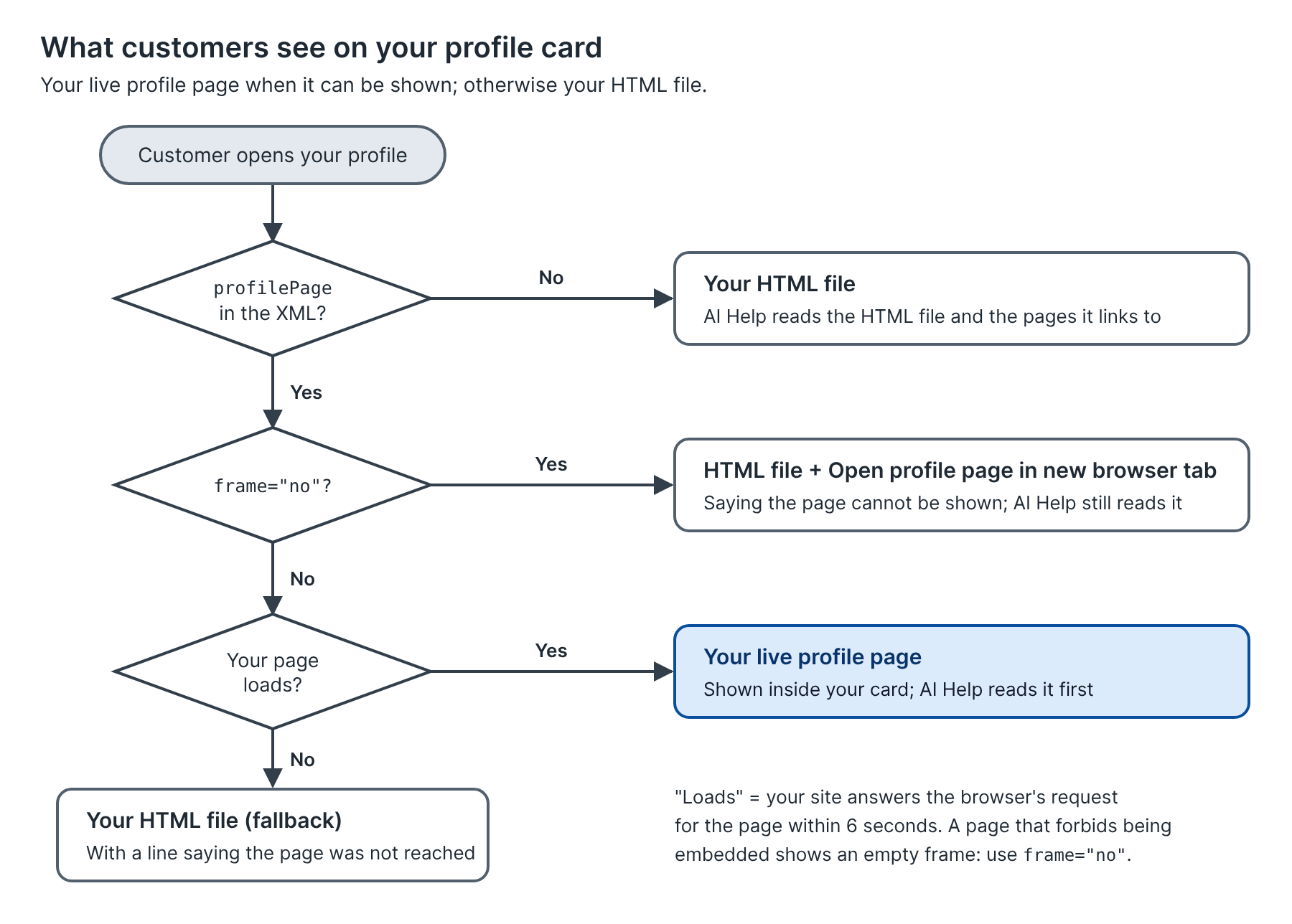
Diagram: what customers see on your profile card — your live profile page when it can be shown; otherwise your HTML file. The customer opens your profile. Is profilePage in the XML? No: your HTML file; AI Help reads the HTML file and the pages it links to. Yes: is frame="no" set? Yes: HTML file + Open profile page in new browser tab, saying the page cannot be shown; AI Help still reads it. No: does your page load? Yes: your live profile page, shown inside your card; AI Help reads it first. No: your HTML file (fallback), with a line saying the page was not reached. "Loads" means your site answers the browser's request for the page within 6 seconds. A page that forbids being embedded shows an empty frame: use frame="no".
| Your setup | The profile card shows | AI Help reads |
|---|---|---|
No profilePage | Your HTML file | Your HTML file and the pages it links to |
profilePage, and the page can be loaded | Your live profile page | Your profile page first, then its links |
profilePage with frame="no" | Your HTML file, with a line saying your page cannot be shown inside the app, and an Open profile page in new browser tab button | Your profile page first, then its links |
profilePage, and the page cannot be loaded | Your HTML file, with a line saying your page could not be reached | Your profile page when it can be reached, then your HTML file |
profilePage that forbids being embedded, without frame="no" | An empty frame — add frame="no" | Your profile page first |
How the app checks your page
The customer's browser asks for your profile page. When your site answers within 6 seconds — with any answer — your page is shown; when nothing answers — no internet access, your site down — your HTML file is shown instead, with a line saying so. The app cannot tell whether your page forbids being embedded: such a page shows an empty frame, so mark it frame="no". Keep the HTML file as complete as your page.
AI Help keeps the pages it opens for an hour, so a change to your page reaches its answers within the hour.
Profile page requirements
Section titled “Profile page requirements”Your profile page must meet all of these requirements. When it does not, customers see your HTML file — or, if it forbids being embedded, an empty frame.
- *Starts with
https://.* Any other address is ignored. - Is not your home page. A page about your SMART Migration and Nextcloud services, such as
https://www.example-consulting.com/smart-migration— your company's main landing page is about everything you do, and AI Help answers from what the page and its links say. - Can be shown inside another site. The page must not send
X-Frame-Options: DENYorSAMEORIGIN, norContent-Security-Policy: frame-ancestors 'none'. Many website platforms send these by default; ask your web team. If your site cannot allow this, write<profilePage frame="no">…</profilePage>. Your card then shows the HTML file, with a line saying your page cannot be shown inside the app, and an Open profile page in new browser tab button; AI Help still reads your page. - Shows your name and how to reach you. On the card, your page is all customers see.
- Is public: no login, no cookie wall covering the content, no country block.
- Can be read by AI Help. AI Help reads your page through Anthropic's Claude. Don't block it with
robots.txtor bot protection. Put your services in the page's text, not only in images or content loaded later by scripts. - Links to each of your services, on your own domains. AI Help follows the links on your profile page to answer a customer's question, and opens pages only on the domains of your profile page, your website and the links in your HTML file. A link to any other site is seen but not opened.
- Is about SMART Migration and Nextcloud: your services, prices or packages if you publish them, countries and languages, and how to get started.
Link generously
Section titled “Link generously”Include as many relevant links as possible on your profile page and in your HTML file, to articles describing the different services you offer. When a customer asks about the partners, AI Help follows these links and answers from what it collected, so the links decide which questions it can answer about you. The more relevant the links, the better.
- Give each service its own page and link: migration, hosting, support agreements, training, packages and prices.
- Keep the links on your own domains, so AI Help is allowed to open them.
- Put the facts in the page text, not in images or in PDFs behind a download.
Stay in scope
Section titled “Stay in scope”Do not mention anything outside the scope of the app and related services. For example, mentioning that you have great paintings on the wall, or that you help people adopt Microsoft 365, is out of scope.
| In scope | Out of scope |
|---|---|
| Migrating from Microsoft 365 to Nextcloud with SMART Migration | Helping customers adopt Microsoft 365 |
| Nextcloud hosting, setup and operation | IT services and products unrelated to Nextcloud |
| Support, training and packages for Nextcloud customers | Office décor and general marketing |
| Countries, languages and how to get started | Content aimed at other software platforms |
| Who you are: your company, its history and references |
Send your files
Section titled “Send your files”Before you send, check that you have:
- the XML file, named after your id
- your app activation code, in
partnerCode - a square SVG logo
- the HTML presentation, with your name and contact details, checked in light and dark mode
- links to a page for each service you offer
- your profile page — about your SMART Migration and Nextcloud services, not your home page — tested against the requirements above
We check the files and include them in the next release of the app. Send the three files, and the address of your profile page, to MigrateDMS: "info@MigrateDMS.com":mailto:info@MigrateDMS.com
See also