

Manage file migrations from SharePoint, OneDrive, Teams, and file shares to Nextcloud with deep file discovery, interactive business intelligence, progress tracking, and complete Run History and documentation. The same migration jobs can also support digital operational resilience through recurring content migration.
Teamwork — A multi-user app: the customer's administrators and the consultants work on the same migration at the same time, each with their own Nextcloud account, pins and filters.
SMART Migration Server does the work — A separate Windows program on a machine in your own network, not part of this app. It runs every job — a Discovery that maps your content or a Migration that moves it — reading SharePoint, Microsoft 365 and your file shares through Microsoft's own APIs, most of them only available on Windows, and writing the files and reports into Nextcloud. It is downloaded and installed apart from this app, which plans the jobs and keeps their record: until it runs, no job starts.
Files only: no e-mail or calendars — for groupware, see Mail & Calendar below.
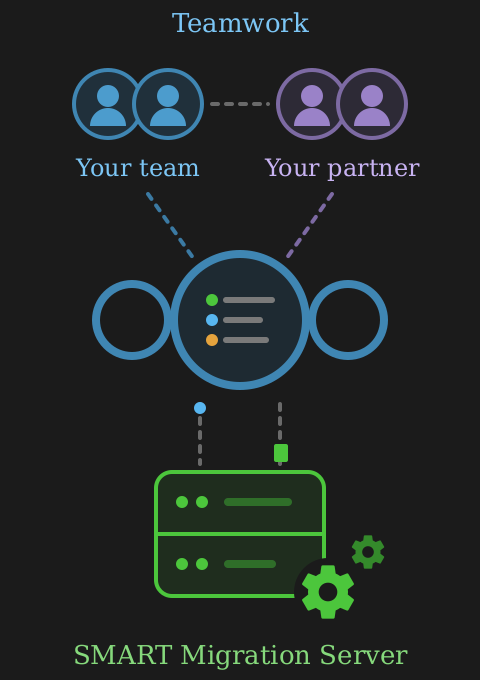
Picture: Teamwork. Your team and your partner each have their own account and work on the same jobs in Nextcloud. Below them, the SMART Migration Server does the work: it takes the jobs and sends the files back, once or again and again as a sync.
Your team and your partner plan the jobs in Nextcloud, and the SMART Migration Server does the work. The architecture section further down this page shows how it fits together.
How to get started
Section titled “How to get started” 1 | Activate your partner — they provide the trial key and the download link for the SMART Migration Server |
|---|
Your partner knows both SMART Migration and Nextcloud, and stays with you for the whole project: scoping what to migrate, planning the waves, and answering the questions that come up along the way. They are your point of contact for support, and some partners also cover mail and calendar.
Everything you need comes from them: the app activation code that activates them here, the download link for the server, the free 7-day trial licence key you enter when you install the server, and the production licence later, when you are ready to go live. They will set the server up with you if you would rather not do it yourself.
2 | Install the SMART Migration server |
|---|
Install the server on a Windows machine or VM inside your network with the trial licence key from your partner, with its Microsoft 365 app registration — or NTLM for SharePoint on-premises — and sign it in to this Nextcloud with a Nextcloud app password. Then set a job to Ready: the server claims it on its next call and runs it.
Until it is installed and running, jobs you create will simply stay on Ready.
3 | Run your first jobs on the free 7-day trial, with the first 250 files and folders per source |
|---|
The trial key is free. It includes every SMART Migration feature — Discovery, Migration, Metadata Mapping, Recurring Jobs, Run History and Reporting — with nothing disabled or held back.
The only limit is volume: each trial job handles the first 250 items per source, files and folders counted together, meaning per SharePoint document library, per OneDrive, or per file share.
That is a first look for the BI report — enough of your own content to see how it behaves, and too little to run a production migration on.
The trial key and the server download are free. What your partner does alongside them — scoping, planning, and running the migration with you — is a service, and may be subject to additional charges.
4 | Go live on a production licence |
|---|
The production licence also comes from your partner — it is not sold or issued by this app. It lifts the trial volume limit, and is a subscription of 1, 3, 6, 12 or 24 months.
Both editions include every SMART Migration feature. The only thing that separates them is migration speed:
Enterprise Standard migration speed
Enterprise removes the trial volume limit and enables full-scale migration between Microsoft 365 and Nextcloud. Migrate SharePoint, Teams and OneDrive content while preserving version history, metadata, timestamps and user attribution. Automated discovery and mapping help you prepare and execute migrations reliably at scale.
Enterprise+ Up to three times the Enterprise migration speed
Enterprise+ is the same product at a higher migration throughput: up to three times the Enterprise speed. Features, sources and targets are identical; only the rate at which files are migrated differs.
What to have ready before you install the SMART Migration server
Section titled “What to have ready before you install the SMART Migration server”The installation itself is quick. Everything below is worth arranging first, because the SMART Migration server needs it.
- A Windows machine or VM of your ownInside your network, and able to reach both this Nextcloud and the source systems. It runs every job, so it stays on while jobs run. Nothing exotic is needed: 16 GB of RAM is a sensible baseline, and more helps when several jobs run at once. System requirements
- Access to your Microsoft 365 tenantAn Entra ID (Azure AD) app registration with the permissions SMART Migration needs, and a certificate to sign in with. Arrange this with whoever administers the tenant — it is the one step that is not yours alone. SharePoint on-premises uses NTLM credentials instead. How to create and configure the app registration
- The address of this Nextcloud, and an app passwordThe server signs in with a Nextcloud account of its own, and it must be an admin account. Create a dedicated one for the server and generate an app password for it under Settings, Security.
- The installer and the trial licence keyBoth come from your SMART Migration partner — the download link and the free 7-day trial key arrive together.
If the machine has no internet access
Section titled “If the machine has no internet access”You do not have to download the installer yourself. If the machine or the network will not allow it, your partner can supply it.
The machine can run in a protected environment with no internet access of its own, as long as it can reach this Nextcloud and the sources it migrates. SharePoint on-premises and file shares are on your network already; Microsoft 365 sources are reached over the internet, so those still need a route out.
What it costs is convenience: a machine that is offline during setup cannot fetch what it needs, so the prerequisites — .NET 8 among them — have to be installed by hand first. System requirements
Use the app for a friction-free, controlled migration from BI discovery to completion
Section titled “Use the app for a friction-free, controlled migration from BI discovery to completion”Discover before you move Create a job for each SharePoint, OneDrive or Teams library, or file share. Deep discovery reads the source before anything moves: volume, age profile, folder depth, permissions, version history, and file types that need attention. You see what is really there — and which content should be migrated, cleaned up, or kept in a recurring copy. Volume. Age. Structure. Attention points. | Migrate with confidence Interactive business intelligence turns discovery into a migration plan you can defend: what moves first, what needs cleaning up, what can stay behind, and how long each migration wave will take. Add a recurrence and the same selection can be refreshed on a schedule, keeping a regularly updated copy. One clear view from discovery to final handover. | Keep the record Discovery results, migration outcomes, and the full Run History remain visible inside Nextcloud. Every run records what it processed, when it ran, and what required attention. Reports are stored in Nextcloud Files as documentation of the migration — and, for recurring jobs, evidence of when each protected content set was last refreshed. A living record of your migration. | Mail & Calendar SMART Migration handles files. Mail and calendar migrations are delivered by your selected migration partner, including mailboxes, shared calendars, room resources, and delegate permissions. Ask AI Help which services each partner provides, and choose one that can cover Files, E-Mail, and Calendar as a single migration project. One project. Files, mail, and calendar. |
|---|
Digital operational resilience and DORA
Section titled “Digital operational resilience and DORA”Digital operational resilience
Keep the documents your business cannot do without available in Nextcloud — current, under your own control, and documented file by file.
Key point A resilience copy is only as good as what you can show about it. If you cannot see what was copied, and when, a script is not enough for a DORA setup. | Mission critical This is not a small system running unnoticed in the basement. When Microsoft 365 is unavailable, this copy is what the business runs on. A failure at that moment is expensive — and it must be treated as the critical system it is. |
|---|
Independent copy Critical documents kept in Nextcloud, outside Microsoft 365, on infrastructure you control. | Full visibility Power BI reporting on every file and every run. | Managed in Nextcloud Jobs, schedules, status and history in one place. |
|---|
Business intelligence Power BI: know exactly what you have — every protected file, what was copied, when, and where it lives in Nextcloud.Section titled “Business intelligence Power BI: know exactly what you have — every protected file, what was copied, when, and where it lives in Nextcloud.” |
|---|
Why SMART Migration, not a script
Section titled “Why SMART Migration, not a script”- Problems are reported as they happen — expired credentials, full storage, a dropped network.
- Every file is recorded, so you know what is available in an emergency, down to the file.
- A saved Power BI file is point-in-time evidence — it opens during an outage, or for the auditor years later.
- Start from a file share, grow into SharePoint — a change of job source, not a new project.
Microsoft 365 throttles heavy reads: keep the recurring scope under 20 libraries of under 50,000 files each.
DORA is EU Regulation 2022/2554, in force since January 2025. SMART Migration certifies nothing — it supports one control among many.
Read the full article on digital operational resilience and DORA
The architecture
Section titled “The architecture”The architecture: this app defines the work, a Windows machine does it, and business intelligence sits apart from both
Section titled “The architecture: this app defines the work, a Windows machine does it, and business intelligence sits apart from both”This app stores job definitions and results. It never contacts Microsoft 365 or an on-premises SharePoint farm, and never starts a job by itself. The SMART Migration server — installed on a Windows VM or physical machine inside your own network — does all the work: it asks this app for jobs that are ready, runs them against the source, and writes the outcome back here.
Why the server sits inside your own network
Section titled “Why the server sits inside your own network”Locked down The server starts every connection itself, so no port is opened towards it and nothing reaches in. For file shares and SharePoint on-premises it needs no internet access at all — only a route to the sources and to this Nextcloud. | Credentials stay with you The app registration's certificate, the NTLM credentials and the Windows account exist only on the server. Nextcloud, this app and the partner hold none of them. | One Windows account reaches every source The server runs as a Windows account in your domain and reads file shares, drives and SharePoint on-premises with that account's own permissions — the ones your administrators already manage. It reaches everything it is granted, and nothing more. |
|---|
Microsoft's own APIs SharePoint, OneDrive and Teams are read through Microsoft's own APIs and client libraries, most of them only available on Windows. That is what carries versions, metadata and dates across, and respects Microsoft 365's throttling. | Straight to your Nextcloud Files travel from the source to your Nextcloud through the server and nowhere else. No third-party cloud service stores or relays them on the way. |
|---|
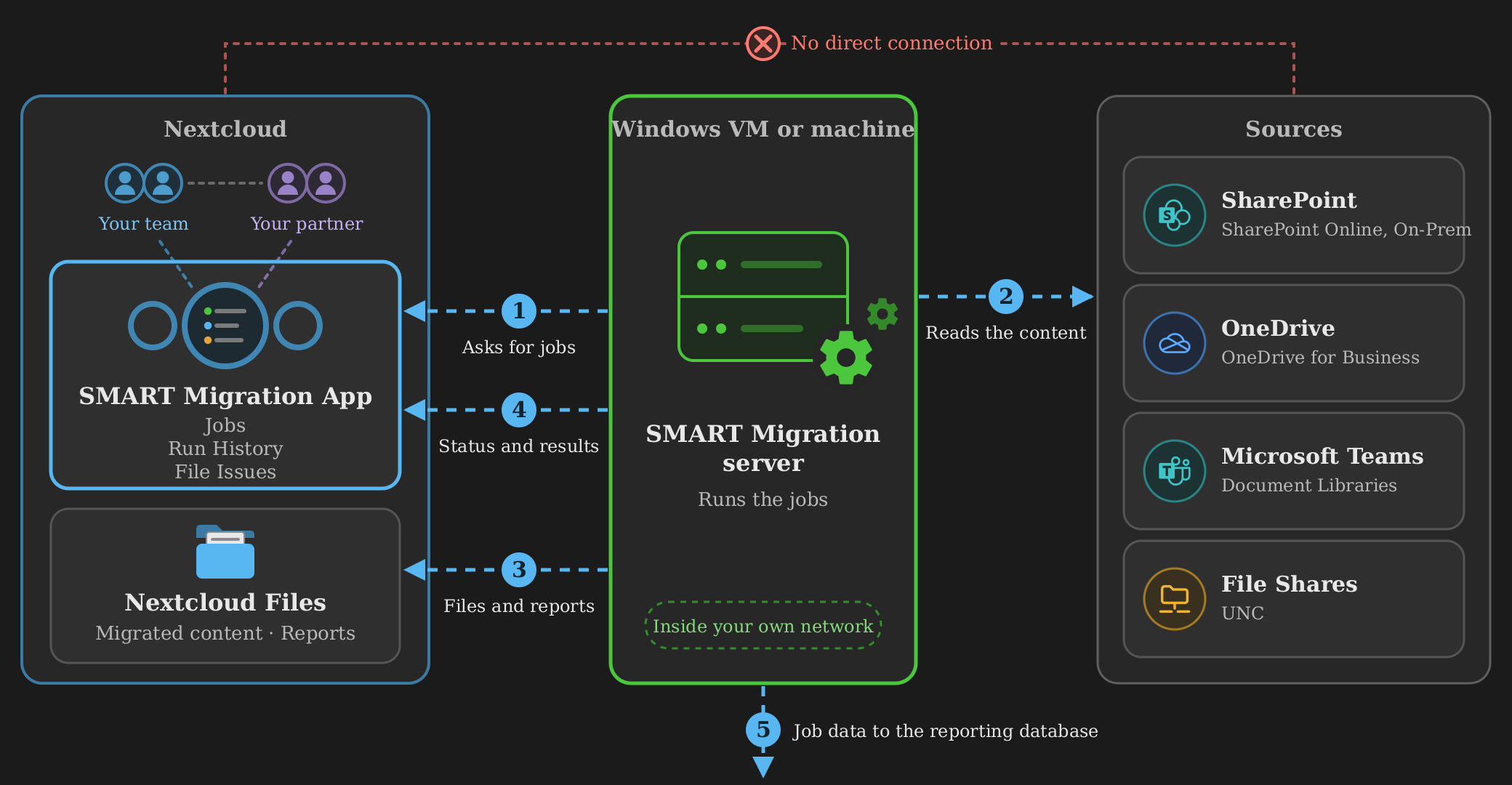
Diagram: the SMART Migration server on a Windows machine polls this Nextcloud app for jobs (1, asks for jobs), reads the source systems (2: SharePoint Online and on-premises, OneDrive for Business, Microsoft Teams document libraries, file shares by UNC path), and writes files and reports (3) and status and results (4) back into Nextcloud. It also writes the data every job produces to a PostgreSQL reporting database (5), which the supplied Power BI report templates read. Nextcloud and the sources have no direct connection. The server runs inside your own network.
The SMART Migration server polls this app for jobs, reads the source systems, and writes files, reports and status back into Nextcloud. It also writes the data every job produces to a reporting database, which the supplied Power BI report templates read.
Business intelligence
Section titled “Business intelligence”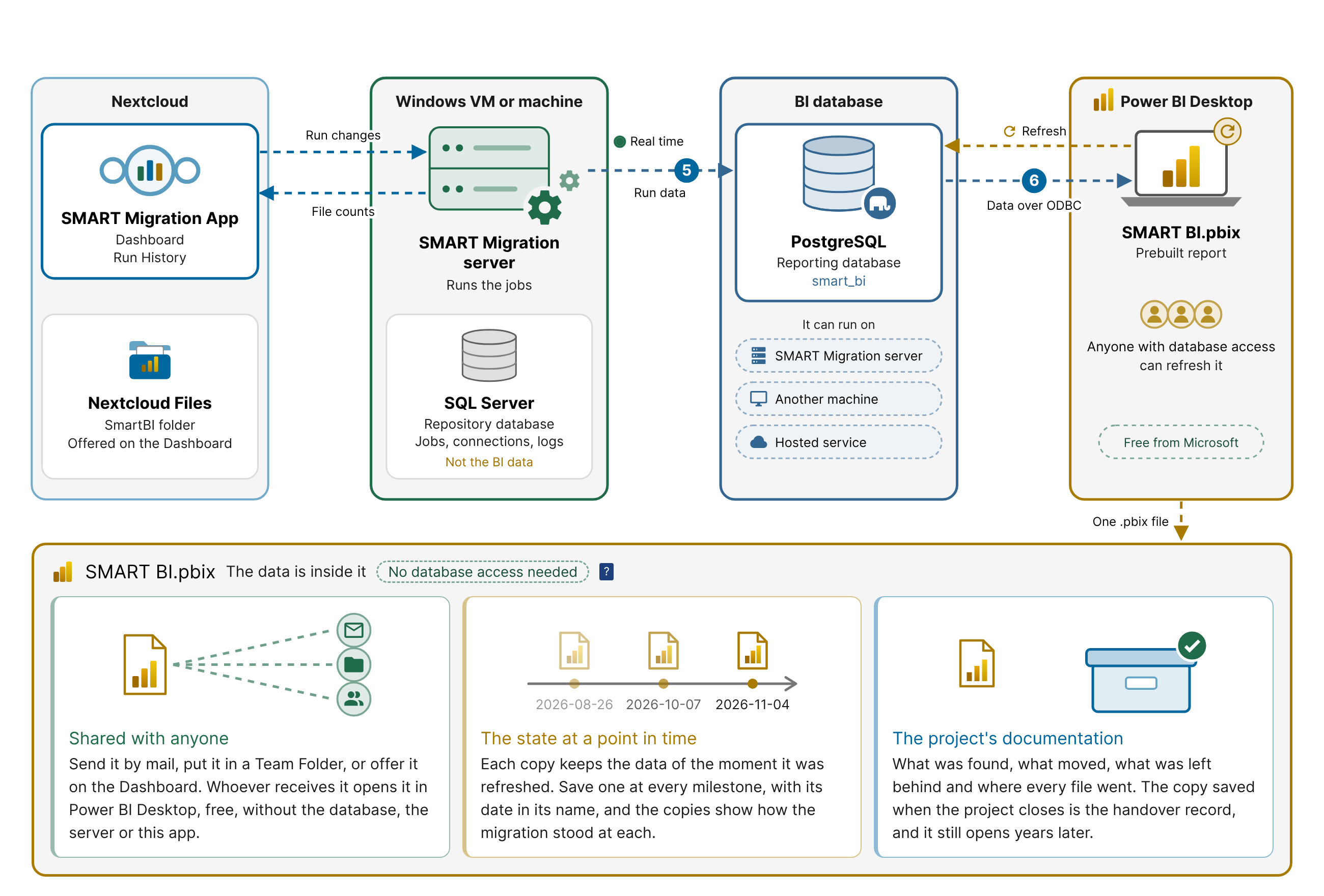
Diagram: the SMART Migration server pushes the data of every run, in real time, into the BI database — PostgreSQL, separate from its own SQL Server repository database, on the same server, another machine or a hosted service. Power BI Desktop refreshes SMART BI.pbix from that database on the PC that holds the report: anyone with a connection to the database can refresh it. The saved file carries its data: it is shared with anyone, keeps the state of its refresh date and documents the project. Deleted and changed runs reach the BI data through the server, which reports its file counts back to the app.
The SMART Migration server pushes the BI data into the reporting database in real time, while each Discovery and Migration run is under way. That database is PostgreSQL, apart from the server's own SQL Server repository database, and it can run on the SMART Migration server, on another machine or as a hosted service.
Power BI Desktop refreshes SMART BI.pbix from it on the PC that holds the report: anyone whose PC has a connection to the database — the ODBC data source SMARTBI — can refresh it. Runs deleted or changed in Run History reach the BI data through the SMART Migration server, which reports its file counts to the Dashboard.
How the Power BI report file works
Section titled “How the Power BI report file works”A refresh copies the data into the file, and from then on the file carries it: sharing it and opening it need no database access.
Shared with anyone Send it by mail, put it in a Team Folder, or offer it on the Dashboard. Whoever receives it opens it in Power BI Desktop, free, without the database, the server or this app. | The state at a point in time Each copy keeps the data of the moment it was refreshed. Save one at every milestone, with its date in its name —SMART BI 2026-10-11.pbix — and the copies show how the migration stood at each. | The project's documentation What was found, what moved, what was left behind and where every file went. The copy saved when the project closes is the handover record, and it still opens years later. |
|---|
The business value of the reports
Discovery and migration generate a great deal of data. The reports are what turn that data into decisions you can act on, a scope you can budget for, and evidence you can put in front of an auditor. That is the difference between moving files and running a migration you can account for afterwards.
| Before you moveScope and budget the work on what is actually there: how much, how old, how deep, and how much of it nobody has opened in five years. The reports put a number on the job before you commit to it — including the content that does not need moving at all. | While it runsProgress your steering group can read, rather than a console only the person running the migration understands. Which waves have gone, what volume has moved, and what needs a decision before the next one starts. | When it closesThe handover document: what was migrated, from where, when, and what was left behind on purpose. It is also the answer years later to the question of where a file came from. | For a standing copyEvidence of when each protected set was last refreshed, which is what an auditor asks for and what a recurring job exists to produce. |
|---|
What it isA single file with the extension .pbix. SMART Migration ships with a set of report templates — one file per report — built for Power BI Desktop, which Microsoft gives away free of charge. There is nothing to install on the Nextcloud side and nothing to configure in this app. Download Power BI Desktop — free, no licence fee | What it is forThe same file does two jobs. While a migration runs it is the live picture: refresh it to see where the waves stand, what has moved, and what needs attention. After the project it is the documentation, and the last refresh keeps working long after the server has been switched off. | Refreshing itA refresh pulls the current data out of the reporting database and stores it inside the file. It has to run somewhere that can reach that database — the SMART Migration machine is the obvious place, but any machine on the network will do. This is the only moment database access is involved at all. | Where the database can liveWherever suits you: on the SMART Migration machine itself, on another machine it can reach, or hosted. A managed PostgreSQL that is reachable from outside the network works well when the reports are refreshed somewhere else. |
|---|---|---|---|
Reading itEveryone else simply opens the file. No database, no credentials, no network path, no SMART Migration. A refreshed .pbix is self-contained: the data sits inside it, and the report draws on that copy. | Sharing itBeing self-contained makes it behave like any other document. E-mail it to a manager, drop it in a Team folder, keep a copy at each milestone. Every copy holds the data it had when it was refreshed, which is exactly what makes it usable as a record. | Where it lives, and why it is a fileNot inside this app. Nextcloud has no Power BI viewer, so nothing here renders the report; upload the file to Nextcloud Files and it behaves like any other file — downloadable, shareable, versioned — but it is opened on a desktop, not in the browser. That is a decision rather than a gap: a file can be refreshed by one person and read by twenty, kept as a copy at each milestone, handed on when the project closes, and opened years later without this app, the server, or the database still being around. | Making it yoursThe templates are ready to use and they are not locked. Change a visual, add a page, remove one you do not need, apply your own colours. It is an ordinary Power BI file, so anything Power BI Desktop can do to a report, you can do to this one. |
Power BI for the templates, your choice for everything else
The report templates are built specifically for Power BI Desktop. They are .pbix files, so they open there and nowhere else. Power BI Desktop itself costs nothing — Microsoft gives it away, and there is no licence to buy and no subscription to sign up for in order to open and refresh these reports. Download Power BI Desktop — free, no licence fee
The reporting database is a different matter. Its tables are modelled for reporting and they are ordinary PostgreSQL tables, so any BI system you already run can read them directly — Tableau, Qlik, Looker or Excel among them. The templates are a head start, not a requirement.
The database itself is free too, and open source: PostgreSQL costs nothing to license, on any number of cores, and it handles this reporting workload well. Run it wherever suits you — on the SMART Migration machine, on another server, or as a managed PostgreSQL service. The BI tool on top of it is your choice.
The workflow, step by step
Section titled “The workflow, step by step”- The server polls this appIt signs in with an app password of its own Nextcloud administrator account and asks for jobs whose status is Ready; the app answers at once, with a job or with how long to wait before asking again.
- The server reads the sourceAll Microsoft 365, SharePoint on-premises, and file-share access happens from the Windows machine, never from Nextcloud.
- Content and reports land in Nextcloud FilesMigrated files and the discovery or migration report are written into Files as ordinary content.
- Status and results come back hereThe job row is updated as the run progresses, and Run History records the outcome and details of each execution.
- Job data is pushed to the reporting databaseEvery discovery and migration job produces data, and all of it goes into the PostgreSQL reporting database.
- BI reports pull from that databasePower BI report templates are supplied with SMART Migration. Use them as they are, or modify them to suit you.
What a job status means
Section titled “What a job status means”
A job moves from Hold to Ready, which you set, then to Running and Finished, which the SMART Migration server sets.
A job only starts once you set it to Ready and the SMART Migration server is running and connected. The Dashboard tab tells you whether it is: it reports the server as running when the API has been contacted within the last two minutes, and as stopped when it has not. If jobs stay on Ready, look there first — this app has no way to start one.
The server also runs at most four jobs at a time. Anything else you set to Ready waits its turn and starts as soon as a slot frees up, so a queue sitting on Ready is normal while four are already running.