

Azure Blob Storage Configuration
Section titled “Azure Blob Storage Configuration”1. Prepare your Azure Storage account
Section titled “1. Prepare your Azure Storage account”To use SMART Offload, you need an Azure Storage account and a Shared Access Signature (SAS token).
- Configure the account to store Block Blobs.
- Keep hierarchical namespace disabled.
- Choose the redundancy option that meets your requirements.
- Create a container named smartoffload. The name must be written entirely in lowercase.
2. Generate your SAS token
Section titled “2. Generate your SAS token”SMART Offload uses a SAS token to authenticate access to Azure Blob Storage. The token defines the permitted operations, validity period and optional IP address restrictions.
Generate the token using either of these methods:
Azure portal: Open your storage account and select Shared access signature under Security + networking.
Microsoft Azure Storage Explorer: Right-click the container and select Get Shared Access Signature.
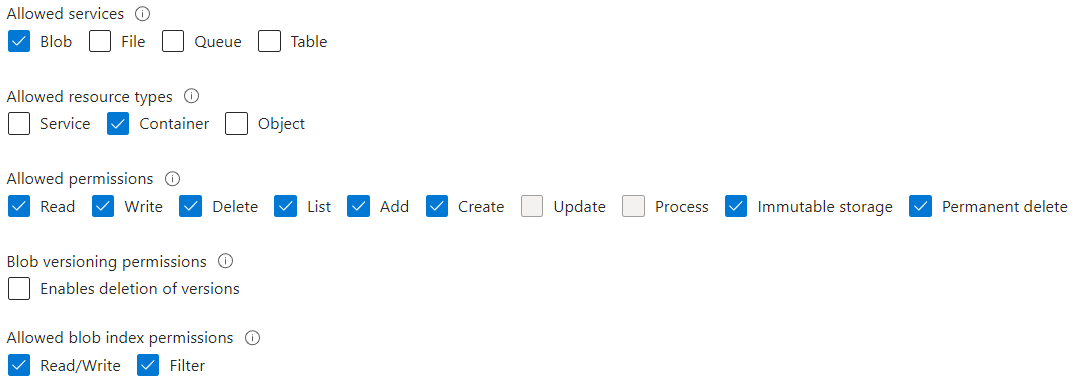
3. Set the required permissions
Section titled “3. Set the required permissions”Configure the SAS permissions shown in the screenshot below.
4. Configure and protect your token
Section titled “4. Configure and protect your token”A SAS token is a string of characters. Copy the token generated by Azure into the corresponding field in SMART Offload.
- Allow HTTPS connections only.
- Grant the permissions required by SMART Offload.
- Set a validity period that covers the planned operations, and renew the token before it expires.
- Where appropriate, restrict access to the public IP addresses used by your SMART Offload server.
- Treat the token as a credential and store it securely.
5. Optional: Microsoft Azure Storage Explorer
Section titled “5. Optional: Microsoft Azure Storage Explorer”Microsoft Azure Storage Explorer provides a convenient way for administrators to browse the container and inspect offloaded content. It can also help you understand and troubleshoot storage operations.
Storage Explorer is recommended for administration but is not required to run SMART Offload.
[
 ](https://azure.microsoft.com/en-us/products/storage/storage-explorer)
Bedre prompt: “Lav hele teksten igen. Tving al tekst, inklusive punktopstillinger og fremhævels
See also